
Adding videos to All Video Share only puts them in your library. Deciding where they appear on your website is a separate step, and there are four ways to do it. This page explains what each one is for, so you can pick the right one before you start.
On This Page
A Page of Its Own — Menu Items
A menu item creates a full page dedicated to your videos, reachable from your site menu and from search engines. This is the main way most sites present a video library.
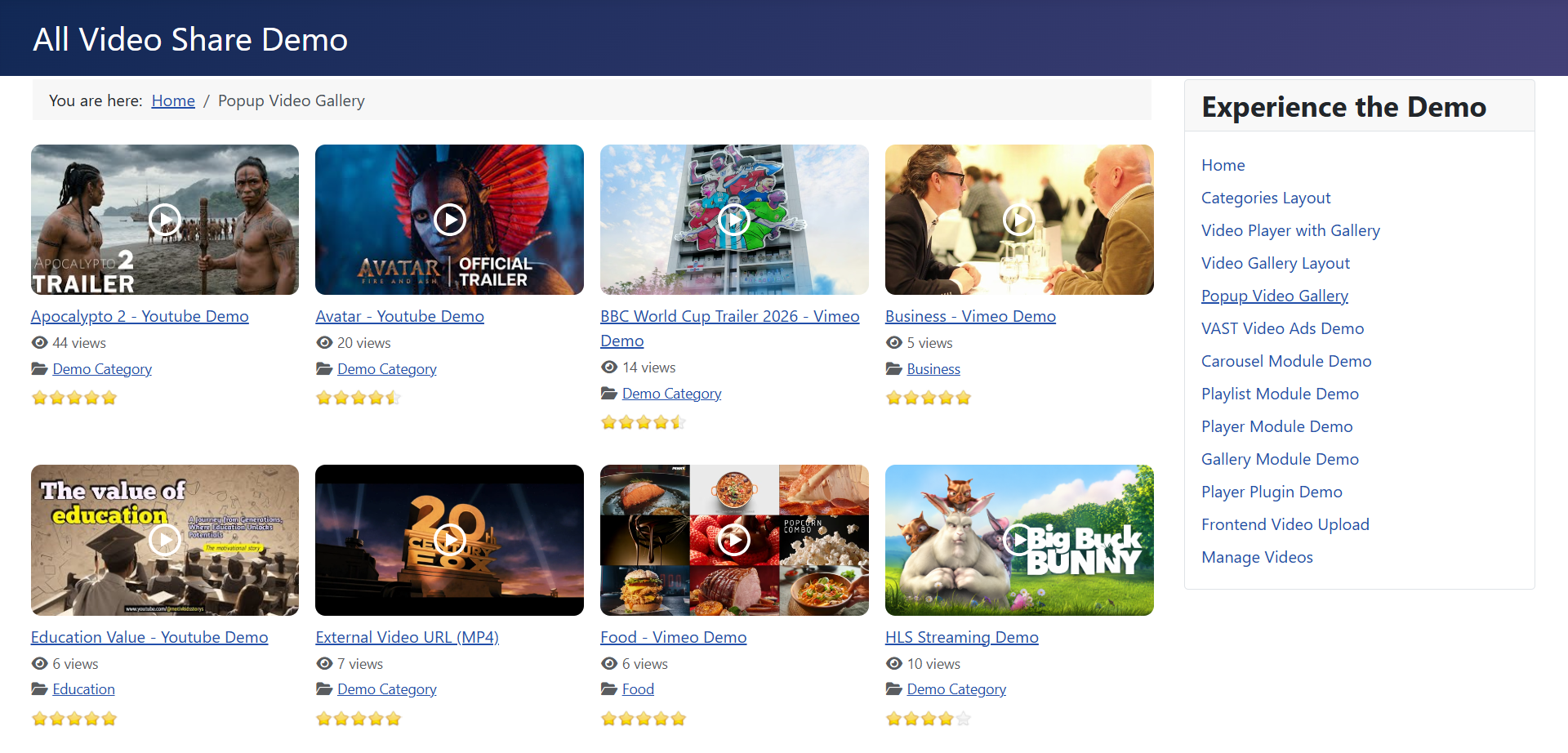
You get several layouts to choose from: a grid of all your videos, a grid of categories, a single video’s page, and a form where your own users can add videos. Each layout has its own settings, so one page can show three columns while another shows six.
Use this when videos are a section of your website in their own right, and you want a link to them in your navigation.
See Menu Items & Layouts.
Alongside Other Content — Modules
Modules drop videos into any position your Joomla template offers — a sidebar, a footer, or a strip across your home page. They sit beside your normal content rather than replacing it.

Six modules come with All Video Share: a gallery grid, a sliding carousel, a single player, a player with a playlist beside it, a search box, and an automatic YouTube gallery.
Use this when you want videos to appear on pages that are mostly about something else — a “latest videos” strip on your home page, for example.
Inside an Article — Shortcodes
A shortcode is a small piece of text you type into an article where you want a video to appear. When the page loads, All Video Share swaps it for a working player.
{avsplayer id=5}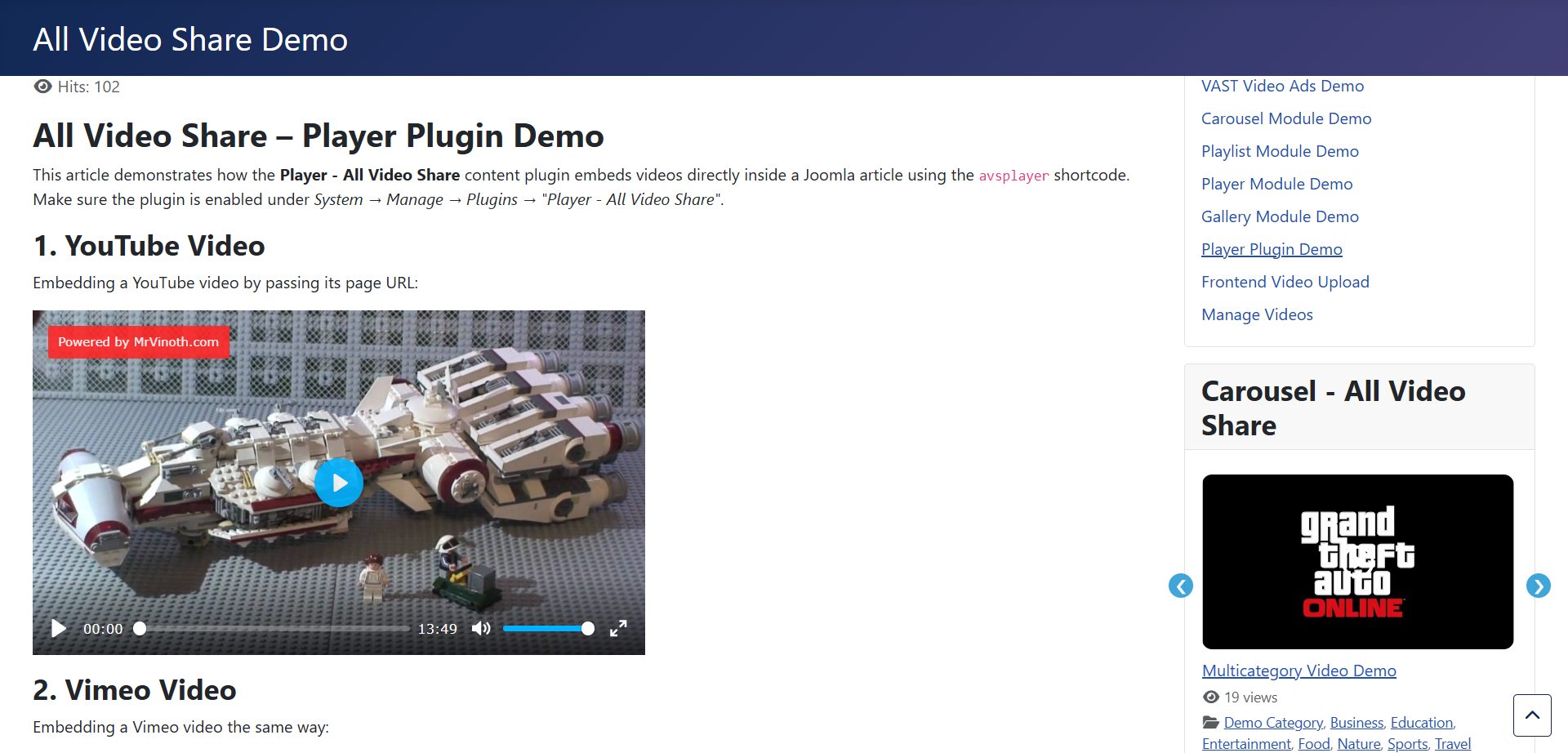
This gives you exact control over placement — the player goes precisely where you put the tag, in the middle of a paragraph if you like.
Use this when a video belongs to a particular piece of writing — a tutorial that needs a demonstration halfway through, or a blog post built around one clip.
Straight From YouTube — Automatic Galleries
The three methods above all show videos from your own library. The automatic YouTube gallery works differently: it fetches videos live from a YouTube playlist, channel or search term, and keeps itself up to date without you touching it.
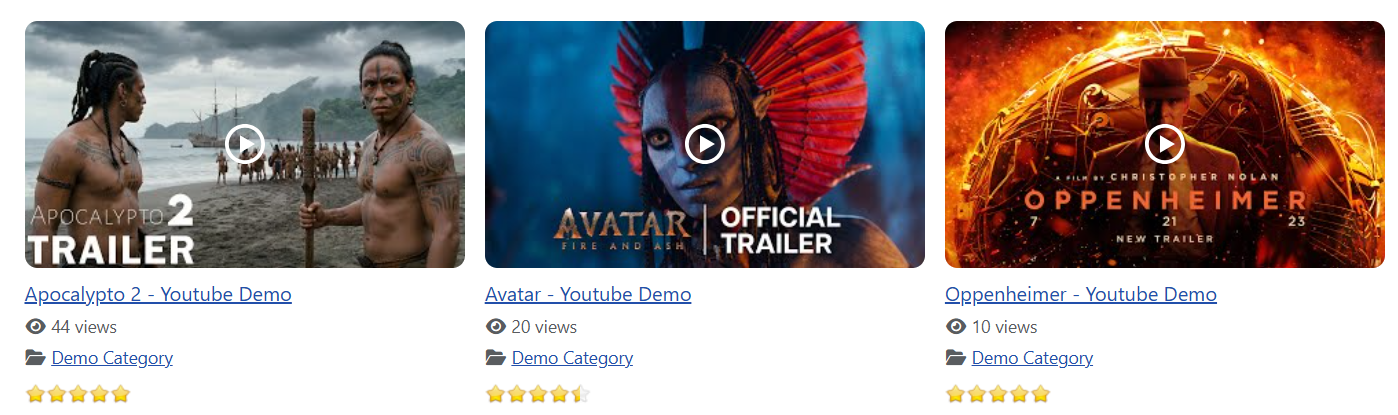
Publish a new video to your YouTube channel and it appears on your website by itself. You can show these galleries as a page, as a module, or inside an article, so it overlaps with all three methods above.
Use this when YouTube is already where your videos live and you do not want to add each one to your website by hand.
See Automatic YouTube Gallery.
Which One Should You Use?
If you are still unsure, ask yourself where the video needs to be:
- A page visitors can navigate to — use a menu item.
- A sidebar, footer or home page strip — use a module.
- A specific spot inside a piece of writing — use a shortcode.
- Kept in step with a YouTube channel — use an automatic YouTube gallery.
Nothing stops you using all four together, and most sites do. A typical setup has a Videos page in the main menu, a “latest videos” module on the home page, and the occasional player dropped into an article.
Whichever you choose, the settings work the same way. Your global Options set the defaults, and each page, module or shortcode can override the ones it needs. Anything you leave alone simply follows the global setting.
Next: Menu Items & Layouts →