
A menu item gives your videos a page of their own — one your visitors can reach from your site navigation and search engines can index. All Video Share adds several menu item types to Joomla, each producing a different kind of page.
Adding a Menu Item
- Go to Menus and pick the menu you want the link to appear in, then click Add New Menu Item.
- Type a Title — this is the wording shown in your menu.
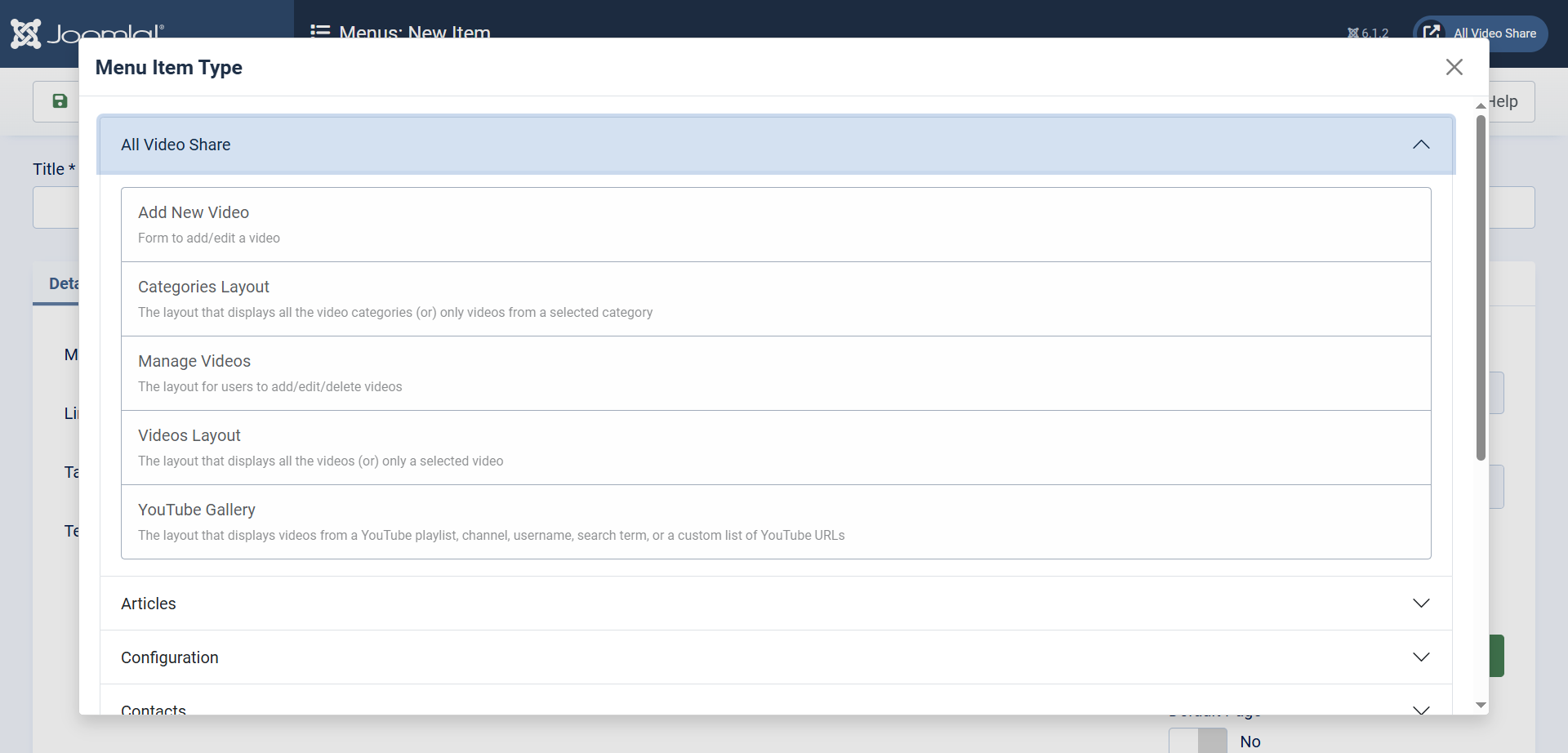
- Next to Menu Item Type, click Select.
- Click All Video Share to expand the group, then choose the layout you want.
- Fill in the settings that appear, then click Save & Close.
Videos Layout
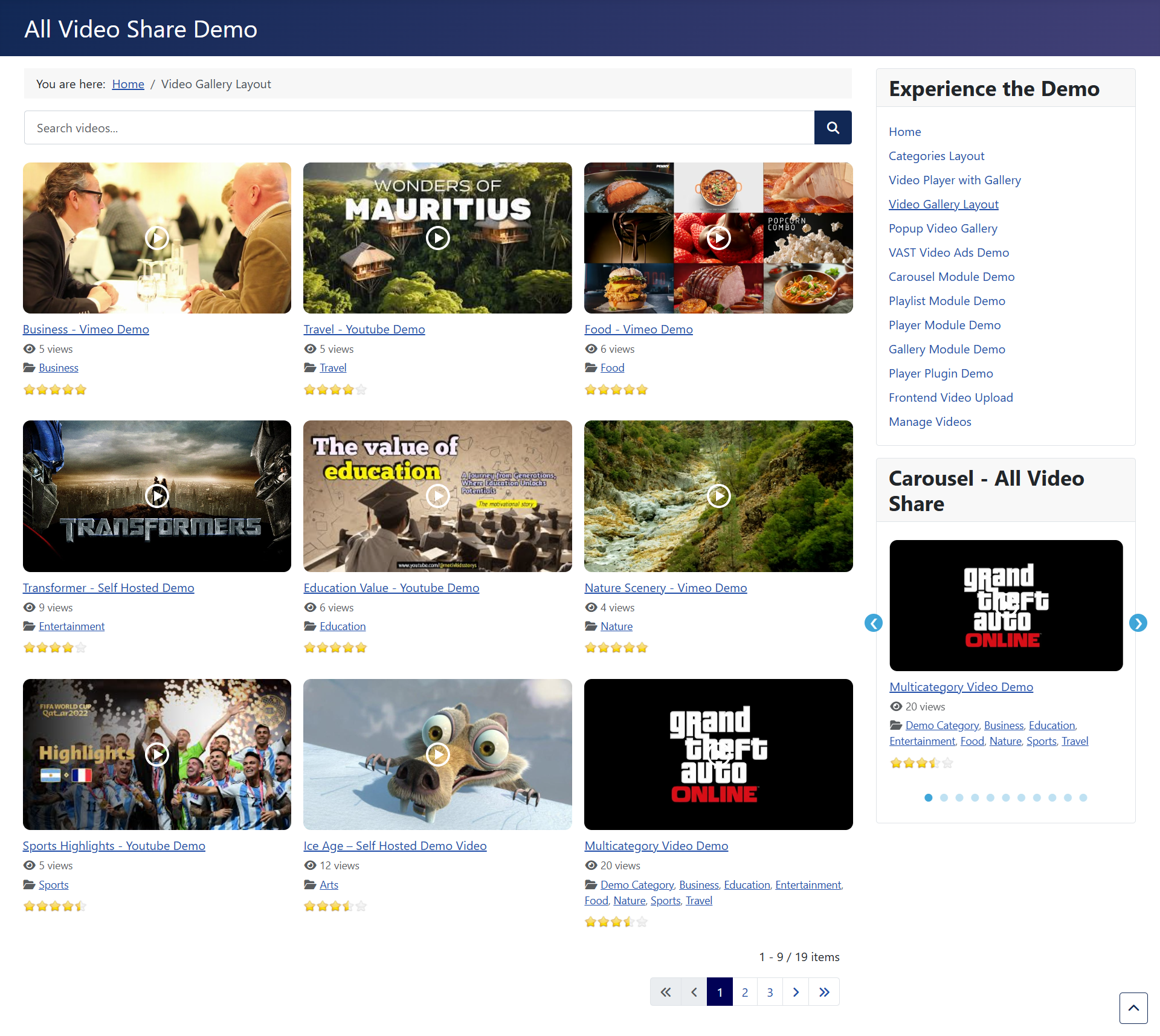
This is the layout most sites start with. It produces a grid of video thumbnails, with paging when there are more videos than fit on one page.
The Video field at the top decides what the page actually shows, and it works in two quite different ways:
- Leave it empty and the page lists every published video in your library.
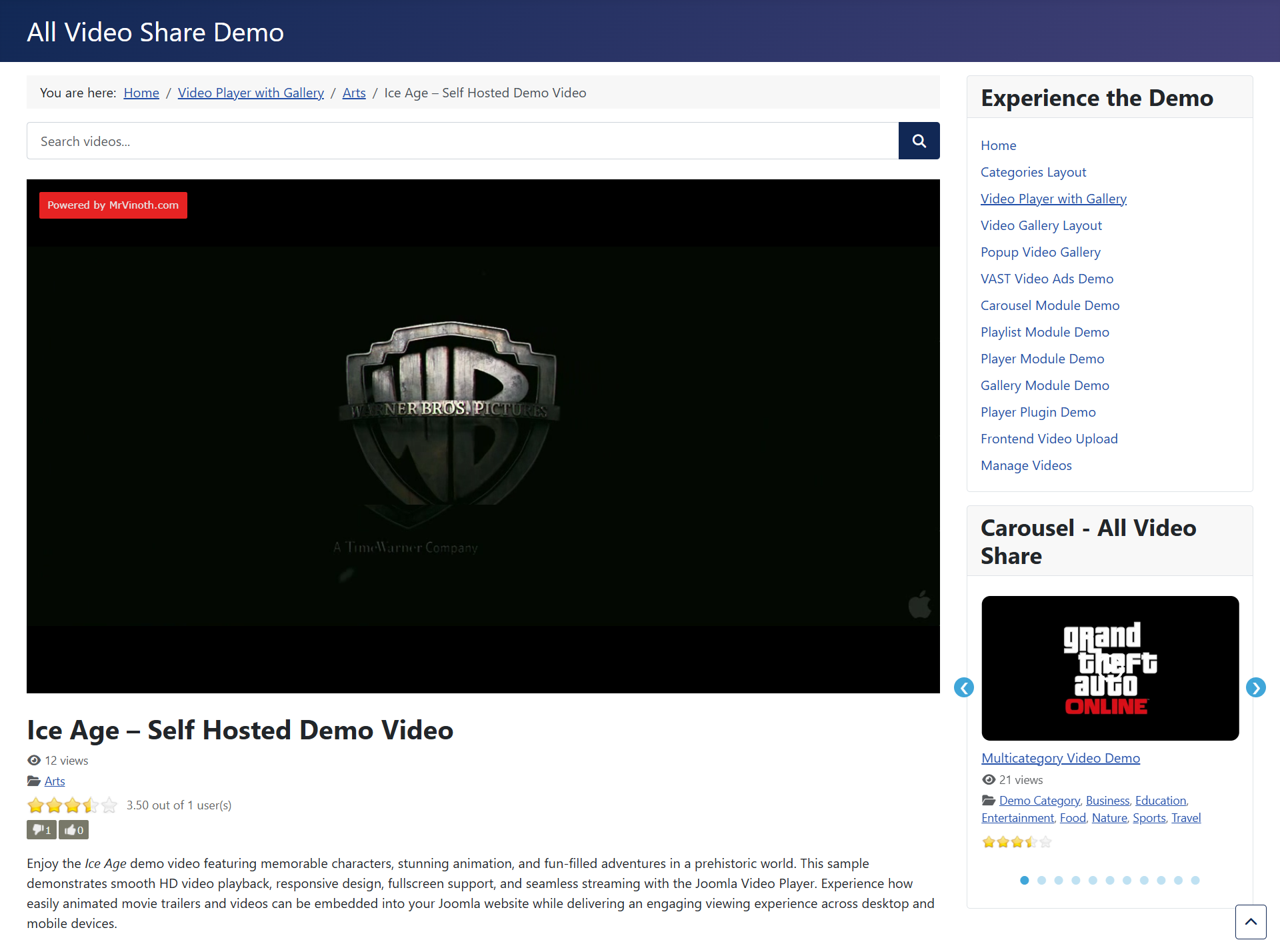
- Choose one video and the page becomes that video’s own page, with the player, its description and a row of related videos — useful when a single video deserves a permanent link in your menu.

Its Settings
Open the All Video Share tab on the menu item and you will find these under General:
- Number of Rows and Number of Columns — multiply these together to get how many videos appear per page. Three by three gives nine.
- Order By — the sequence videos appear in. Newest first, alphabetical, most watched, random, or your own hand-picked order.
- Featured — switch this on to limit the page to videos you have flagged as featured.
- Short Description — show or hide the snippet of text beneath each title.
- Category Name, Author Name, Date Added and Views Count — each shows or hides that piece of information under the thumbnail.
- RSS Feed — offer a feed of this page’s videos.
You will also see Ratings and Open Videos in Popup in this list. Both belong to the premium version — see Premium Features.
Below that sits a Player section, which is the same on every layout and is explained further down this page.
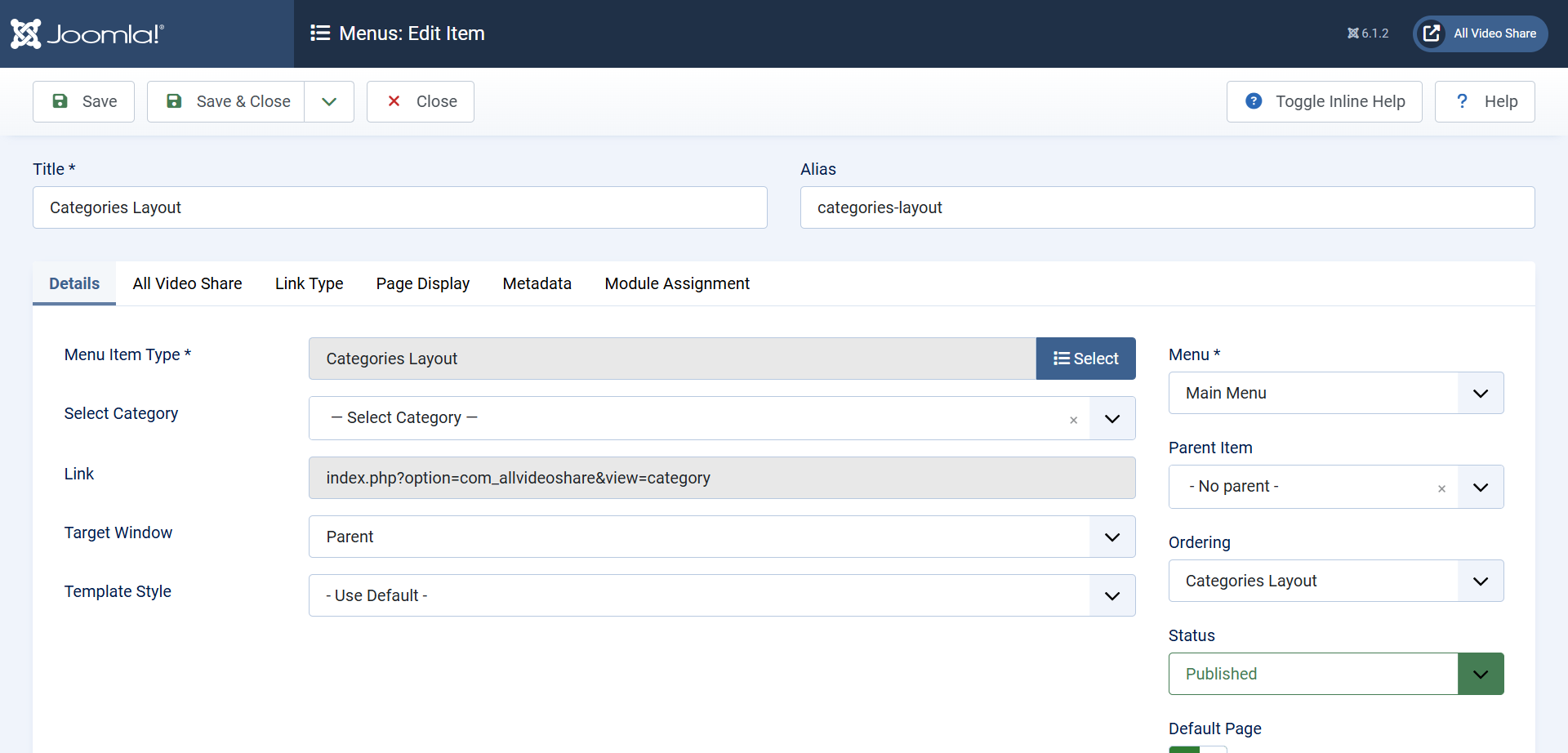
Categories Layout
Where the Videos Layout shows videos, this one shows the categories they are filed under. Visitors pick a category first, then a video — which suits a large library far better than one enormous grid.
As before, the Category field at the top changes what the page does:
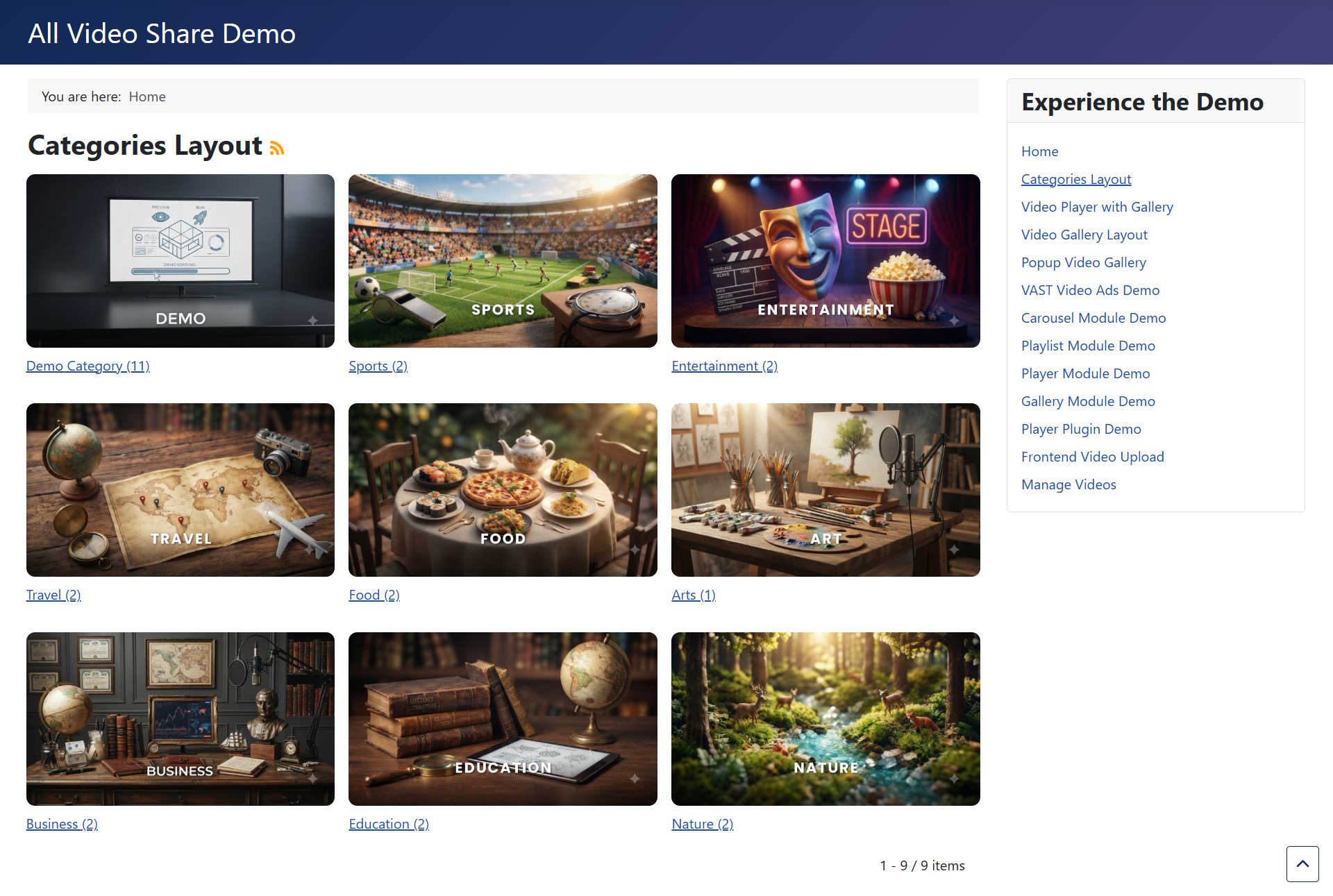
- Leave it empty and the page shows all of your top-level categories as a grid.
- Choose one category and the page shows that category instead — its sub-categories first, then the videos filed directly inside it.
Its Settings
Because this layout can show both categories and videos, its settings come in three groups.
General covers the page as a whole — Number of Rows, Number of Columns, Short Description and RSS Feed.
Categories Layout controls how the categories themselves are shown:
- Order By — newest first, alphabetical, random, or your hand-picked order.
- Videos Count — show how many videos each category holds.
Videos Layout controls the videos shown once a visitor is inside a category — the same Order By, Featured, Category Name, Author Name, Date Added and Views Count settings described for the Videos Layout above.
Player Settings
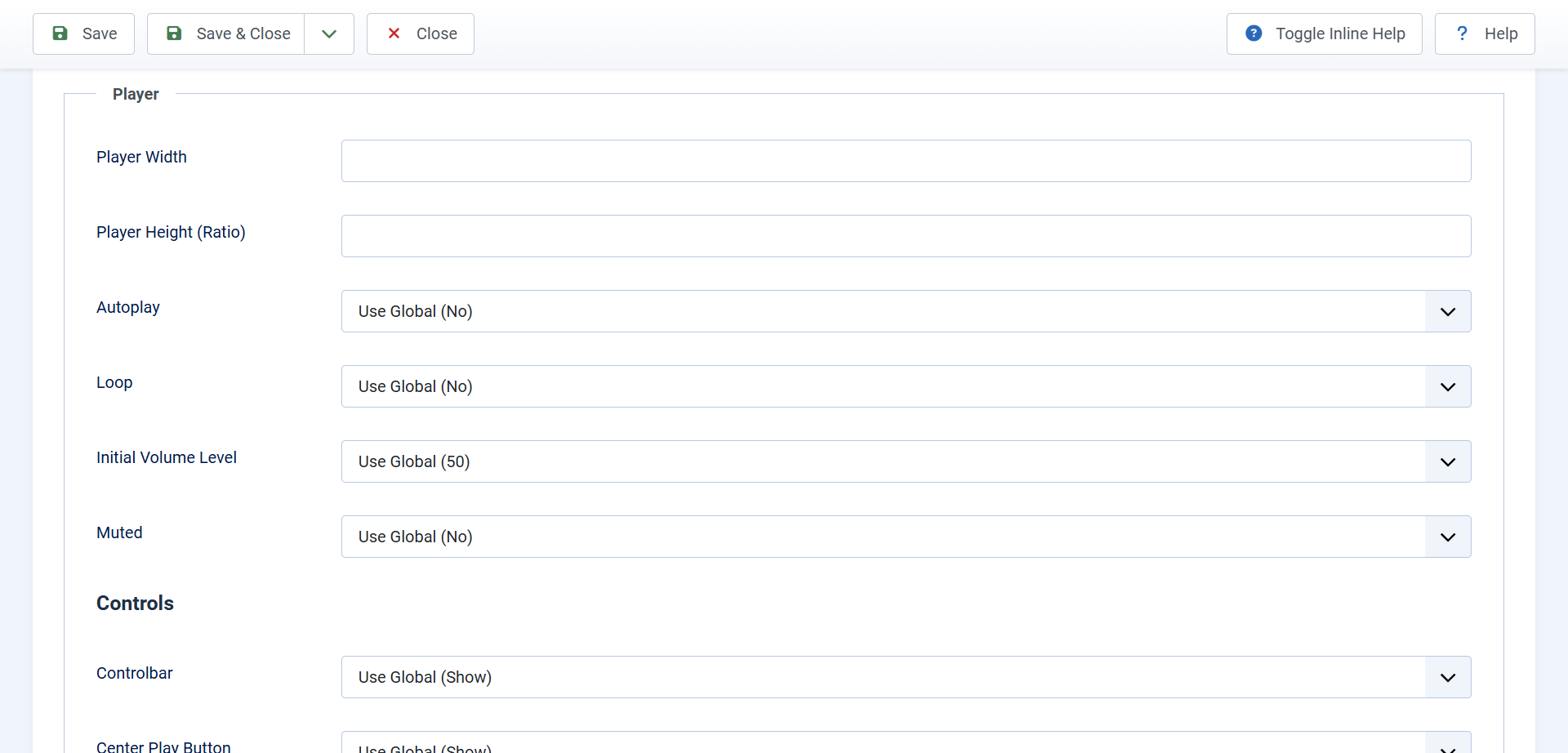
Both of the layouts above carry a Player section. Whatever you set here applies to videos played from that page only, which means one page can offer a stripped-back player while another gives viewers every control.
The first few settings cover size and playback:
- Player Width — leave empty and the player fills the space available. Enter a number of pixels to cap it.
- Player Height (Ratio) — the shape of the player. Use
56.25for widescreen, which suits almost every modern video. - Autoplay — start playing as soon as the page opens. Browsers only allow this when the video is muted.
- Loop — start again automatically when the video ends.
- Initial Volume Level — the volume the player opens at, from 0 to 100.
- Muted — start with the sound turned off.
Below those is a long list of controls, each of which simply shows or hides one button in the player: the control bar itself, the large play button, rewind, play, fast forward, the progress bar, current time, duration, volume, captions, quality, playback speed, picture-in-picture, download, fullscreen, embed and share.
Finally there is an Advertisements section for showing an advert before or after the video. That is covered in The Video Player.
These settings apply to your own video files and to streams. YouTube and Vimeo videos play inside the provider’s own player, which brings its own controls.
Manage Videos and Add New Video
Two more layouts exist for sites where visitors contribute their own videos.
Manage Videos gives a logged-in user a page listing the videos they have submitted, where they can edit or remove them. Add New Video gives them the submission form itself.
Neither has any settings of its own — what users may do is decided by your permissions and by the options on the Front-end Video Form tab. Both require the visitor to be logged in; anyone else is sent to your login page.
Setting this up properly is covered in Front-end Video Submission.
YouTube Gallery
The last layout does not use your video library at all. It builds a page from a YouTube playlist, channel, search term or live stream, and refreshes itself as new videos are published.
It carries far more settings than the other layouts — where the videos come from, which of the five gallery styles to use, and how the YouTube player behaves. All of that is covered in Automatic YouTube Gallery.
Use Global, and Why It Matters
Nearly every setting on a menu item offers a choice called Use Global, and it is selected by default. It means “whatever the Options screen says”.
This is worth understanding, because it saves a great deal of work. Set your preferences once under Components → All Video Share → Options and every page follows them. Change your mind later and one edit updates the whole site — except for the individual pages where you deliberately chose something different.
So the practical advice is to leave menu item settings on Use Global unless that particular page genuinely needs to differ. A page showing six columns of short clips alongside another showing three columns of full-length talks is a good reason to override. Setting the same value on every page one by one is not.
Every option on the global screen is listed in the Global Options Reference.