
All Video Share can let your registered users add videos themselves, from the front end of your website, without ever seeing the Joomla administrator. They get a form to submit videos and a page listing the ones they have added, so they can edit or remove their own work.
Setting this up takes three steps: give people permission, add the two pages, and decide what they are allowed to submit.
On This Page
Step 1: Give Users Permission
Nobody can submit anything until you say so. Go to Components → All Video Share → Options → Permissions, choose the user group you want to allow — usually Registered — and set these:
- Create — set to Allowed. This is what lets someone submit a video at all.
- Edit Own — set to Allowed. This lets people change or delete the videos they submitted, and nobody else’s.
- Delete — leave this alone unless you want users removing videos outright.
- Edit State — leave this Denied. This is the setting that decides whether videos go live immediately, and it is explained further down.
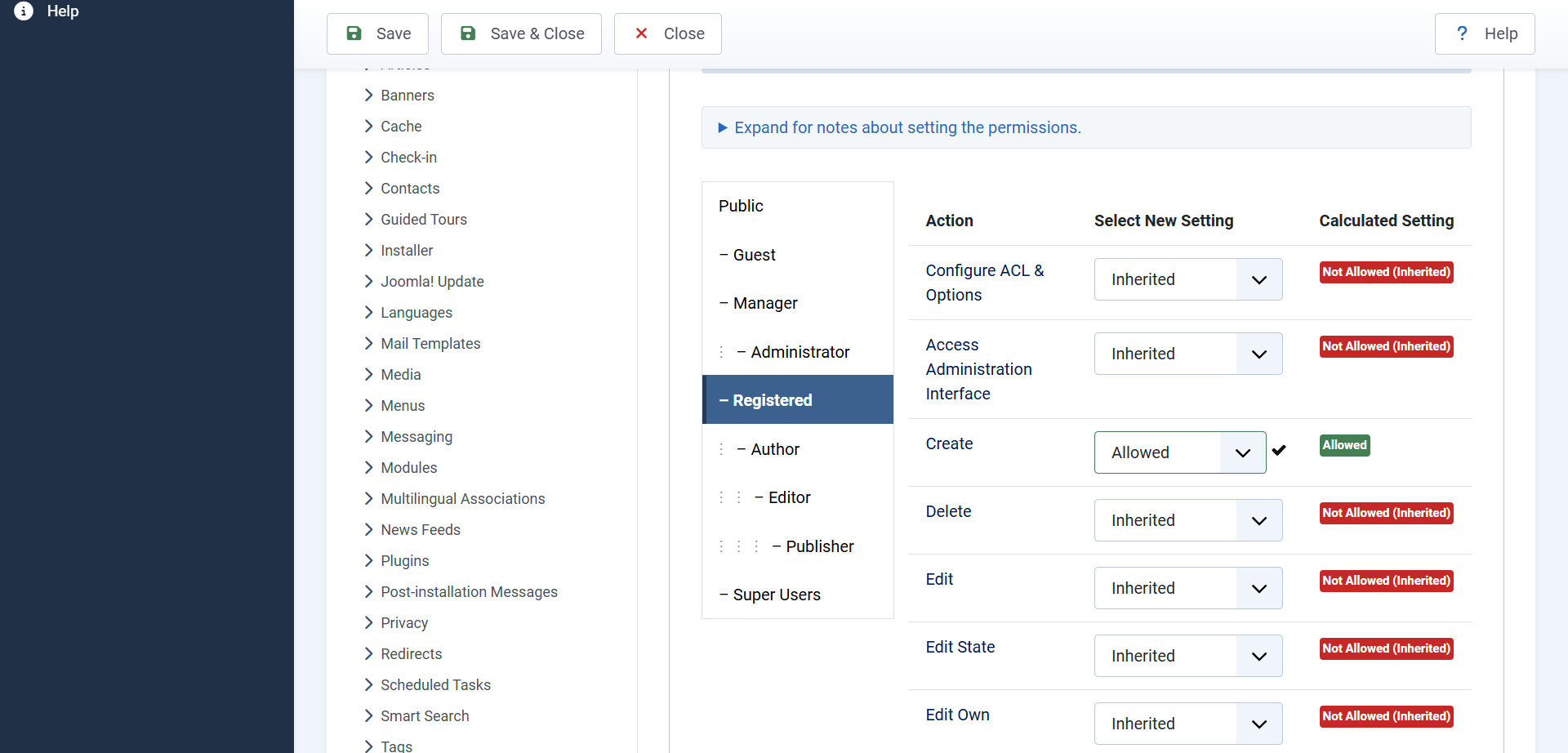
Click Save and the permissions take effect straight away.
Edit Own, not Edit. Plain Edit lets somebody change every video on your site, including yours. Edit Own restricts them to their own submissions, which is what you want here.
Step 2: Add the Two Pages
Your users need somewhere to go. Add two menu items, both from the All Video Share group:
- Manage Videos — the page listing a user’s own submissions, where they can edit and remove them.
- Add New Video — the submission form itself.

Neither has any settings of its own — what people can do is governed entirely by the permissions you set in step one.
Set the Access on both menu items to Registered, so the links only appear to people who are logged in. Both pages require a login regardless, and anyone else is sent to your login page — but hiding links that a visitor cannot use makes for a tidier menu.
A menu with both items sitting inside a “My Account” section is the usual arrangement.
Step 3: Decide What They May Submit
By default users may upload their own video files and nothing else. Go to Options → Front-end Video Form to widen that.
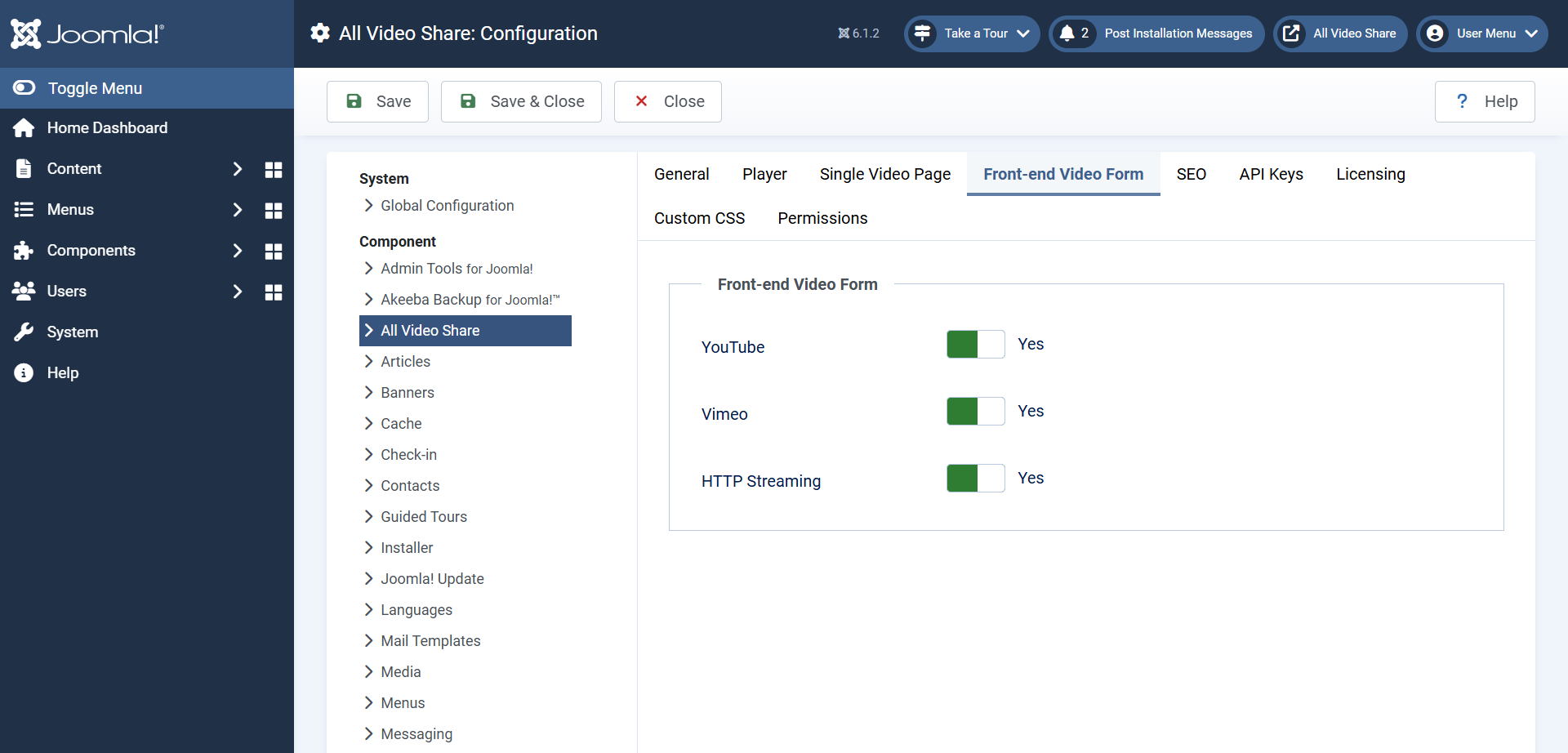
- YouTube — let users submit a YouTube link.
- Vimeo — let users submit a Vimeo link.
- HTTP Streaming — let users submit a stream address.
This decision matters more than it looks. Allowing links rather than uploads costs you no disk space and no bandwidth, and there is nothing to scan or worry about — the video stays on YouTube’s servers. Allowing uploads means every submission lands on your hosting.
Many sites turn the link options on and leave uploads for staff only.
Embed code from other sites is deliberately not offered on the front-end form. Accepting raw code from your users would be a security risk, so that source type stays in the administrator.
What Your Users See
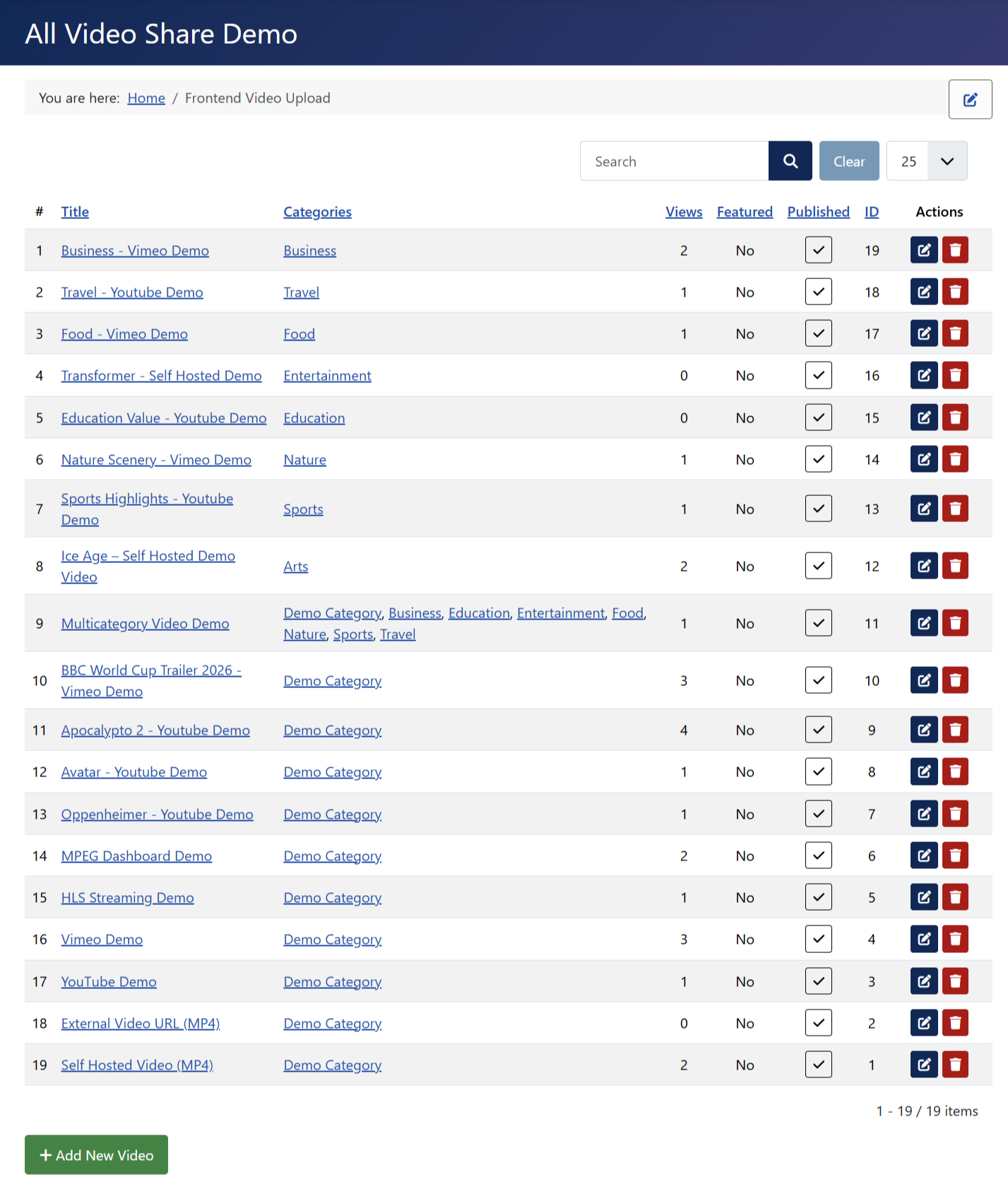
A logged-in user visiting Manage Videos gets a list of the videos they have submitted, with buttons to add a new one, edit an existing one, or remove it. Other people’s videos never appear here.
The submission form itself is a simplified version of the one you use in the administrator:
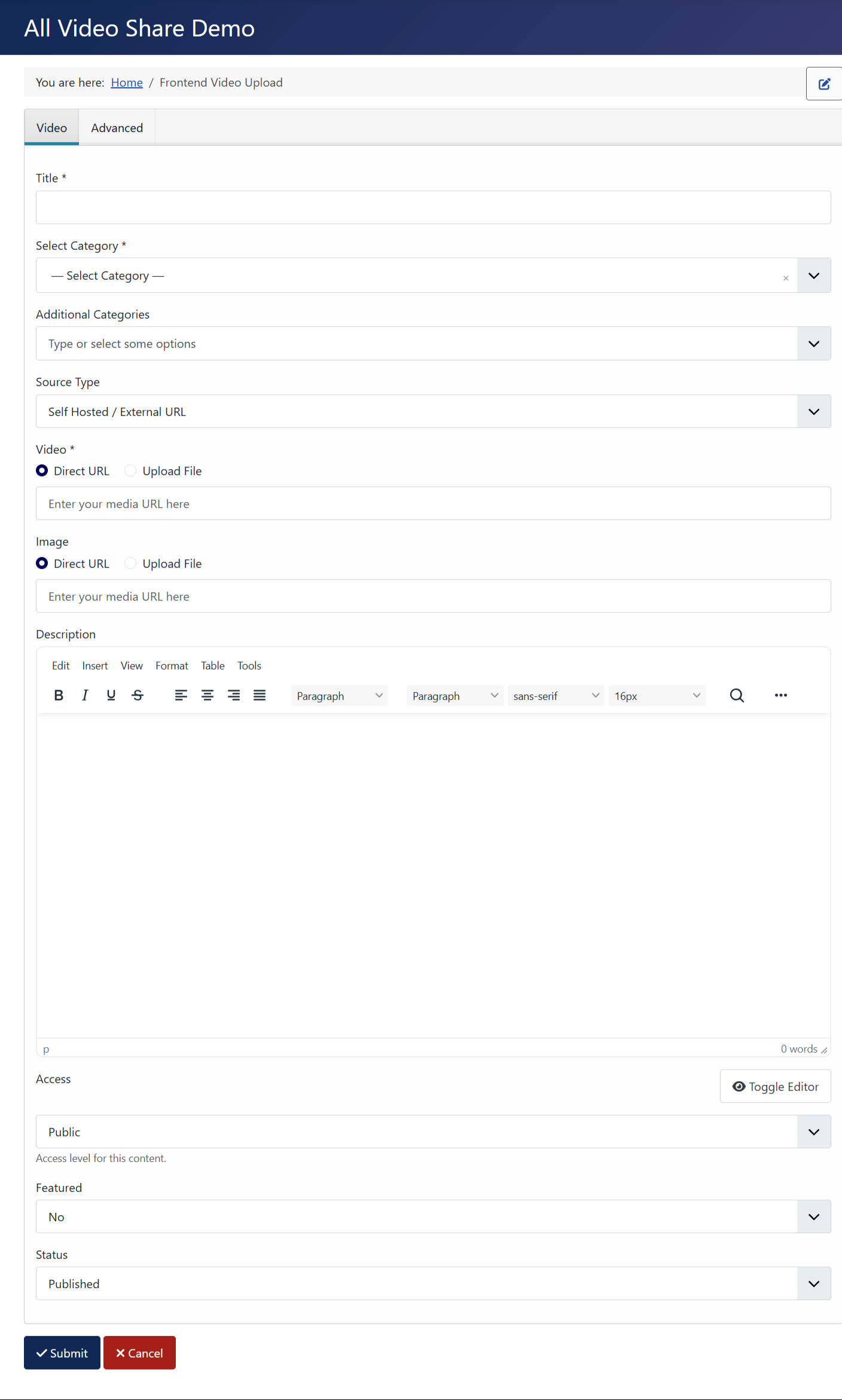
- Title and Category — both required.
- Video Type and its source field — showing only the types you allowed in step three.
- Thumbnail — optional, and filled in automatically for YouTube and Vimeo videos.
- Description and Meta Keywords.
- Subtitles — users can attach subtitle files to their own uploads.
The administrator-only fields — view counts, ordering, the author credit — are not shown. Users cannot fake a view count or reassign a video to somebody else.
Approving What Comes In
This is the part worth getting right, and it comes down to that Edit State permission from step one.
With Edit State denied — the safe arrangement — a submitted video arrives unpublished. Nobody but you can see it until you approve it. The user is shown its status on their Manage Videos page, so they know it is waiting rather than lost.
With Edit State allowed, users choose the status themselves and their videos go live the moment they press save, with nobody checking first.
To review what is waiting, go to Components → All Video Share → Videos and filter the status to Unpublished. Anything sitting there is a submission awaiting your decision. Publish it and it appears on your site; trash it and it does not.
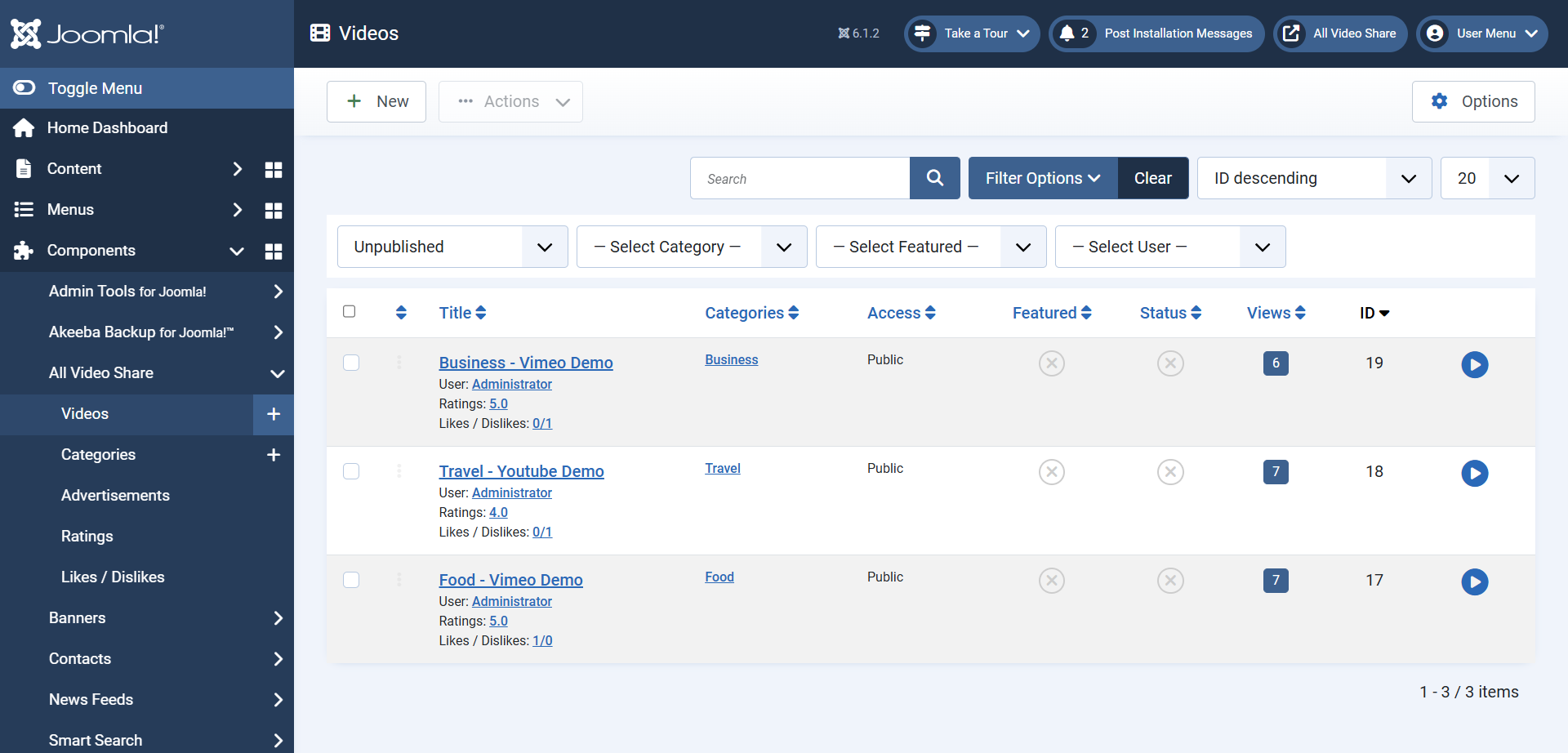
Filtering the Videos list by author shows you everything one person has submitted, which is the quickest way to deal with somebody who turns out to be a nuisance.
Joomla does not email you when a video is submitted. Get into the habit of checking the unpublished list, or your contributors will be left waiting and wondering.
Keeping It Under Control
Letting strangers upload files to your server deserves a little thought. All Video Share does its part — every uploaded file is checked to confirm it really is a video and not something disguised as one, and the same check is applied to subtitle files. A file that fails is rejected rather than stored.
Beyond that, a few sensible precautions:
- Keep approval switched on. Leaving Edit State denied means nothing reaches your visitors without you seeing it first. This is your single best protection.
- Set a sensible upload limit. Your server’s PHP settings cap the size of an upload. Leaving that at a modest figure stops one person filling your disk with a feature film.
- Watch your disk space. Uploads collect in
/media/com_allvideoshare/videos/. Deleting a video removes its record but leaves the file behind, so that folder needs clearing out from time to time. - Prefer links over uploads where you can. A site that accepts YouTube and Vimeo links carries none of this risk.
- Do not hand out Edit or Delete casually. Edit Own is enough for contributors. The unrestricted versions apply to every video on your site.
It is also worth writing a short page explaining what you will and will not accept, and linking to it from the submission form’s menu item. Clear expectations save far more time than moderation does.