
A shortcode is a small piece of text you type into an article where you want a video to appear. When someone opens the page, All Video Share replaces it with a working player. It is the most precise way to place a video, because it goes exactly where you put the tag.
There are two tags. {avsplayer} shows a video from your library, and {avsyoutube} shows an automatic gallery pulled from YouTube.
On This Page
Turn On the Plugins First
Shortcodes are handled by plugins, and Joomla installs them switched off. Nothing will happen until you enable them.
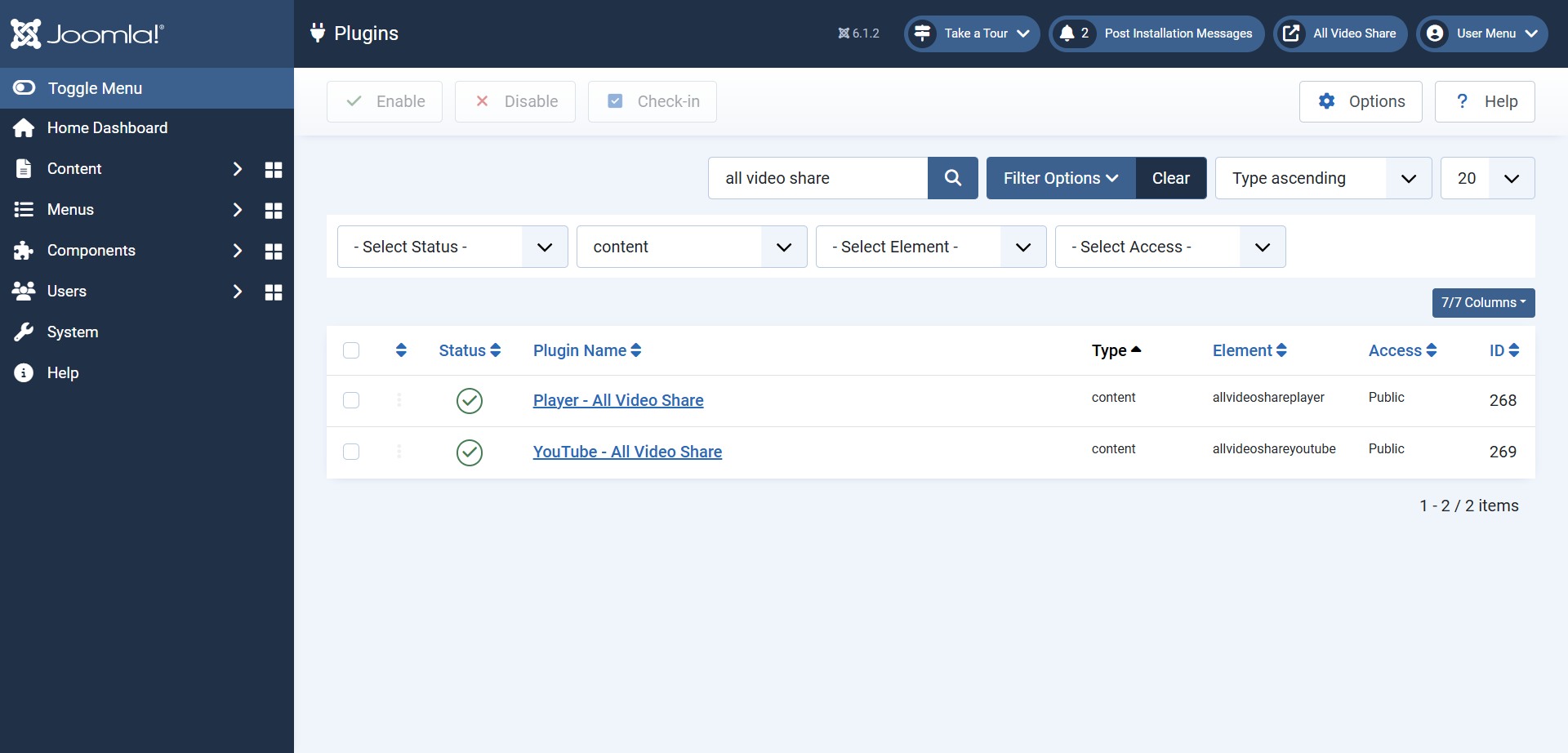
- Go to System → Manage → Plugins.
- Search for allvideoshare.
- Enable Content — All Video Share Player for the
{avsplayer}tag, and Content — All Video Share YouTube for the{avsyoutube}tag.
If your tag appears on the page as plain text — visitors literally see
{avsplayer id=5}— the plugin is switched off. That is the cause almost every time.
Showing a Video with {avsplayer}
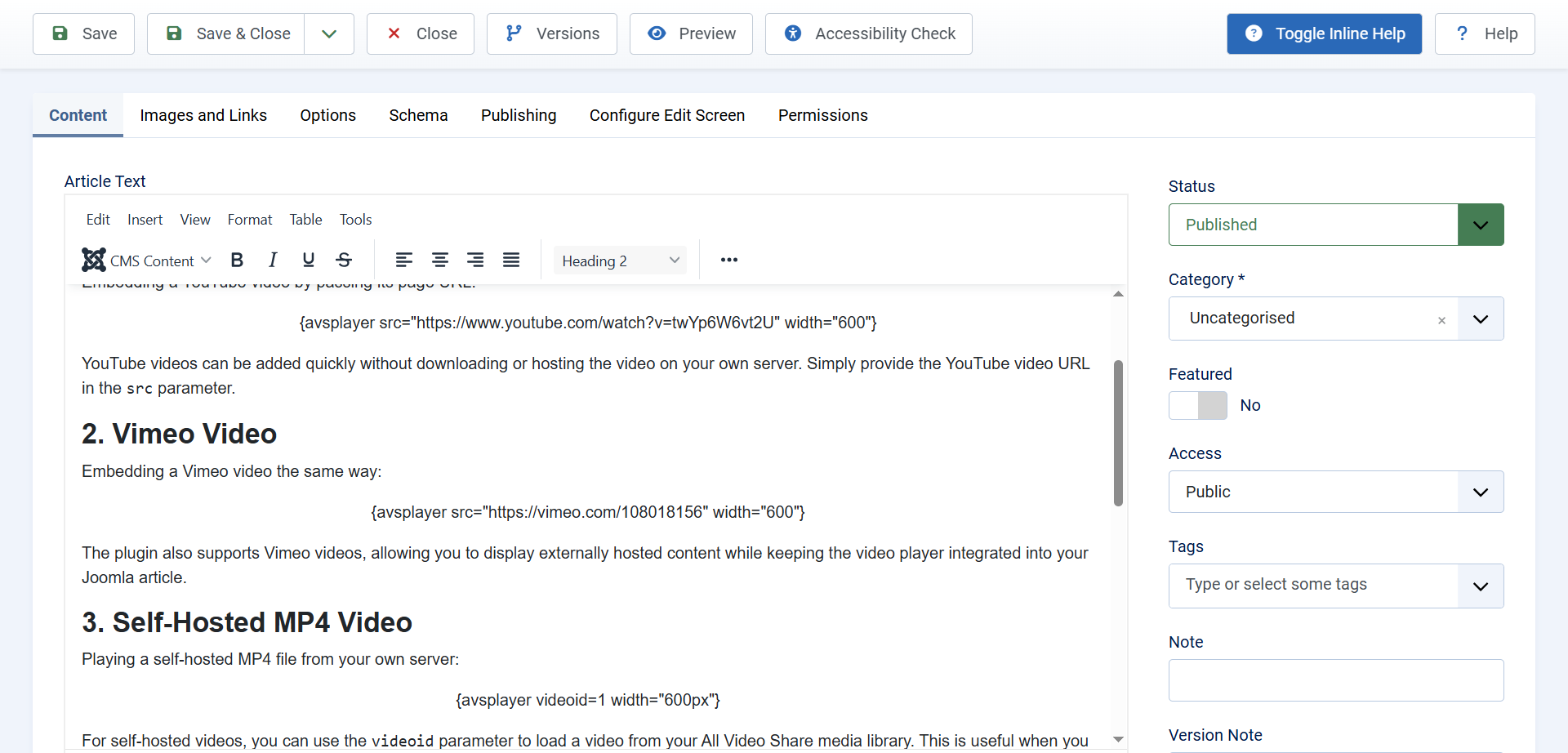
The simplest form needs nothing but the video’s ID number:
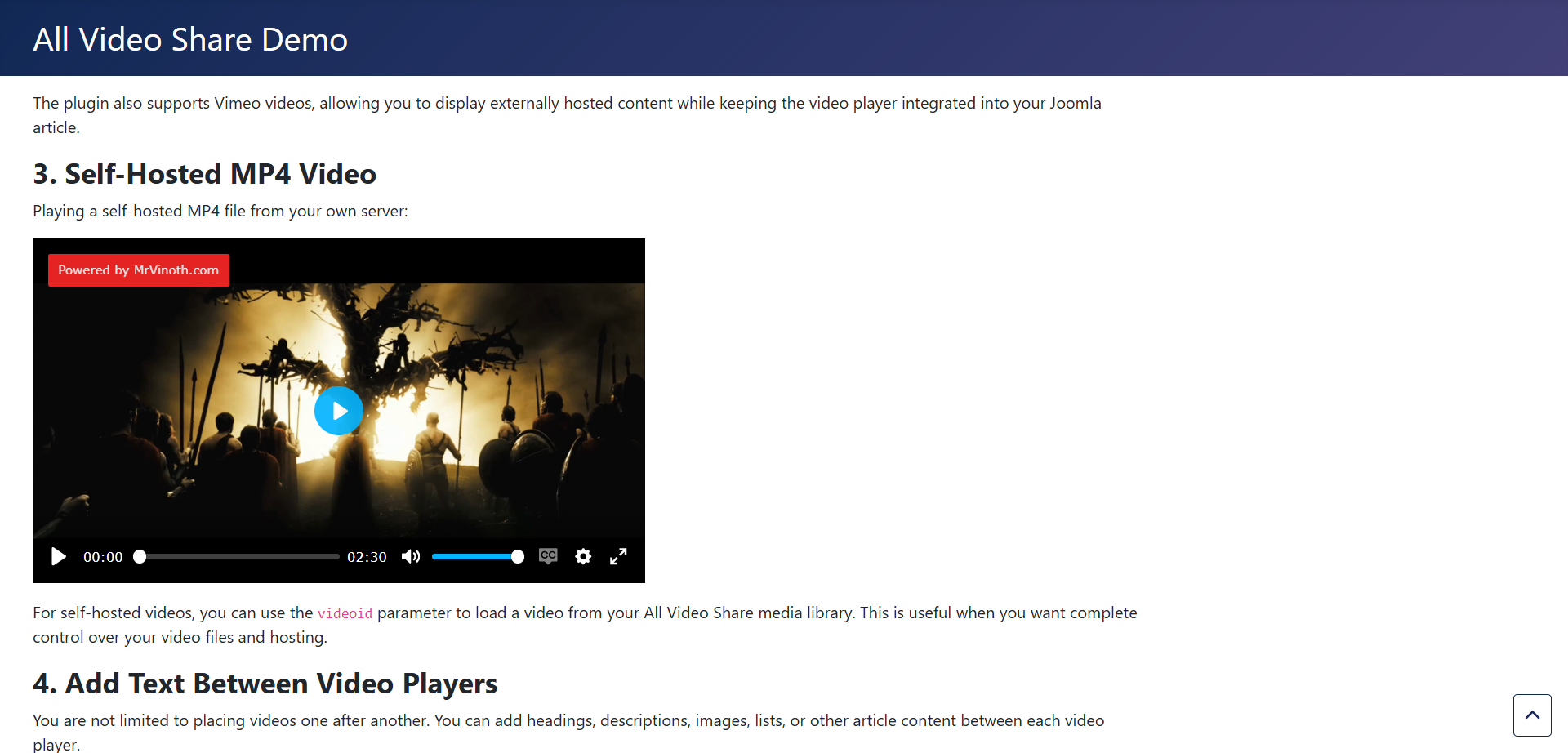
{avsplayer id=5}Type that into an article wherever you want the video, and save. That is all most people ever need.
Finding a Video’s ID
Go to Components → All Video Share → Videos. The ID column on the right of the list gives you the number for each video.
The ID never changes, even if you rename the video or move it to a different category, so a tag you write today keeps working.
Changing How the Player Looks
By default the player follows your global Options. Add extra settings to the tag when this particular player should behave differently. Each one is written as name=value, separated by a space:
{avsplayer id=5 width=640 autoplay=1 muted=1}Settings that use yes or no are written as 1 for on and 0 for off.
Size and Playback
- width — the widest the player may grow, in pixels. Leave it out and the player fills the space available.
- ratio — the shape of the player. Use
56.25for widescreen or75for the older 4:3 shape. - autoplay — start playing as soon as the page opens. Browsers only allow this alongside
muted=1. - loop — start again when the video finishes.
- muted — start with the sound off.
- volume — the starting volume, from 0 to 100.
Showing and Hiding Controls
Every button in the player can be switched on or off from the tag. The names are controlbar, playlarge, rewind, play, fastforward, progress, currenttime, duration, volumectrl, captions, quality, speed, pip, download, fullscreen, embed and share.
So a silent background clip with no controls at all would be:
{avsplayer id=5 autoplay=1 muted=1 loop=1 controlbar=0 playlarge=0}And a plain player with only the essentials:
{avsplayer id=5 download=0 share=0 embed=0 speed=0 pip=0}Advertisements
Use preroll=0 or postroll=0 to keep advertisements off one particular video — handy when a page is already carrying an advert of its own. Advertisements are explained in The Video Player.
Following the Current Video
One more option is worth knowing about:
{avsplayer autodetect=1}Instead of naming a video, this plays whichever video the visitor is currently viewing. It is meant for content that appears on video pages themselves, so one tag serves every video rather than needing a separate one for each.
Showing a YouTube Gallery with {avsyoutube}
The second tag builds a gallery straight from YouTube, inside an article. It works the same way as the YouTube menu item and module, and needs the same YouTube API key.
Tell it where the videos come from with type, then give it the source:
{avsyoutube type=playlist playlist=PLxxxxxxxxxxxxxxxx}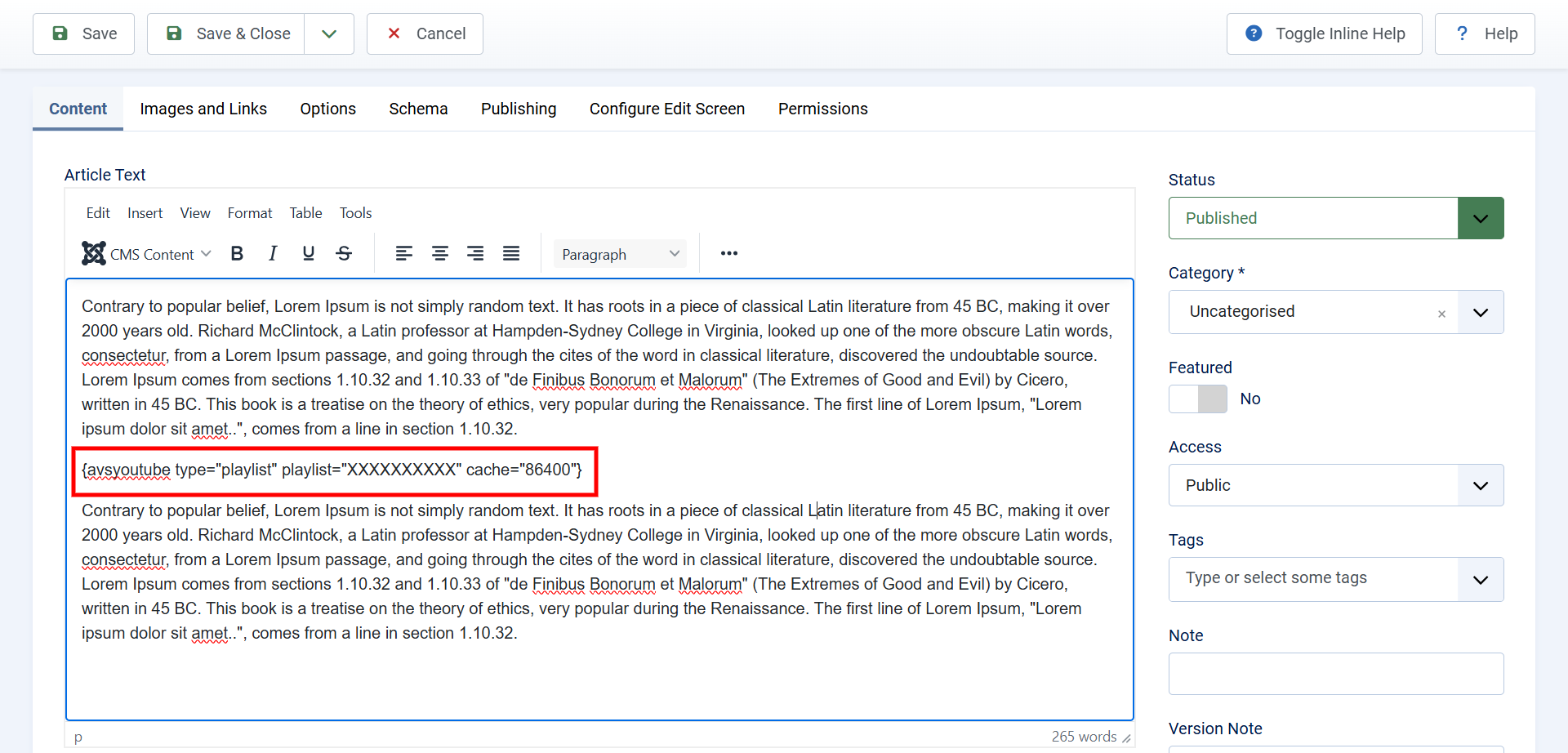
The available source types are playlist, channel, username, search, video, videos and livestream, each with a matching setting holding the playlist ID, channel ID, search words and so on.
Add layout to choose the style, and columns and per_page to control the size of the grid:
{avsyoutube type=channel channel=UCxxxxxxxx layout=slider columns=4 per_page=12}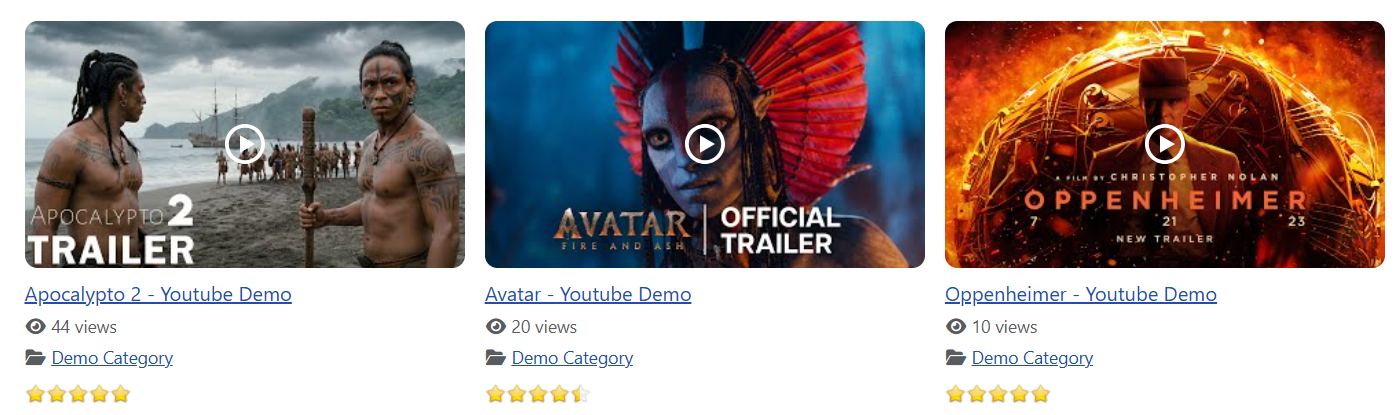
Every setting available on the YouTube menu item can be used here under the same name. Rather than list them twice, they are described in Automatic YouTube Gallery — and in practice you rarely need to write them by hand, because of the editor button below.
The Editor Button
Writing YouTube tags by hand is tedious, so All Video Share adds a button to your article editor that builds them for you.
Enable Button — All Video Share YouTube in the plugin manager, then open any article. The button appears with the editor’s other buttons.

- Click in your article where the gallery should go.
- Click the button.
- Choose your source and settings in the window that opens.
- Insert the tag. It is written into your article with all the settings filled in correctly.

The result is an ordinary tag, so you can still edit it by hand afterwards.
Rules Worth Knowing
A few things will save you a puzzled ten minutes:
- No spaces inside a value. Settings are separated by spaces, so a space in the middle of a value splits it in two and the setting is lost. Search terms of more than one word will not work in a tag written by hand — use the editor button, or a menu item, for those.
- Quotation marks are not needed. Write
id=5, notid="5". Quotes are stripped out before the tag is read, so they do no harm, but they do no good either. - Use the plain text editor when things look odd. Visual editors sometimes wrap tags in formatting that stops them being recognised. Switching to the code or source view and checking the tag sits on its own is the quickest way to rule that out.
- Tags work anywhere articles are shown. A tag inside an article still works when that article appears in a blog layout, a featured list or a module — so a video can turn up in more places than you expected.
- You can use several tags in one article. There is no limit, though a page with many players on it will load more slowly.
Older sites may have tags written as
{avsplayer videoid=5}. That older wording still works, so there is no need to go back and change anything.