
Categories are how you organise your video library. Every video belongs to one main category, and categories can be nested inside one another to build a structure as deep as you need.
You will find them under Components → All Video Share → Categories.
On This Page
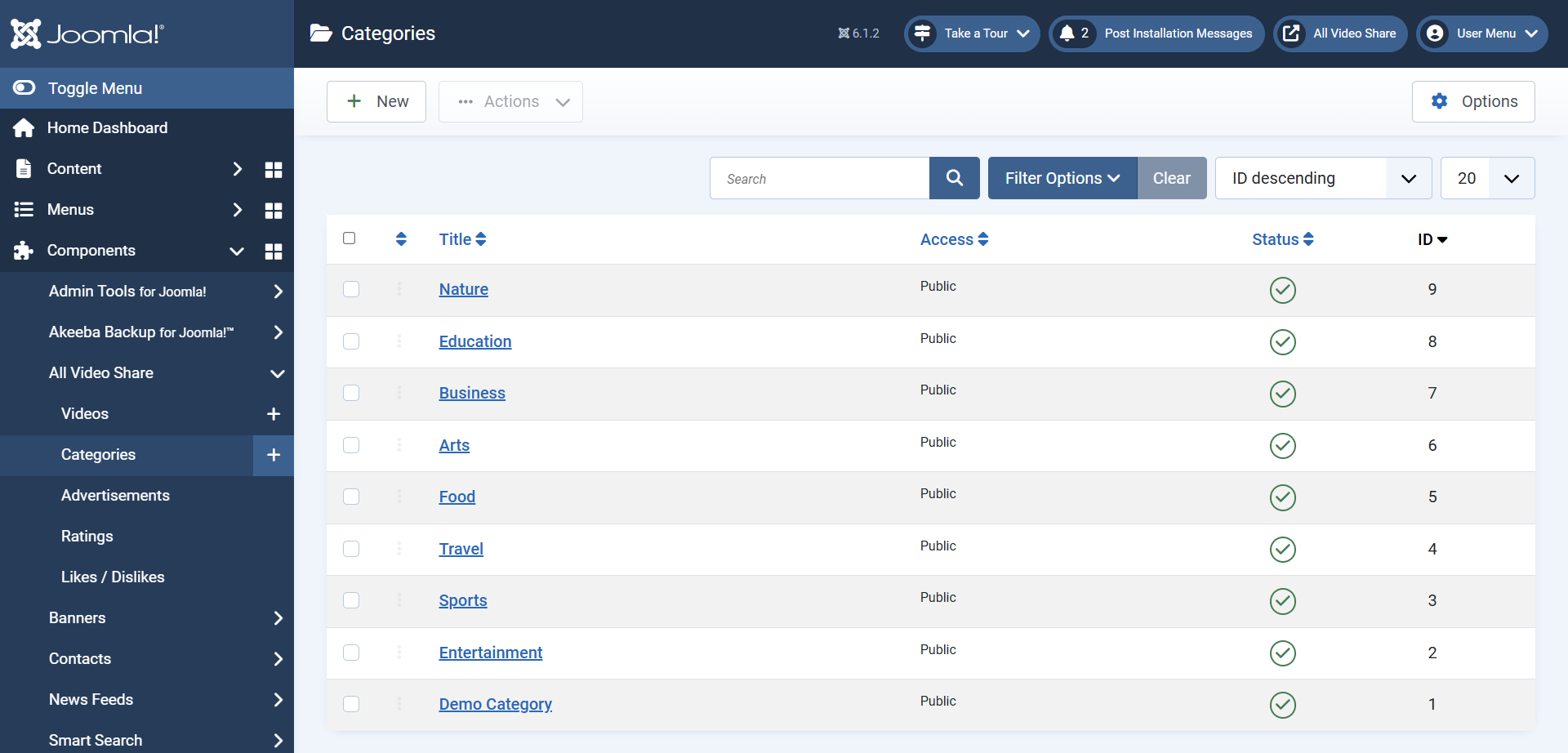
All Video Share categories are separate from Joomla’s own article categories. They are managed only from this screen and are not shared with articles, contacts or any other component.
Creating a Category
Click New on the Categories list to open the form. Only the title is required — everything else can be left alone until you need it.
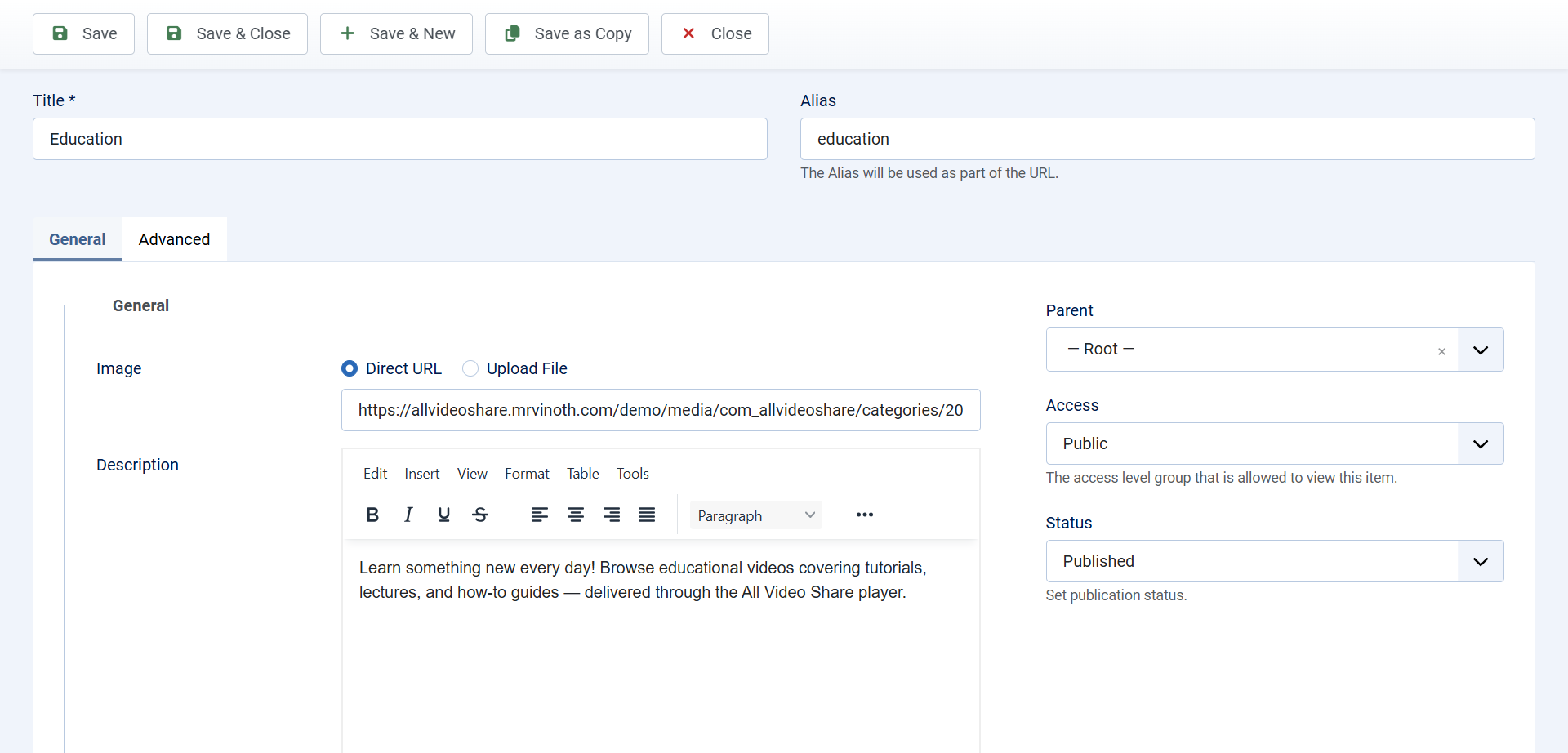
Here is what each field does:
- Title — the category name your visitors see, in the gallery and in the breadcrumb trail. This is the only field you must fill in.
- Alias — the short, URL-friendly version of the title that appears in the web address. Leave it empty and one is created from the title automatically.
- Parent Category — leave this empty for a top-level category, or choose another category to nest this one inside it.
- Thumbnail — the image that represents this category on the front end. You can upload a file or paste the address of an image already on your site.
- Description — appears at the top of the category page, and a shortened version of it shows under the thumbnail in the grid.
- Access — which visitors are allowed to see this category. Explained further down this page.
- Meta Keywords and Meta Description — used in the page’s meta tags for search engines when someone visits this category.
- Status — only Published categories appear on your website. The others are Unpublished, Archived and Trashed.
Be careful changing the alias later. The alias forms part of the page address, so editing it on a category that is already live will break existing links to it and lose the search engine ranking that page has built up.
Nesting Categories
Setting the Parent Category field builds a hierarchy. A training site might organise its library like this:
- Tutorials
- Joomla
- WordPress
- Product Demos
There is no limit to how deep you can nest. On the Categories list, sub-categories appear indented beneath their parent so the structure is easy to follow.
On the front end, a page pointed at a parent category shows that category’s sub-categories first, followed by any videos assigned directly to the parent itself.
Videos do not travel up the tree. A video filed under Joomla will not automatically appear under Tutorials. If you need one video to show in several places, use the Additional Categories field on the video itself — see Adding Videos.
Putting Categories in Order
To arrange your categories by hand:
- On the Categories list, change the sort dropdown to Ordering, or click the column header with the arrows icon.
- Drag the handles that appear at the left of each row into the order you want.
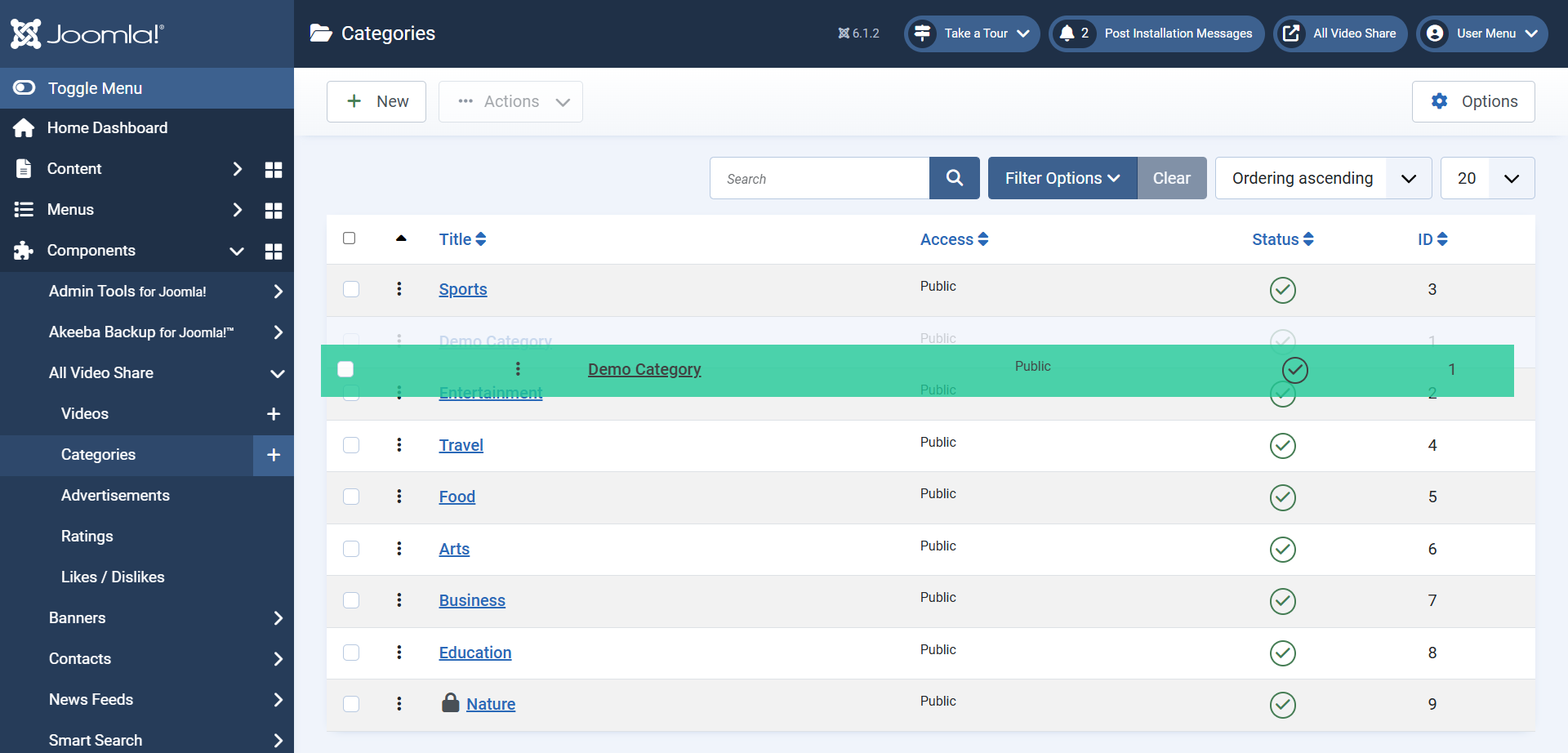
This hand-picked order is only used on the front end when the page or module is set to Order By: Ordering. The other choices — Latest, Title A–Z, Title Z–A and Random — ignore it entirely.
Deciding Who Can See a Category
The Access field uses Joomla’s standard view access levels — Public, Registered, Special, or any custom level you have set up yourself. Set it to Registered, for example, and only logged-in members can watch what is inside.
What a visitor without access actually sees depends on a second setting, Show Unauthorized Items, under Options → General → Gallery:
- Leave it set to Yes and the category and its videos still appear in the gallery, but the player is replaced by a message explaining that they are not authorised. This is the usual choice when you want to advertise members-only content.
- Set it to No and the category disappears from the gallery completely for anyone who cannot access it.
Working With the Category List
Once you have more than a handful of categories, the tools above the list become useful. Use the search box to find a category by name, and Filter Options to narrow the list down by status or access level.
To publish or unpublish a category, click the status icon in its row. To change several at once, tick their checkboxes and use the Actions button in the toolbar.
Deleting happens in two stages, which gives you a chance to change your mind. Trashing a category hides it from the site but keeps it in the database. To remove it for good, set the status filter to Trashed and click Empty Trash.
Move the videos out first. Before you delete a category, reassign or delete the videos inside it. A video whose category no longer exists stays in the database but will not appear in any gallery.
Showing Categories on Your Site
To give your categories a page of their own, add a menu item and choose the Categories Layout menu item type.
The Category field on that menu item decides what the page shows. Leave it empty and visitors see all of your top-level categories as a grid. Choose a single category and the page shows that category’s sub-categories and videos instead.

The full list of options available on that menu item is covered in Menu Items & Layouts. You can also show categories in a sidebar or footer with the Gallery module.