Check the below steps to configure All Video Share:
Login to your Joomla backend
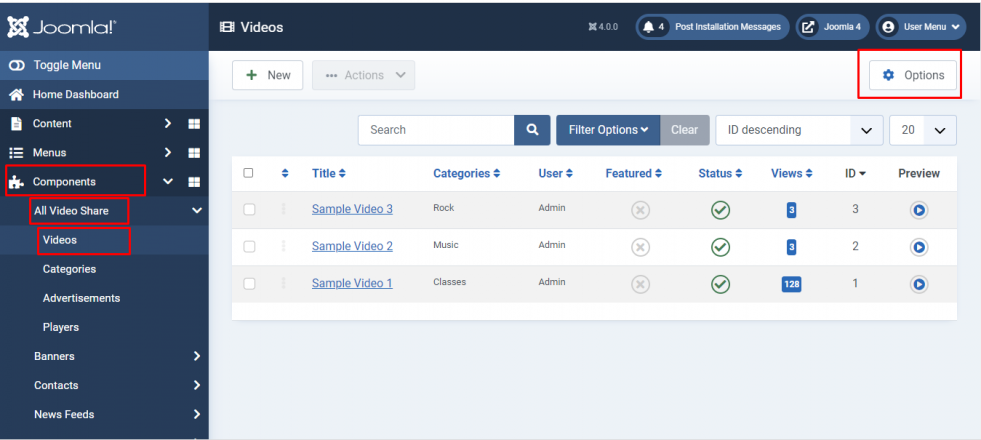
Select Components –> All Video Share –> Videos
Here at the right top, you will have the Options button. Please click it
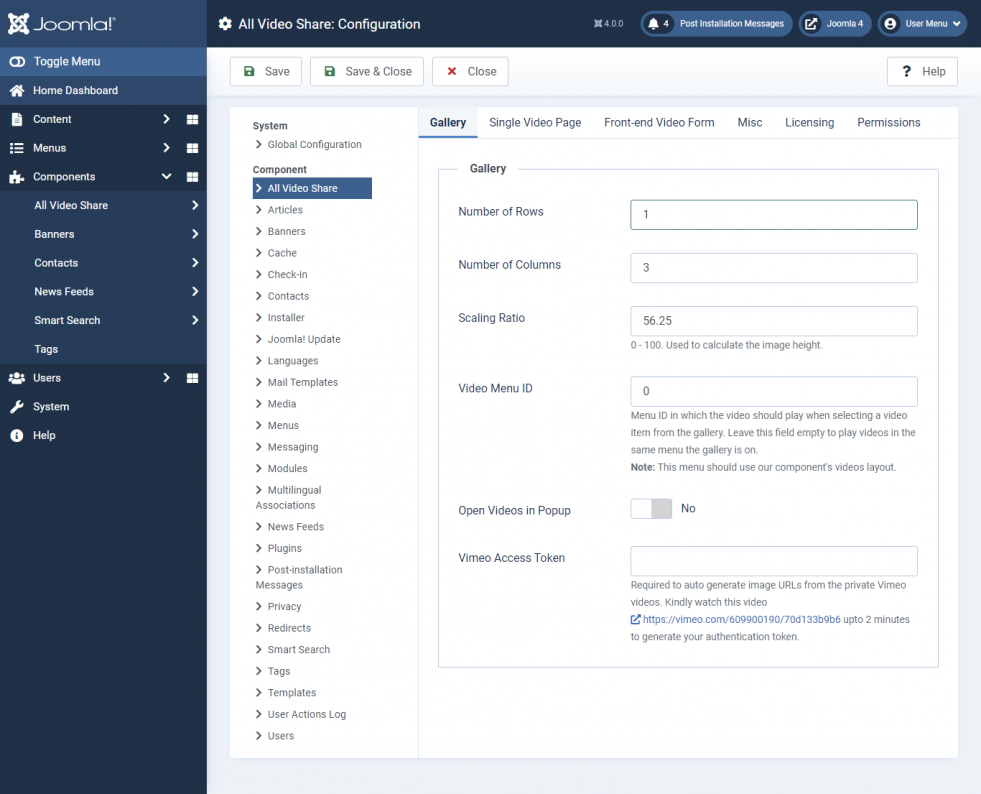
Gallery Settings:
Properties
Description
Example
Number of Rows
Count of video rows in the front-end gallery view of the Component.
3
Number of Columns
Count of video columns in the front-end gallery view of the Component.
3
Scaling Ratio (Image Height)
A height of the output Image.
80
Video Menu ID
Menu ID in which the video should play when selecting a video item from the gallery
0
Open Videos in Popup
Enable/Disable Popup
Yes
Vimeo Access Token
Required to auto-generate image URLs from the private Vimeo videos
Token
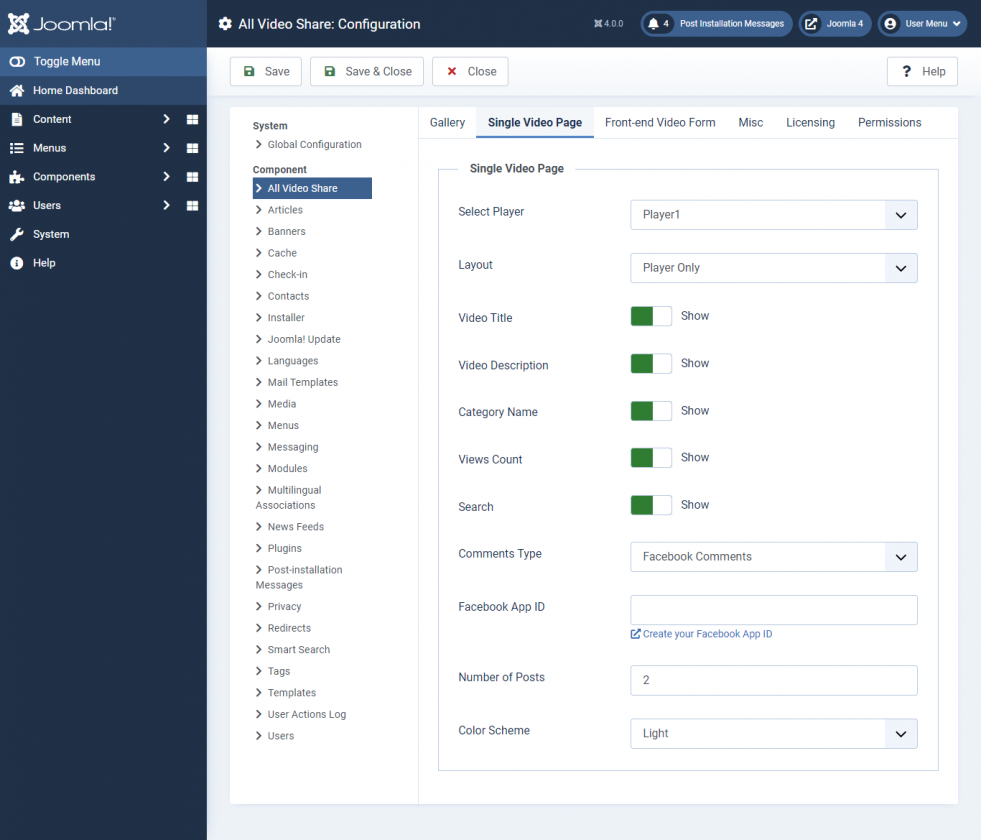
Single Video Page Settings:
Properties
Description
Example
Select Player
The player in which you like to play your Videos.
1
Layout
Currently, AllVideoShare has 4 Layout designs for the component’s front-end Video Page.
Default
Video Title
Show (or) Hide Video Title in the component’s front-end Video Page.
Yes
Video Description
Show (or) Hide Video Description in the component’s front-end Video Page.
Yes
Category Name
Show (or) Hide Category Name in the component’s front-end Video Page.
Yes
Views Count
Show (or) Hide View Count in the component’s front-end Video Page.
Yes
Search Box
Show (or) Hide Search Box in the component’s front-end Video Page.
Yes
Comment Type
Select your comment type.
Facebook
Facebook App ID
Enter your Facebook App ID
App ID
Number of Posts
Count of comments that should display on the site
5
Color Scheme
Select the Facebook theme color
Light
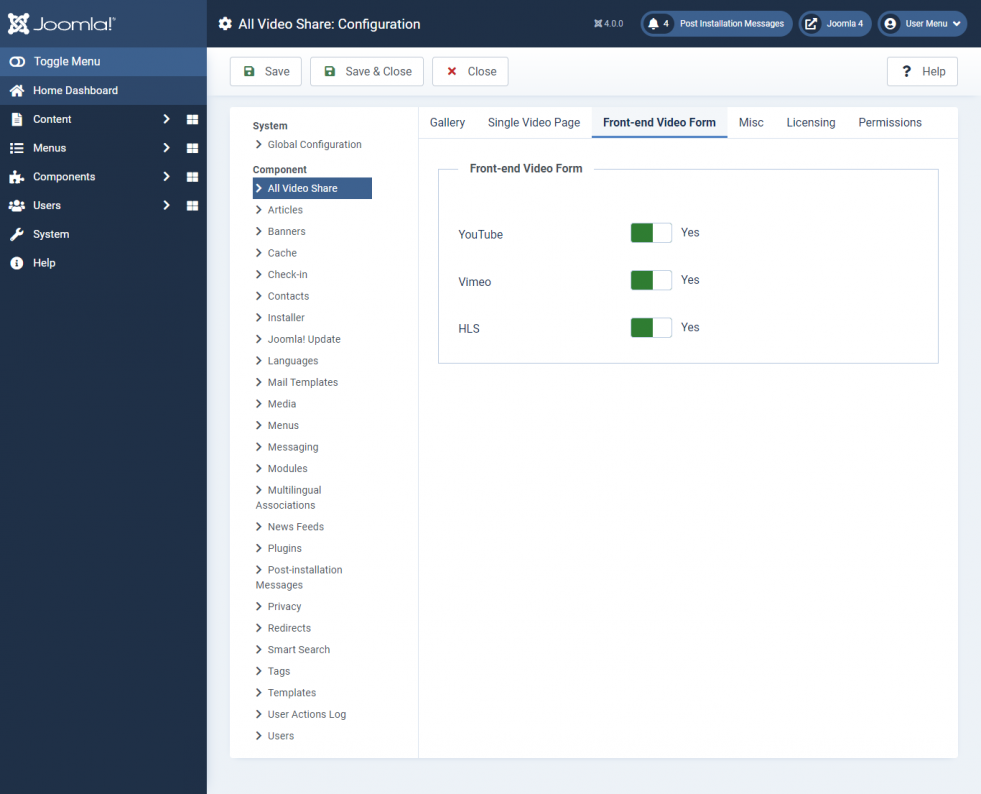
Frontend Video Form:
Properties
Description
Example
Allow users to add
Videos types to allow in the front end while adding a video
Youtube Videos
Vimeo Videos
HLS Streams
Yes
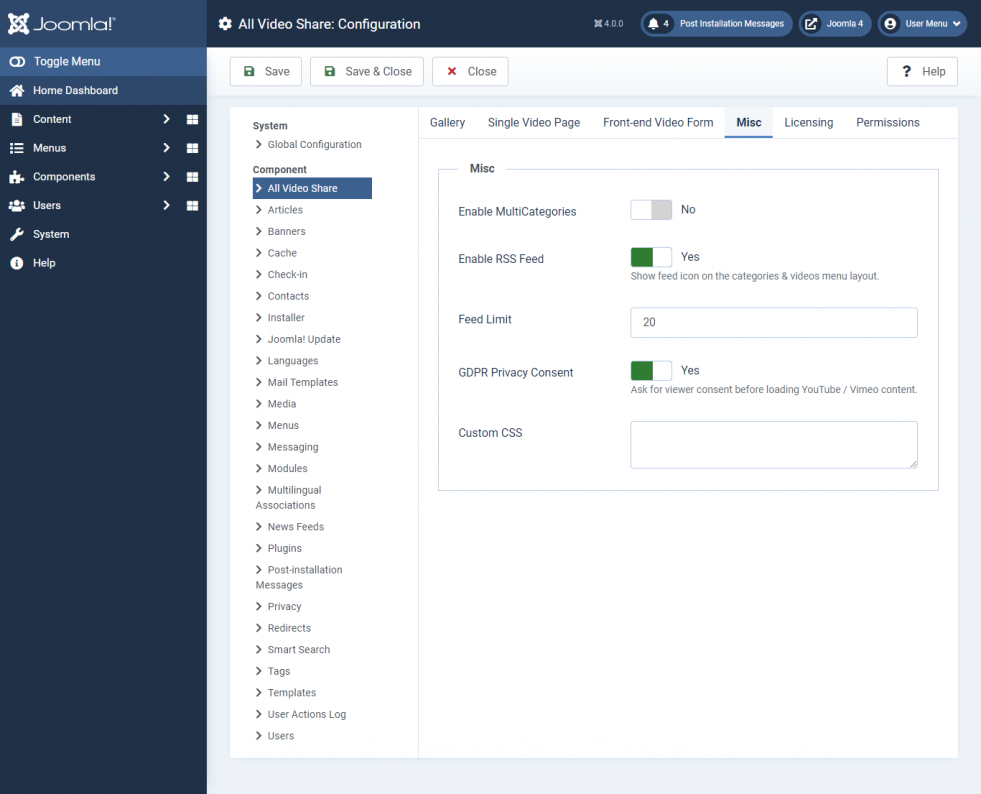
Misc Settings:
Properties
Description
Example
Enable Multicategories
Enable/Disable to post the Video in Multiple Categories
No
Enable RSS Feed
Enabling this option will show feed icon in categories & videos menu layouts
Yes
Feed Limit
Number of feeds should display per page
20
GDPR Privacy Consent
Ask for viewer consent before loading YouTube / Vimeo content.
Yes
Custom CSS
Using this option, you can play with your own CSS Styles and design the look of the Component’s front-end.
CSS
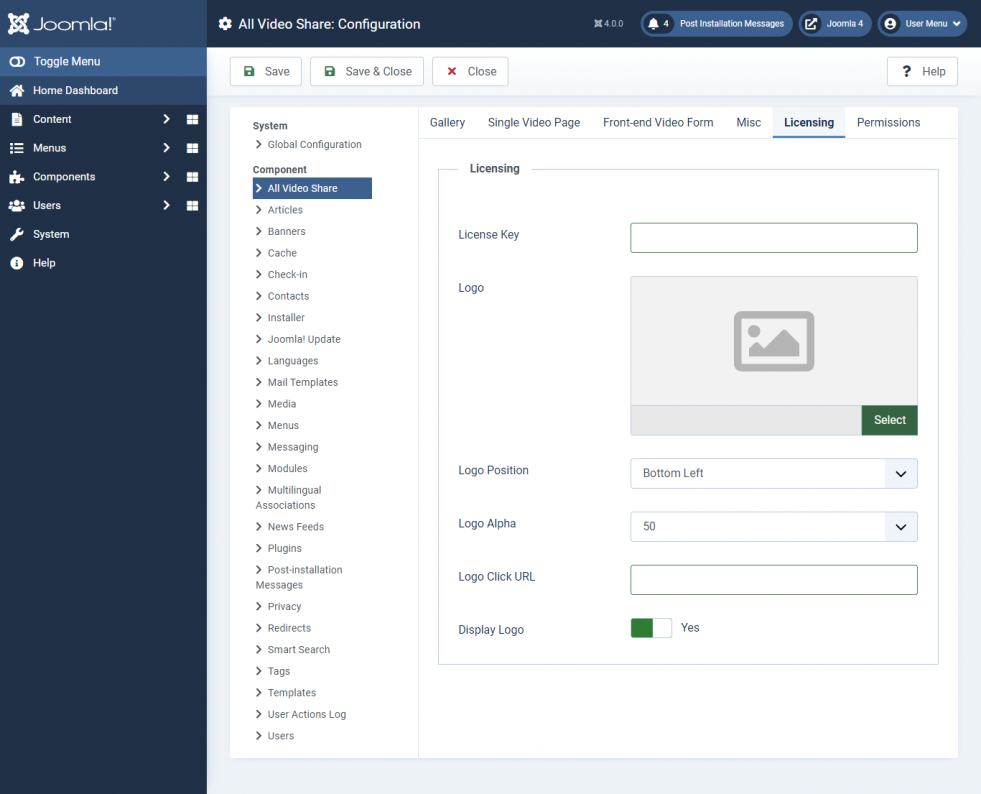
Licensing:
Properties
Description
Example
License Key
Add your License Key
Key
Logo
Add your Logo
Yes
Logo Position
Select the Logo Position
Bottom Left
Logo Alpha
Select the Logo Alpha
50
Logo Click URL
Enter the URL where you need to redirect when the Logo clicked
https://allvideoshare.mrvinoth.com/
Display Logo
Enable/Disable Logo
Yes
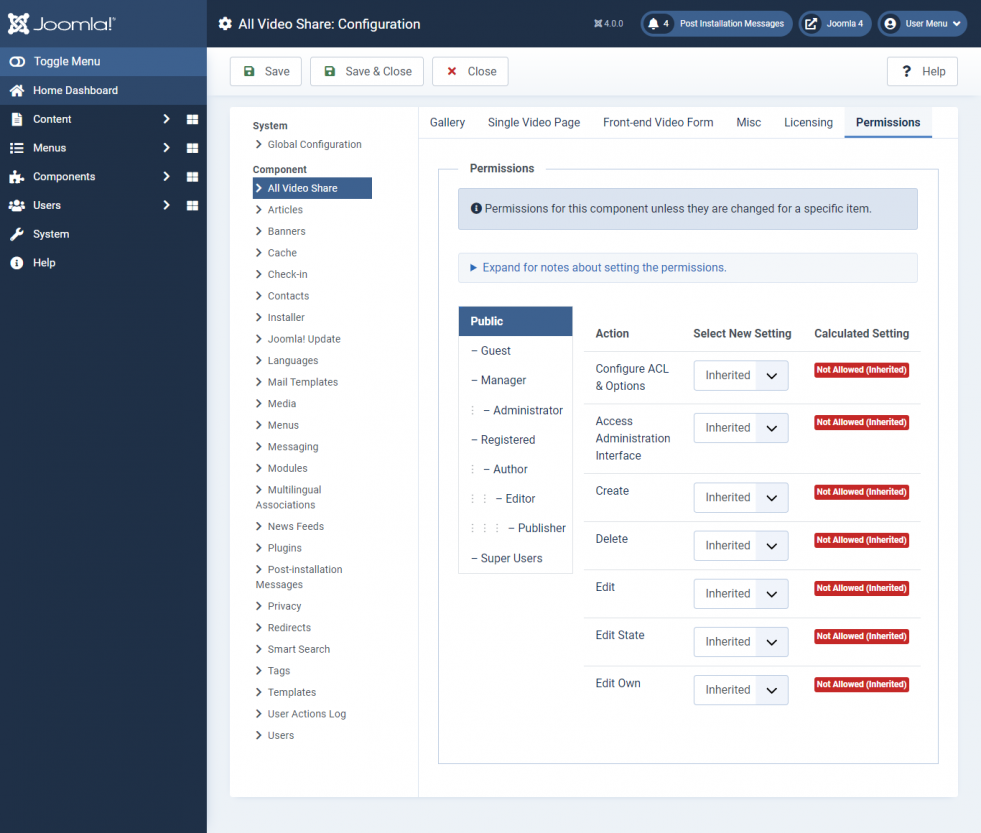
Permissions:
Here you can set user capabilities for all user roles that are available on your site.
To disable Auto Approve User Videos for registered users, Please Select the user group (EX: REGISTERED) and set Edit State to Denied and save it and check