
This page lists every setting on the All Video Share Options screen, tab by tab, with what it does and what it starts out as. You will find the screen under Components → All Video Share, then the Options button in the toolbar.
Everything here sets a default for your whole site. Individual menu items and modules can override almost any of it — anything you leave on Use Global follows this screen instead.
On This Page
General
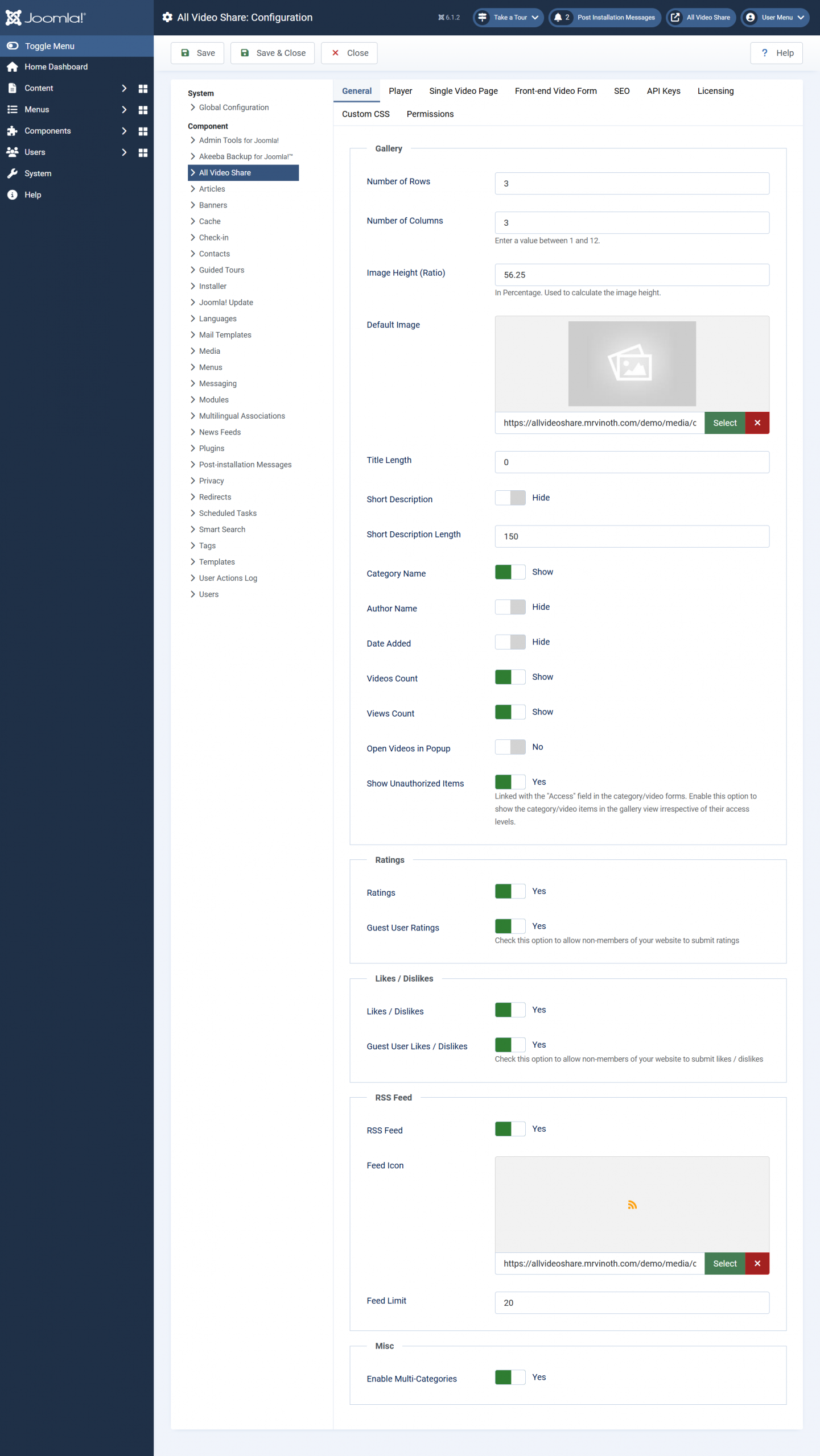
Gallery
- Number of Rows — how many rows of videos appear before paging begins. Starts at 3.
- Number of Columns — how many videos sit side by side, between 1 and 12. Starts at 3, so a page holds nine videos.
- Image Height (Ratio) — the shape of your thumbnails, as a percentage. Starts at 56.25 for widescreen; use 75 for the squarer 4:3 shape.
- Default Image — the picture used for any video with no thumbnail of its own. Worth setting, so a forgotten thumbnail does not leave a gap.
- Title Length — cuts long titles short so they do not disturb the grid. Empty means no limit.
- Short Description — show or hide the snippet of text beneath each title. Shown by default.
- Short Description Length — how many characters of that snippet to show. Starts at 100.
- Category Name — show which category a video belongs to. Shown by default.
- Author Name — show who is credited. Hidden by default.
- Date Added — show when a video was added. Hidden by default.
- Videos Count — show how many videos a category holds. Shown by default.
- Views Count — show how many times a video has been watched. Hidden by default.
- Open Videos in Popup — open videos over the gallery rather than on their own page. Off by default. Premium feature.
- Show Unauthorized Items — whether videos a visitor cannot watch still appear in the gallery. On by default, which lists them but replaces the player with a message. Turn it off to hide them entirely.
Ratings and Likes
Premium features. See Premium Features.
- Ratings — let visitors score videos out of five stars. Off by default.
- Guest User Ratings — allow visitors who are not logged in to rate.
- Likes / Dislikes — show thumbs up and down beneath videos. Off by default.
- Guest User Likes / Dislikes — allow visitors who are not logged in to take part.
RSS Feed
- RSS Feed — offer a feed of your videos. Off by default.
- Feed Icon — the image visitors click to subscribe. Empty uses the standard icon.
- Feed Limit — how many videos the feed carries. Starts at 20.
Misc
- Enable Multi-Categories — let one video appear in several categories. Off by default. Premium feature.
Player
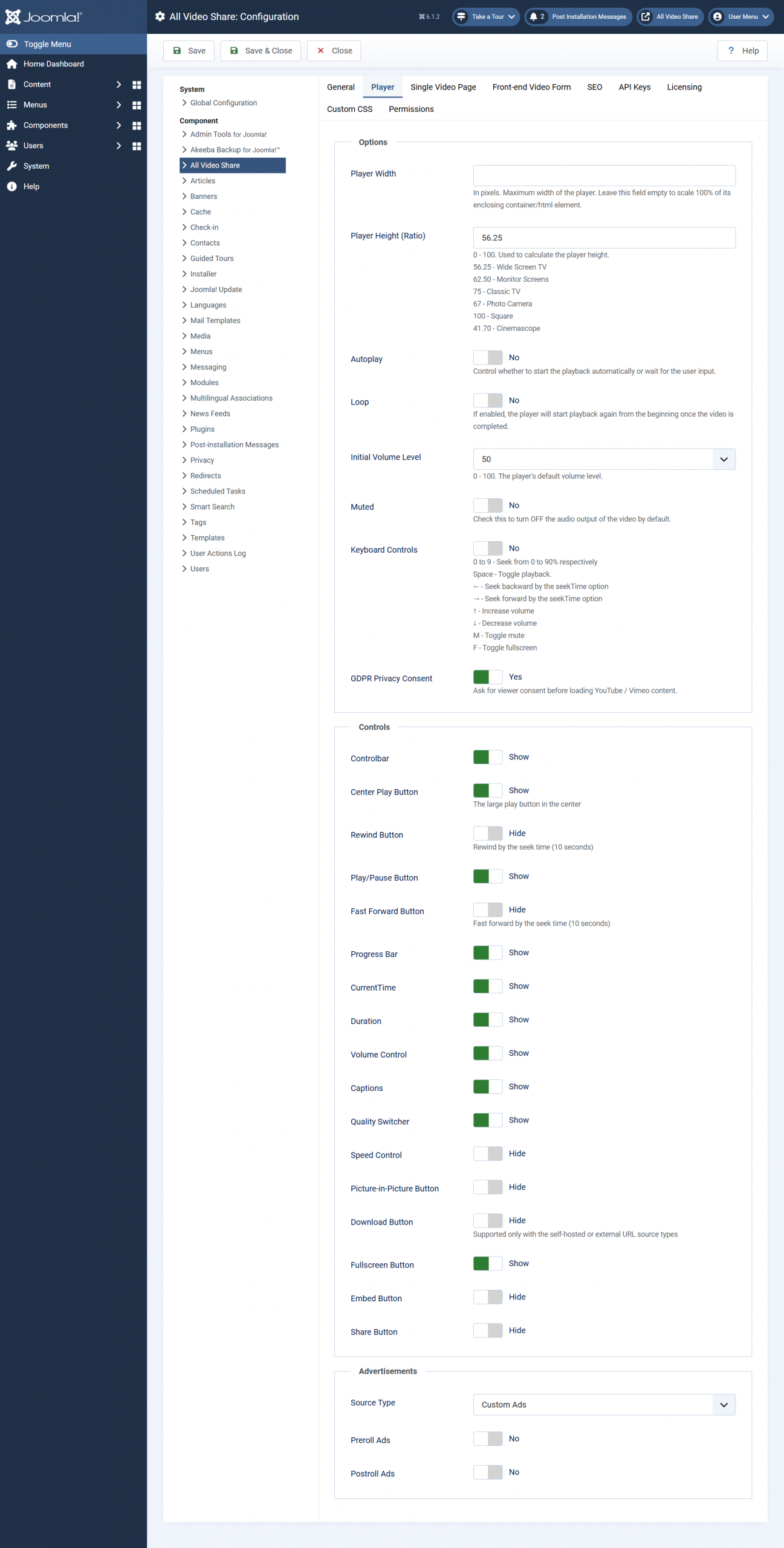
These settings apply to your own video files and to streams. YouTube and Vimeo videos use the provider’s own player and ignore them.
Options
- Player Width — the widest the player may grow, in pixels. Empty by default, which lets it fill the space available.
- Player Height (Ratio) — the shape of the player as a percentage. Starts at 56.25 for widescreen.
- Autoplay — begin playing when the page opens. Off by default, and needs Muted switched on to work in modern browsers.
- Loop — start again when the video ends. Off by default.
- Initial Volume Level — the volume the player opens at, from 0 to 100. Starts at 50.
- Muted — start with the sound off. Off by default.
- Keyboard Controls — let viewers drive the player from the keyboard. Off by default.
- GDPR Privacy Consent — ask permission before loading a YouTube or Vimeo video. Off by default.
Controls
Each of these shows or hides one button. Shown by default: Control Bar, Large Play Button, Play, Progress Bar, Current Time, Duration, Volume Control, Captions, Quality and Fullscreen.
Hidden by default: Rewind, Fast Forward, Playback Speed, Picture-in-Picture, Download, Embed and Share.
Three behave conditionally. Quality only appears when a video has both a standard and an HD file. Captions only appears when subtitles are attached. Download applies only to your own hosted files. And turning Control Bar off hides everything at once, whatever the other settings say.
Advertisements
- Source Type — where adverts come from. Custom uses the advert clips you upload yourself. VAST connects to an outside advert network and is a premium feature.
- Preroll Ads — play an advert before the video. On by default, though nothing appears until you add some adverts.
- Postroll Ads — play an advert after the video. Off by default.
- Ad Tag URL — the address supplied by your advert network. Only shown when Source Type is VAST.
Single Video Page
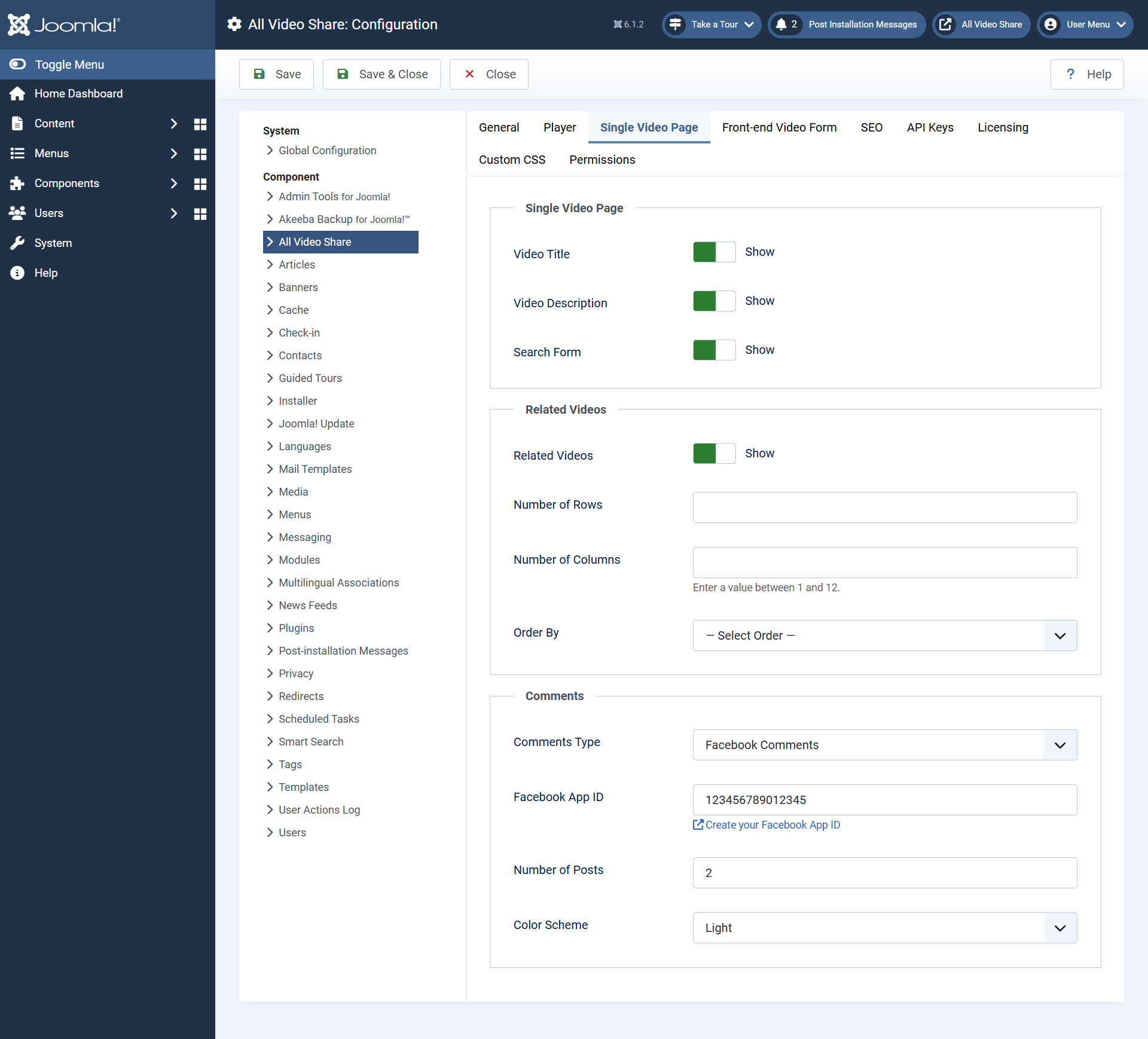
These control the page a visitor lands on after clicking a thumbnail.
- Video Title — show the title above the player. Shown by default.
- Video Description — show the description beneath. Shown by default.
- Search Form — show a search box on the page. Shown by default.
Related Videos
- Related Videos — show a row of other videos beneath the player. Shown by default, and one of the simplest ways to keep visitors watching.
- Number of Rows and Number of Columns — the size of that grid. Empty follows your gallery settings.
- Order By — how related videos are chosen. Random gives a different selection each visit, which suits a large library.
Related videos come from the video’s main category, which is worth remembering when deciding how to organise your library.
Comments
- Comments Type — none, Facebook, Komento or JLex Comment. None by default.
- Facebook App ID — required for Facebook comments, and free to create.
- Number of Posts — how many Facebook comments are shown at once. Starts at 5.
- Colour Scheme — light or dark, for the Facebook comment box.
The last three only appear when Comments Type is set to Facebook. Komento and JLex Comment are configured in their own extensions.
Front-end Video Form
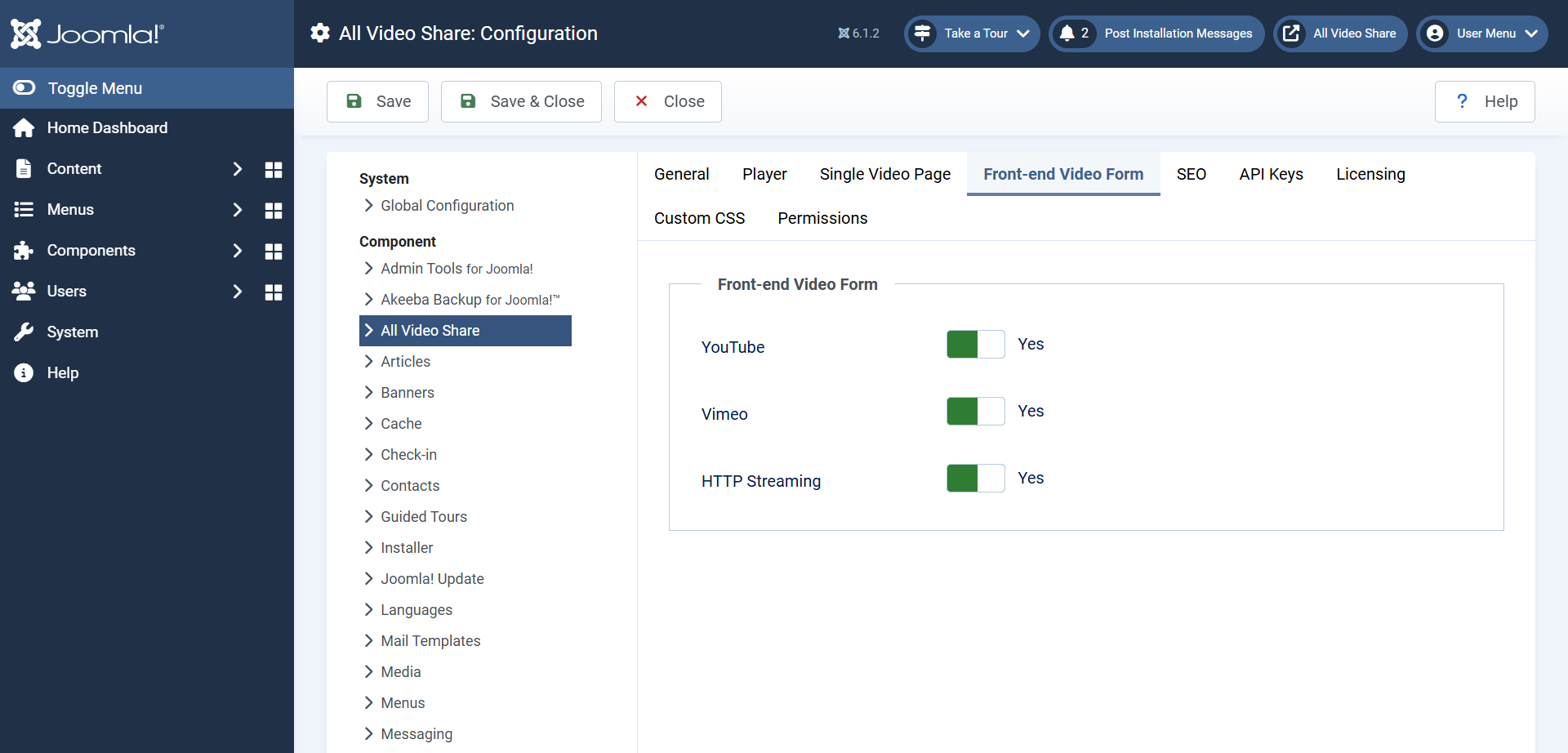
These decide which video sources your own users may submit from the front end. All three are off by default, which leaves them able to upload their own files and nothing else.
- YouTube — allow users to submit a YouTube link.
- Vimeo — allow users to submit a Vimeo link.
- HTTP Streaming — allow users to submit a stream address.
Setting all this up is covered in Front-end Video Submission.
SEO
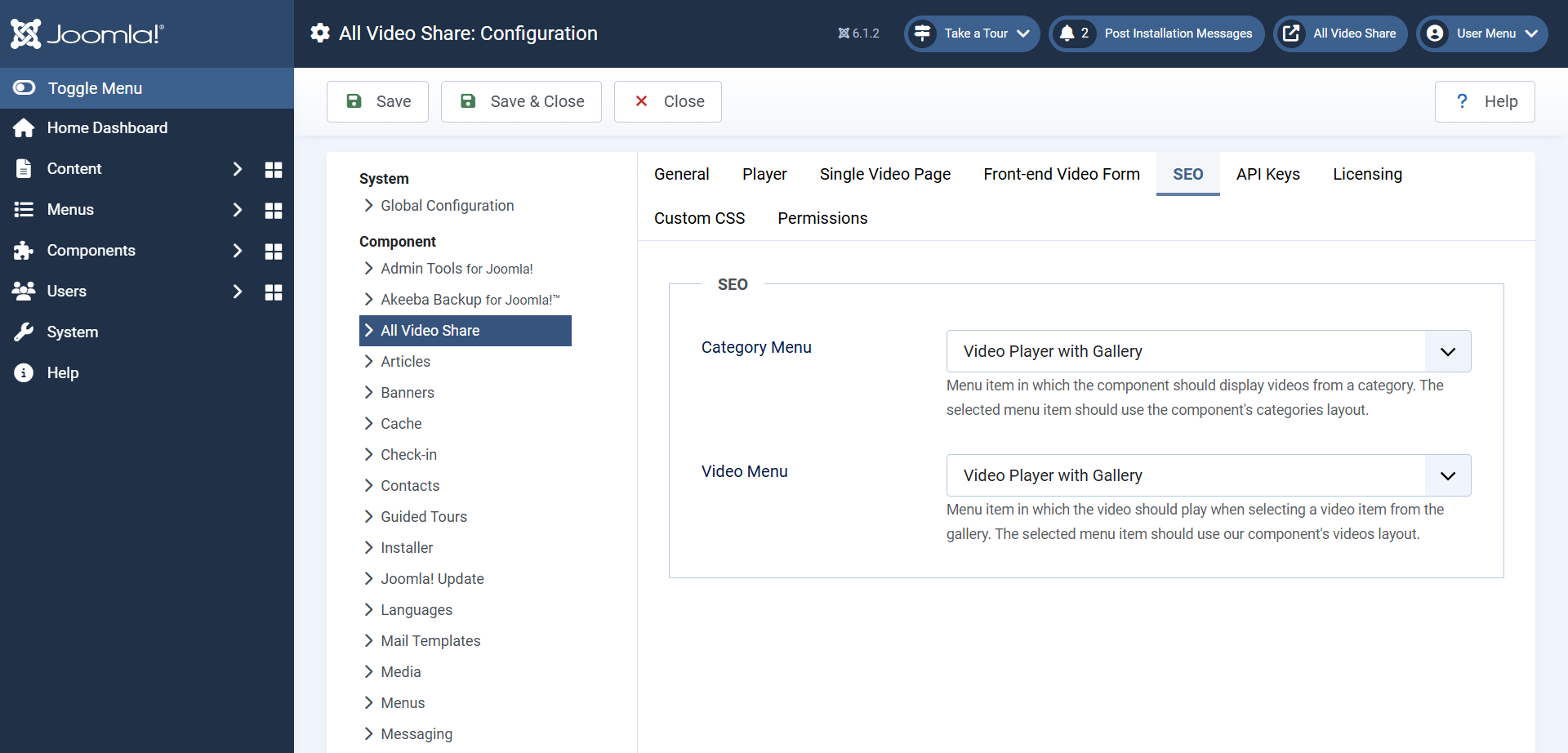
- Category Menu — which page a category link opens. Should point at a menu item using the Categories Layout.
- Video Menu — which page a video link opens. Should point at a menu item using the Videos Layout.
Both start on Auto, which lets All Video Share decide. Choose the menu items yourself when your site has several video pages, so each video always has one consistent address. See SEO, Search & RSS Feeds.
API Keys
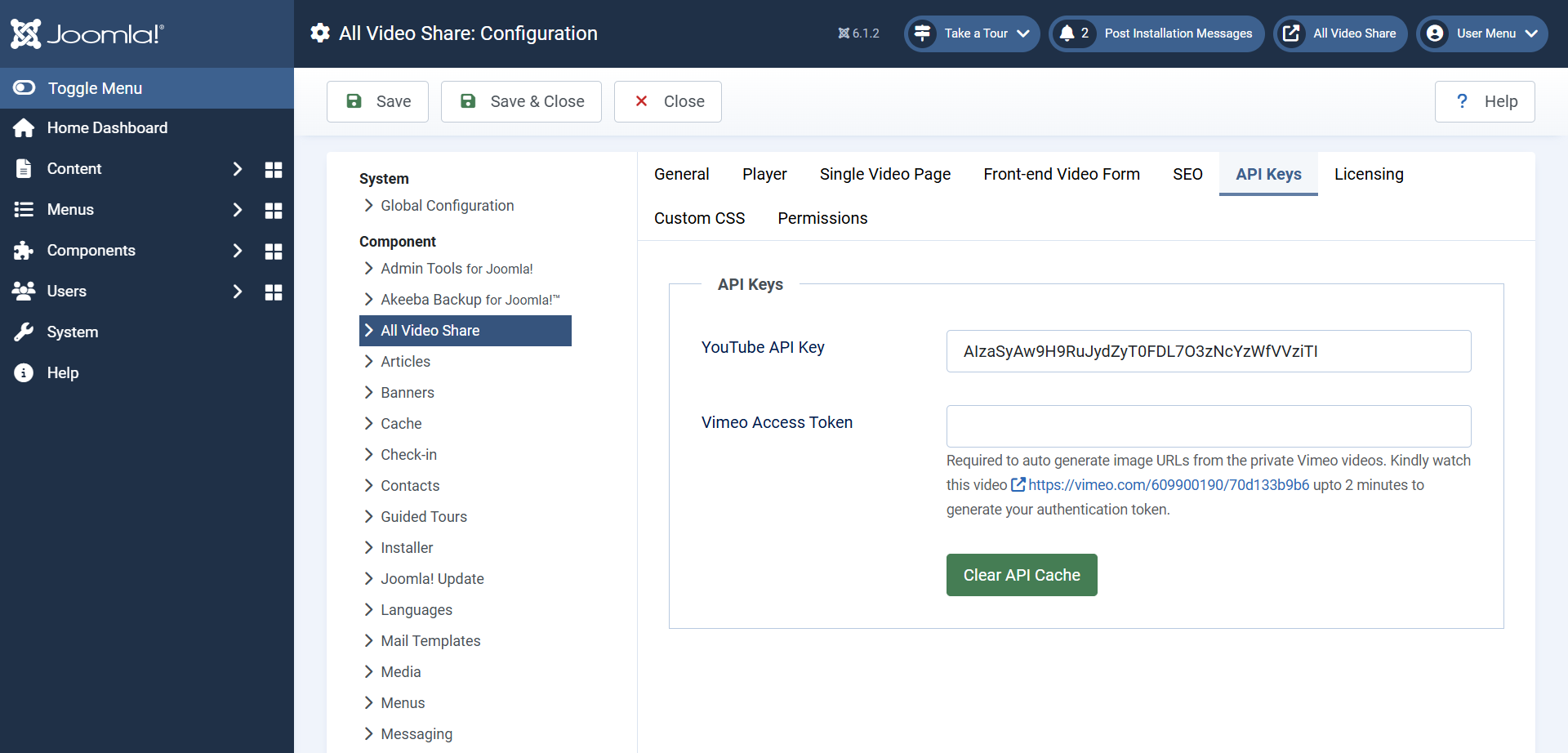
- YouTube API Key — needed by every automatic YouTube gallery. Free from Google, and one key serves your whole site. See Automatic YouTube Gallery.
- Vimeo Access Token — only needed for private or password-protected Vimeo videos, so their thumbnails can be fetched. Public Vimeo videos work without it.
- Clear Cache — empties the stored YouTube results so your galleries fetch a fresh list immediately. Use it after publishing something you want to appear straight away.
Licensing
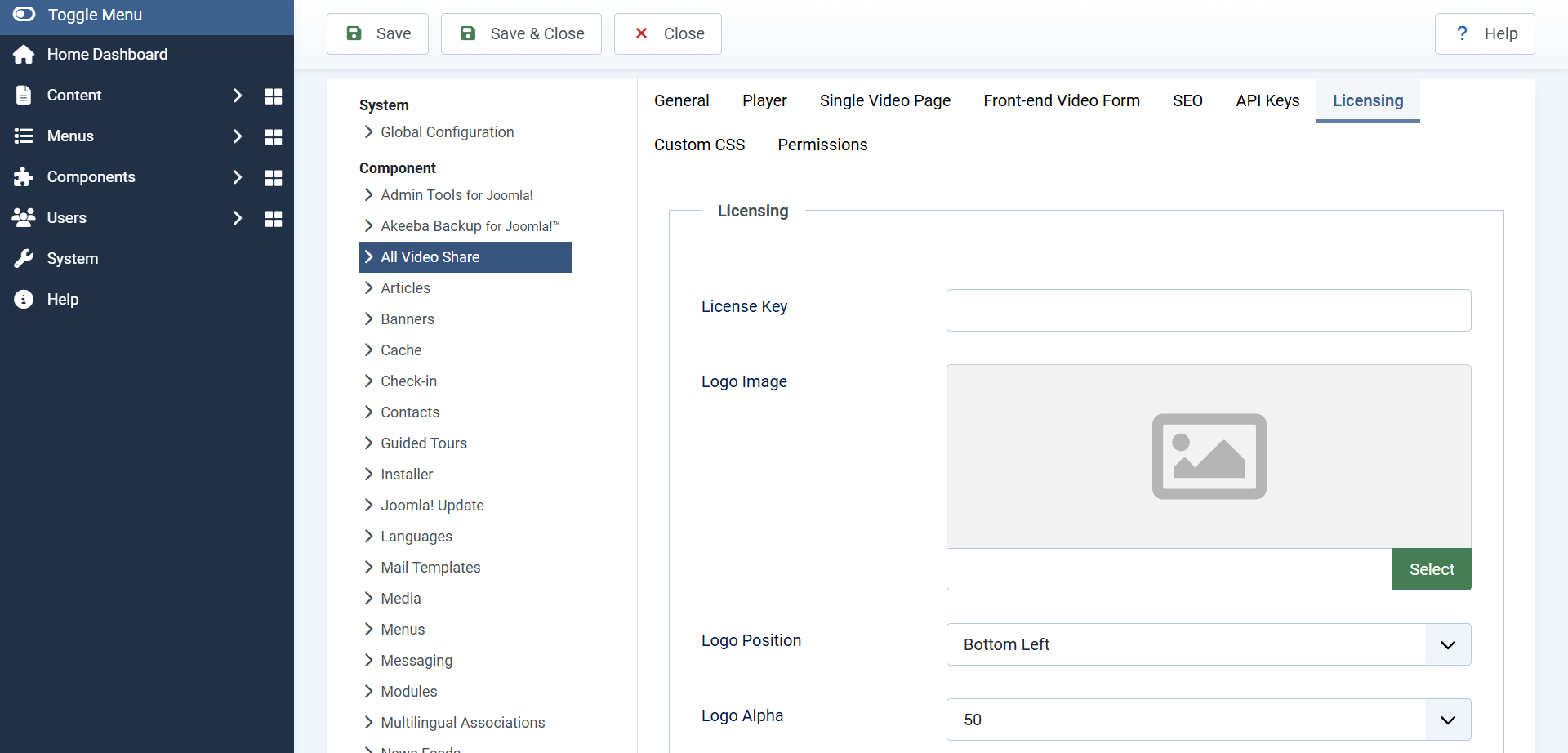
This tab holds your licence key and the settings for the logo watermark that can be shown over your videos.
- License Key — your key, if you have one.
- Display Logo — whether a watermark appears over the player. On by default.
- Logo Image — your logo. A PNG with a transparent background works best.
- Logo Position — which corner it sits in. Starts at bottom left.
- Logo Alpha — how solid it is, from 0 to 100. Starts at 50.
- Logo Click URL — where clicking the logo takes the viewer.
Custom CSS
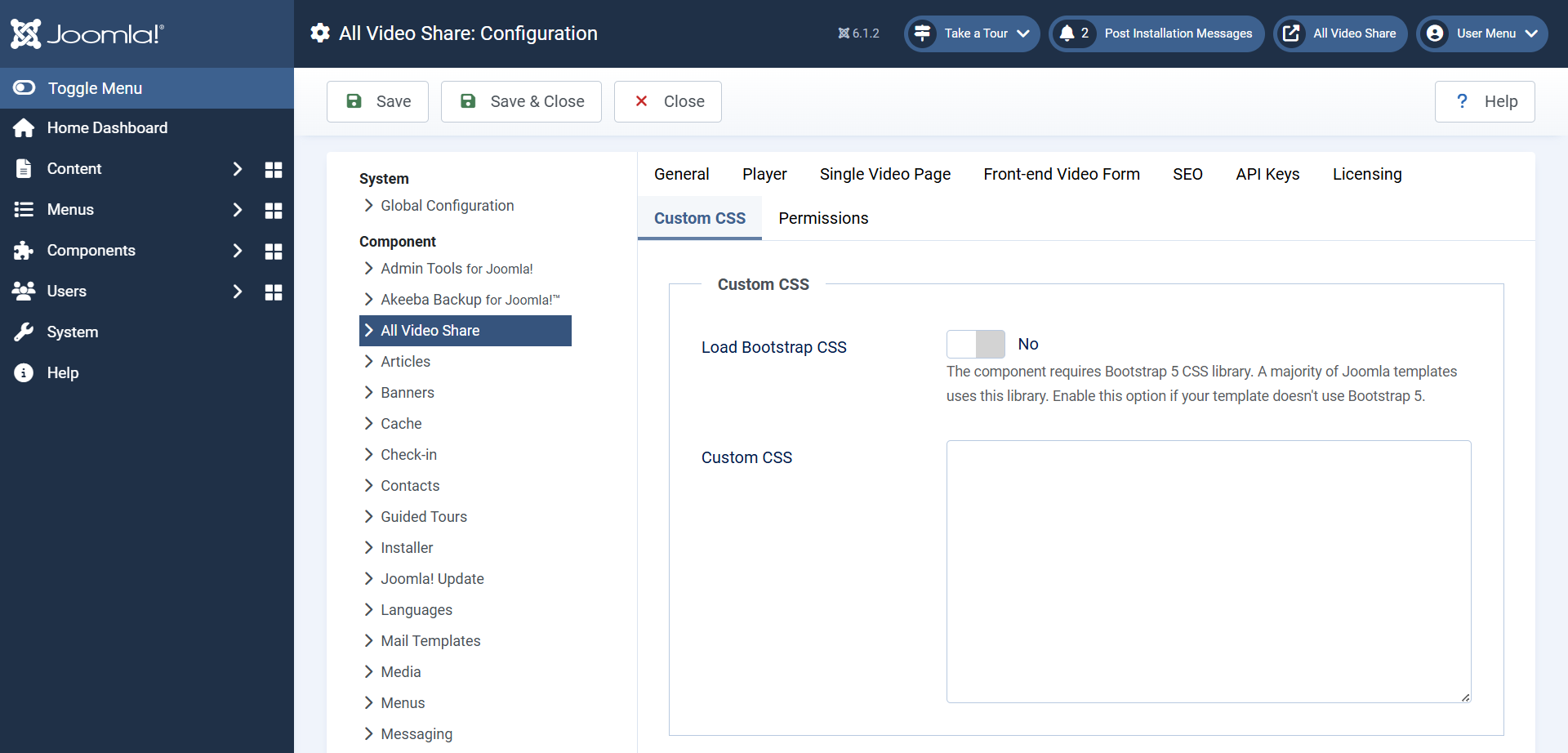
- Load Bootstrap CSS — brings All Video Share’s own copy of the grid framework. Off by default. Turn it on only if your gallery layout is broken, which means your template does not provide Bootstrap 5.
- Custom CSS — your own styling rules, added to any page showing All Video Share. Changes here survive updates, unlike edits to the supplied stylesheets.
See Custom CSS & Template Overrides.
Permissions
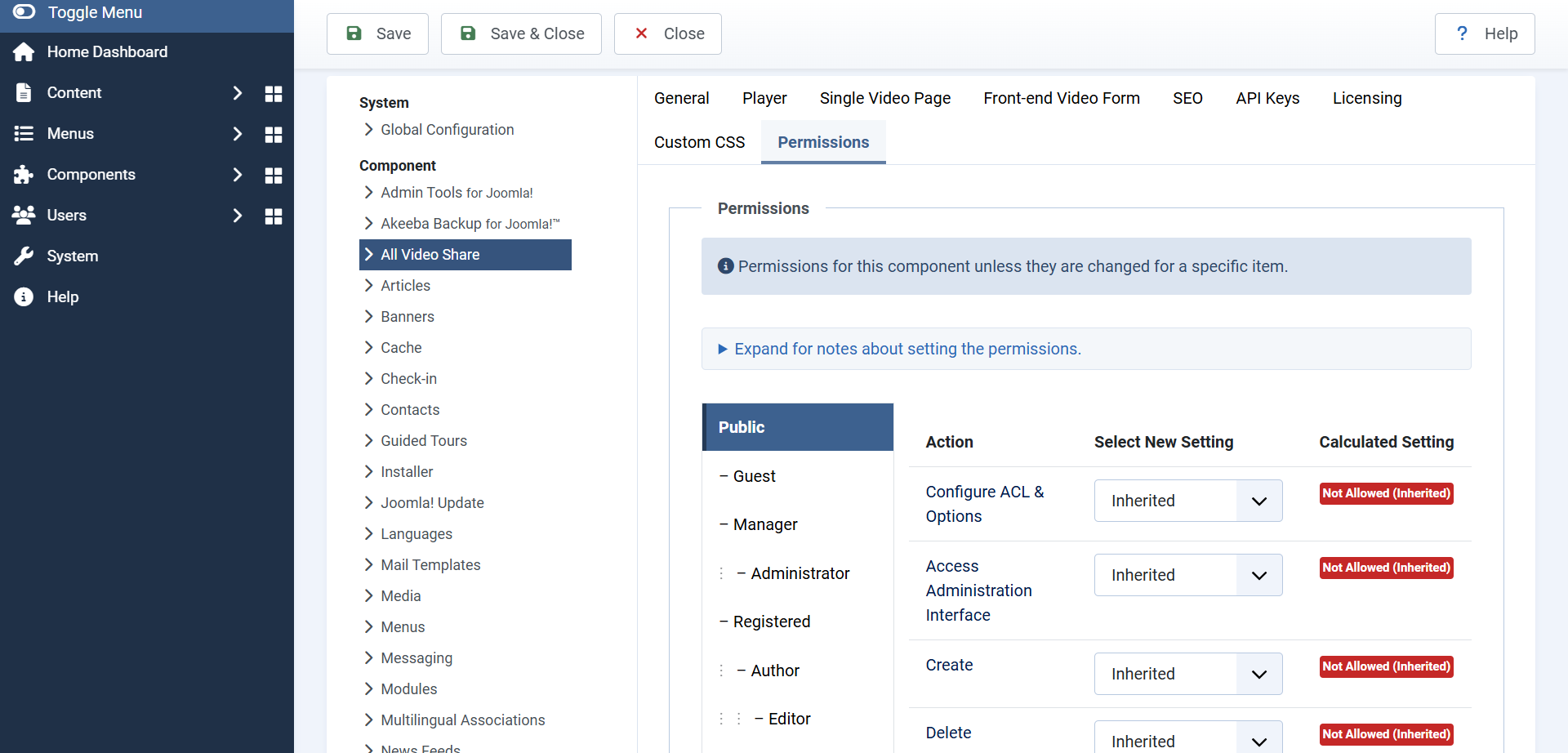
This is Joomla’s standard permissions screen, listing your user groups down the side. Choose a group, then set what its members may do with All Video Share.
- Configure ACL & Options — change this settings screen itself.
- Access Administration Interface — open All Video Share in the Joomla administrator.
- Create — add videos. Needed by front-end contributors.
- Edit — change any video, including other people’s.
- Edit Own — change only the videos that person added. This is the one to give contributors.
- Edit State — publish and unpublish. Leaving this denied is what makes user submissions wait for your approval.
- Delete — remove videos outright.
Setting these for front-end contributors is covered step by step in Front-end Video Submission.
Next: Troubleshooting & FAQ →