
Most problems with All Video Share come down to a handful of causes, and nearly all of them are quick to fix once you know where to look. Find your symptom below.
On This Page
Nothing Appears on My Website
An empty page, or a gallery with no videos in it. Work through these in order:
- Are your videos published? Go to Components → All Video Share → Videos and check the status column. Unpublished videos never appear on the front end.
- Is the category published? An unpublished category hides everything inside it, however healthy the videos look.
- Does each video have a category? A video whose category was deleted stays in the database but appears in no gallery at all.
- Check the access level. A video set to Registered is invisible to logged-out visitors. Look at your site in a private browsing window to see it as a stranger would.
- Is the menu item pointing at the right thing? A Videos Layout menu item with a single video chosen shows only that video, not your library. Leave the field empty to show everything.
- Is Featured switched on? If the page is set to featured videos only and none of your videos are flagged as featured, the page will be empty.
A module is missing
Modules have three of their own hurdles, and it is nearly always one of them: the module is unpublished, it is assigned to a position your template does not actually use, or its Menu Assignment excludes the page you are looking at.
The Gallery Looks Wrong
Everything is stacked in one column, or the thumbnails overlap. Your template is not providing Bootstrap 5. Go to Options → Custom CSS and set Load Bootstrap CSS to Yes.
Thumbnails are stretched or squashed. Your images are not all the same shape. Either crop them consistently, or change Image Height (Ratio) to match what you have — 56.25 for widescreen, 75 for 4:3.
Some thumbnails are blank. Those videos have no thumbnail, and no default image is set. Add one under Options → General → Gallery so nothing is ever left empty.
Titles are pushing the grid out of shape. Set a Title Length so long titles are shortened rather than wrapping onto extra lines.
The Video Will Not Play
The player is black and nothing happens. This is almost always the video format. Browsers only reliably play MP4 files encoded with H.264 video and AAC audio. MKV, AVI, WMV and FLV files upload perfectly well and then refuse to play. Convert the file and upload it again.
Autoplay does nothing. Browsers block videos that start with sound. Switch Muted on as well and it will work.
There is no quality button. The quality switcher needs two files. Fill in both Video and HD Video on the video, and make sure Quality is switched on in the player controls.
There is no subtitles button. Check that a WebVTT file is attached on the video’s Captions tab, and that Captions is switched on in the player controls. Subtitles must be .vtt files — other subtitle formats are not supported.
A stream will not load. If the stream is hosted on a different domain from your website, that server has to allow cross-origin requests. Your streaming provider can enable this; without it, browsers refuse to load the stream at all.
A YouTube or Vimeo video shows a message instead of playing. Check whether GDPR consent is switched on — the viewer has to agree before the video loads. If not, the video may be private or restricted from being embedded, which is a setting on the video at YouTube or Vimeo, not here.
The viewer sees a “not authorised” message. That is the access level doing its job. The video is set to a level that visitor does not have.
Shortcodes Are Not Working
Visitors see the tag itself as text. The plugin is switched off. Go to System → Manage → Plugins, search for allvideoshare, and enable the content plugin for the tag you are using. This is the cause the overwhelming majority of the time.
The player appears but shows the wrong video, or none. Check the ID against the ID column on the Videos list. It is easy to use a category number by mistake.
A setting in the tag is ignored. Look for a space inside the value. Settings are separated by spaces, so anything with a space in the middle is split in two and lost. Multi-word YouTube searches cannot be written by hand for this reason — use the editor button instead.
Nothing works no matter what you try. Switch your editor to its code or source view and check the tag is sitting on its own, not wrapped in formatting the visual editor has added around it.
The YouTube Gallery Is Empty
All Video Share shows you the message it received from YouTube rather than hiding it, so read that message first — it usually names the problem outright. The usual causes:
- No API key, or a mistyped one. Check Options → API Keys for stray spaces at either end of the key.
- The API is not switched on. Having a key is not enough — YouTube Data API v3 must be enabled for that project in the Google Cloud Console.
- The daily allowance is used up. Google resets it every day. Raise your cache time so you make fewer requests.
- The key is restricted too tightly. If you limited it to a website address, check that address matches your live site exactly, including whether it has www.
- The source is private. Private and unlisted playlists cannot be read. Open the playlist or channel while signed out to confirm it is public.
A new video is not showing. That is the cache doing its job. Either wait for it to expire, or use Clear Cache under Options → API Keys to refresh immediately.
Users Cannot Submit Videos
They see a login page. Both submission pages require an account. That is expected behaviour, not a fault.
They are logged in but there is no add button. Their user group does not have Create permission. Set it under Options → Permissions.
They cannot edit their own video. Their group needs Edit Own.
They submitted a video but it is nowhere to be seen. This is almost certainly working correctly. Without the Edit State permission, submissions arrive unpublished and wait for you. Filter the Videos list to Unpublished to find them, and publish the ones you want.
A source type is missing from their form. YouTube, Vimeo and streaming are each switched off until you allow them under Options → Front-end Video Form.
Their upload fails. Either the file is larger than your server’s upload limit, or it is not a video file. Uploads are checked, and anything that is not genuinely a video is rejected.
A Setting Does Not Seem to Work
You changed the Options but nothing happened. The page you are looking at is probably overriding that setting. Open its menu item or module and check whether the setting is on Use Global — if it has a value of its own, that value wins.
Ratings, likes, popups or multi-categories do nothing. These are premium features. The settings appear either way, but they have no effect without the premium version. See Premium Features.
Your change appears in the administrator but not on the site. Clear Joomla’s cache under System → Clear Cache, then reload the page in a private browsing window to rule out your own browser.

Something broke after an update. If you have template overrides, one of them may be out of date. Rename your override folder temporarily — if the problem disappears, that override needs bringing up to date.
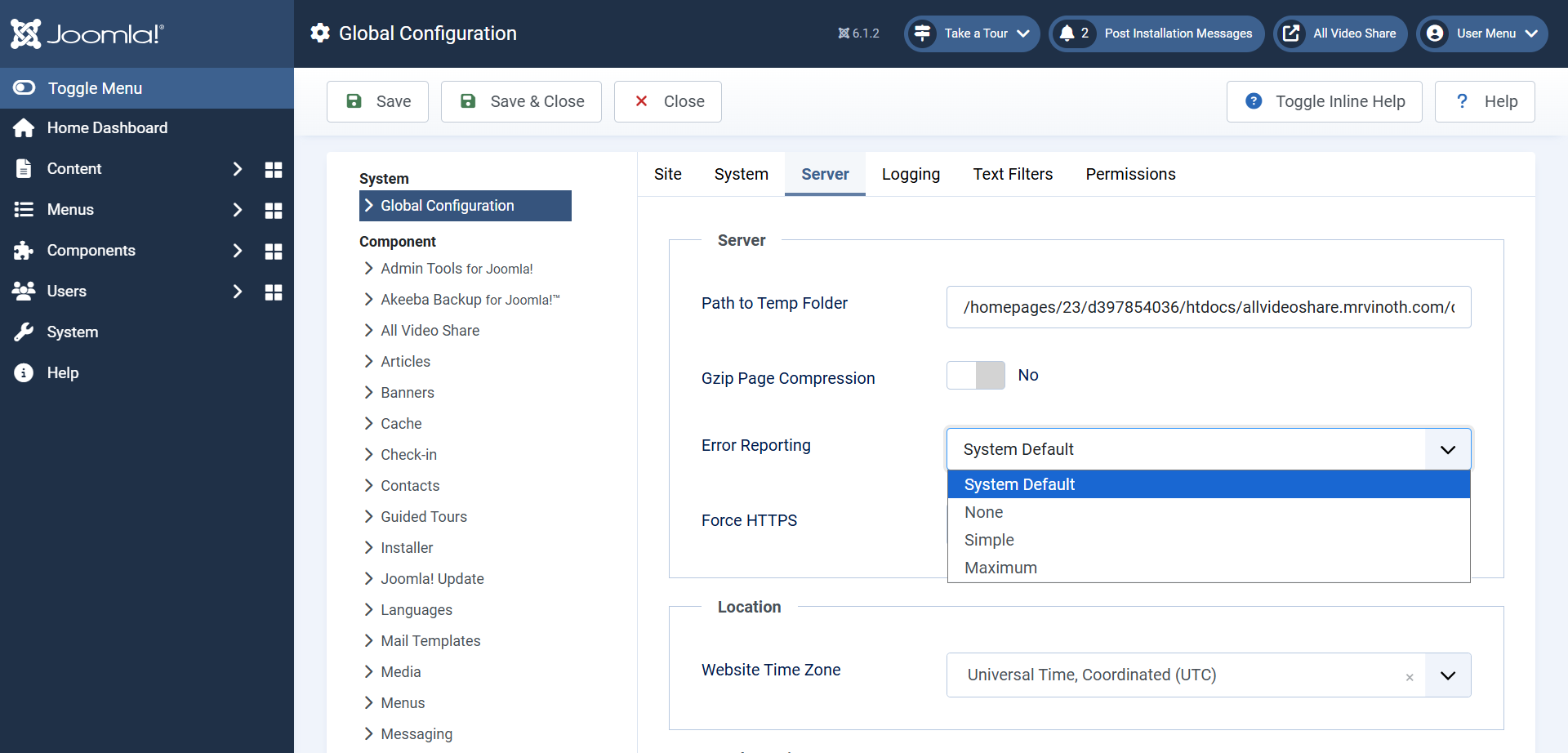
You are getting a blank white page. Turn on error reporting under System → Global Configuration → Server to see what PHP is complaining about. Remember to turn it off again afterwards.
Still Stuck?
If none of the above helps, get in touch. You will get a faster answer if you include:
- Your Joomla version, PHP version and All Video Share version.
- The address of a page where the problem can be seen.
- What you expected to happen, and what happened instead.
- Any error message, copied out in full.
- A screenshot, if the problem is something you can see.
- Whether it ever worked, and what changed if it did.
That last one matters more than people expect. “It stopped working after I updated my template” narrows things down immediately.