
Modules let you place All Video Share content anywhere in your template — a sidebar, a footer, or alongside your articles — without needing a menu item.
1. Login to your Joomla backend.
2. Select Content –> Site Modules –> New and here you can find our six modules:
- Player – All Video Share — Adds a single video player
- Gallery – All Video Share — Shows videos or categories as a grid
- Carousel – All Video Share — Shows videos in a slider
- Playlist – All Video Share — Shows a player with a playlist beside it
- Search – All Video Share — A search box for your videos
- YouTube – All Video Share — Shows videos from a YouTube playlist, channel, username or search term
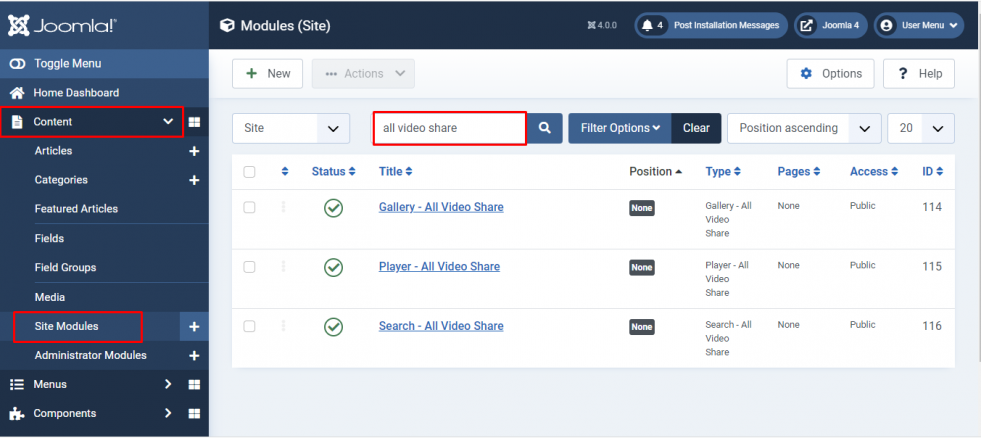
3. Choose a module, set its options, then give it a Position in your template and set the Menu Assignment to decide which pages it appears on. Save when you are done.
Many module settings offer a Use Global choice. Leaving one on Use Global means it follows whatever you have set in Components → All Video Share → Options. Change it only when you want this module to behave differently from the rest of your site.
Player Module
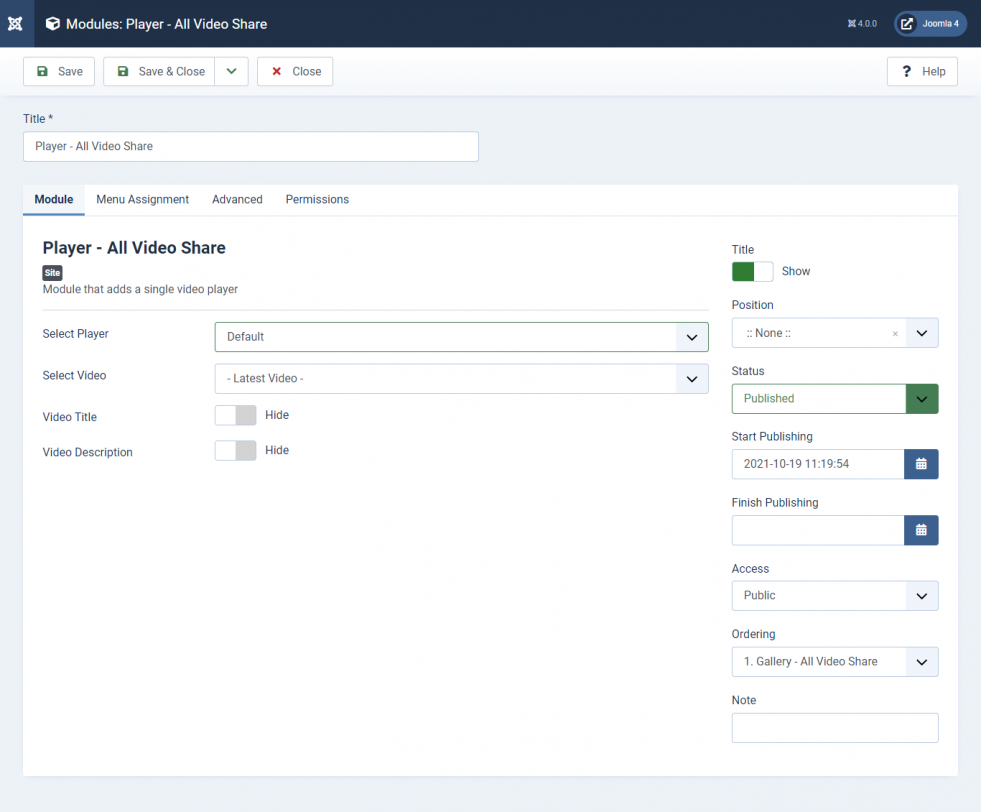
You can either pick one specific video with Select Video, or leave it empty and let the module choose a video dynamically using the Select Category, Order By and Featured Only settings below it.
| Properties | Description | Example |
|---|---|---|
| Select Video | The video the player should play. Leave empty to choose one dynamically instead. | My First Video |
| Select Category | Pick the video from this category. Used when Select Video is empty. | My First Category |
| Order By | Which video to take: Latest (ID), Latest (Date), Title Ascending, Title Descending, Most Viewed, Most Rated, Most Liked, Random or Custom Ordering. | Random |
| Featured Only | Only choose from the videos you have marked as Featured. | No |
| Video Title | Show or hide the video title above the player. | Show |
| Video Description | Show or hide the video description below the player. | Show |
| Player | Player Width, Player Height (Ratio), Autoplay, Loop and Muted for this module only. | Use Global |
| Controls | Every control bar button — Controlbar, Center Play, Rewind, Play/Pause, Fast Forward, Progress Bar, CurrentTime, Duration, Volume Control, Captions, Quality Switcher, Speed, Picture-in-Picture, Download, Fullscreen, Embed and Share. | Use Global |
| Advertisements | Source Type, Preroll Ads, Postroll Ads and Ad Tag URL for this module only. | Use Global |
| Follow URL? | On the Advanced tab. When enabled, the module plays whichever video the visitor is currently viewing, instead of the one set above. | No |
Gallery Module
| Properties | Description | Example |
|---|---|---|
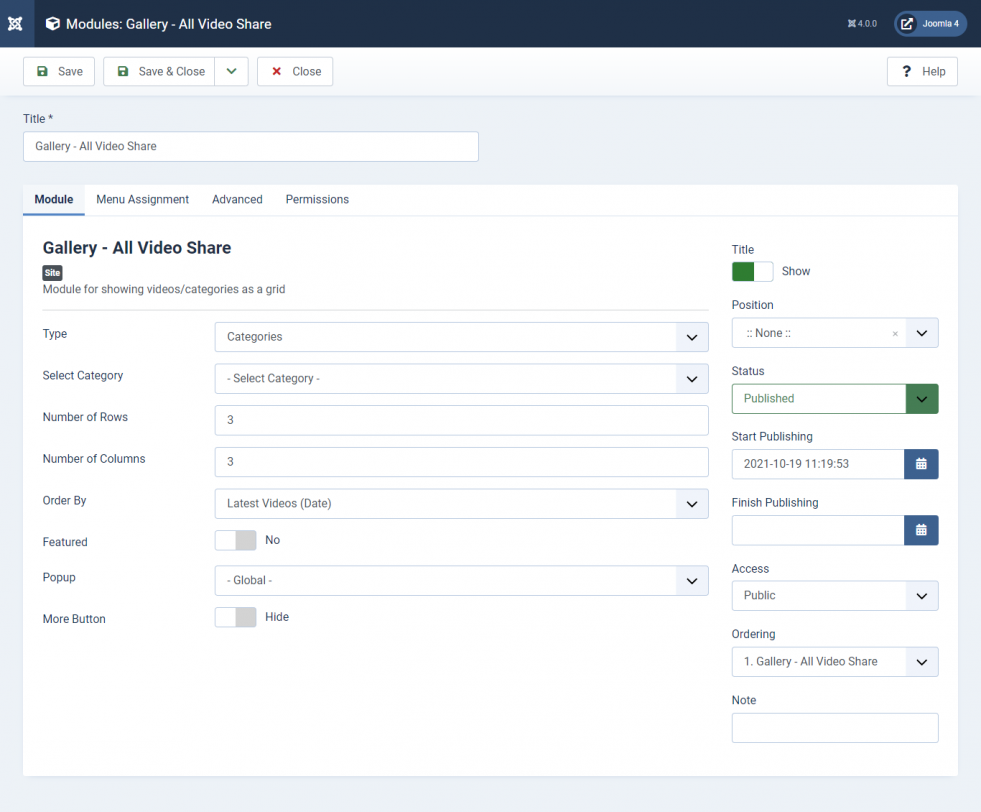
| Type | Display your Categories as a grid, or your Videos as a grid. | Videos |
| Select Category | Which category to take the items from. Leave empty to use all categories. | My First Category |
| Number of Rows | Count of rows in the module’s grid. | 2 |
| Number of Columns | Count of columns in the module’s grid. | 2 |
| Order By | How the items are sorted: Latest (ID), Latest (Date), Title Ascending, Title Descending, Most Viewed, Most Rated, Most Liked, Random or Custom Ordering. | Latest (ID) |
| Featured Only | Show only the videos you have marked as Featured. | No |
| Short Description | Show or hide a short description under each item. | Use Global |
| Category Name | Show or hide the category name on each video. | Use Global |
| Author Name | Show or hide the name of the user who added the video. | Use Global |
| Date Added | Show or hide the date the video was added. | Use Global |
| Videos Count | Show or hide the number of videos in each category. Used when Type is Categories. | Use Global |
| Views Count | Show or hide the view count on each video. | Use Global |
| Ratings | Show or hide the star rating on each video. | Use Global |
| Open Videos in Popup | Play the video in a popup instead of opening the single video page. | Use Global |
| More Button | Show a “More” button when there are more items than the rows and columns can display. | Show |
| More Button Text | Your own wording for the More button. | View all videos |
| More Button URL (Optional) | Send the More button somewhere other than the default gallery page. | /videos |
| Custom Page URL | On the Advanced tab. Send every item in this module to a page of your choosing. | /my-videos |
Carousel Module
Shows your videos in a slider. It can display just the thumbnails, just a player, or a player with a row of thumbnails beneath it.
| Properties | Description | Example |
|---|---|---|
| Select Category | Which category to take the videos from. Leave empty to use all categories. | My First Category |
| Order By | How the videos are sorted. | Latest (ID) |
| Featured Only | Show only the videos you have marked as Featured. | No |
| Number of Videos | How many videos to load into the slider. | 10 |
| Short Description, Category Name, Author Name, Date Added, Views Count, Ratings, Open Videos in Popup | The same display options as the Gallery module. | Use Global |
| Slider Layout | Thumbnails Only, Player Only, or Player + Thumbnails. | Player + Thumbnails |
| Number of Slides | How many thumbnails to show at once. | 4 |
| Arrows | Show the previous and next arrows, with settings for their size, background colour, icon colour, corner radius and position offsets. | Show |
| Dots | Show the navigation dots, with settings for their size and colour. | Show |
| Player, Controls, Advertisements | The same player settings as the Player module, applied to this slider only. | Use Global |
| Custom Page URL | On the Advanced tab. Send every video in this module to a page of your choosing. | /my-videos |
Playlist Module
Shows a player with a scrollable list of videos beside or beneath it, so visitors can move through a set of videos without leaving the page.
| Properties | Description | Example |
|---|---|---|
| Select Category | Which category to take the videos from. Leave empty to use all categories. | My First Category |
| Order By | How the videos are sorted. | Latest (ID) |
| Featured Only | Show only the videos you have marked as Featured. | No |
| Number of Videos | How many videos to load into the playlist. | 10 |
| Short Description, Category Name, Author Name, Date Added, Views Count, Ratings | What to show for each entry in the playlist. | Use Global |
| Playlist Position | Right of the player, or Bottom. | Right |
| Playlist Width (px) | Width of the playlist panel. | 300 |
| Playlist Height (px) | Height of the playlist panel. | 400 |
| Playlist Color | Light or Dark. | Light |
| Autoplay Next Video | Start the next video automatically when the current one finishes. | Yes |
| Player, Controls, Advertisements | The same player settings as the Player module, applied to this playlist only. | Use Global |
Search Module
| Properties | Description | Example |
|---|---|---|
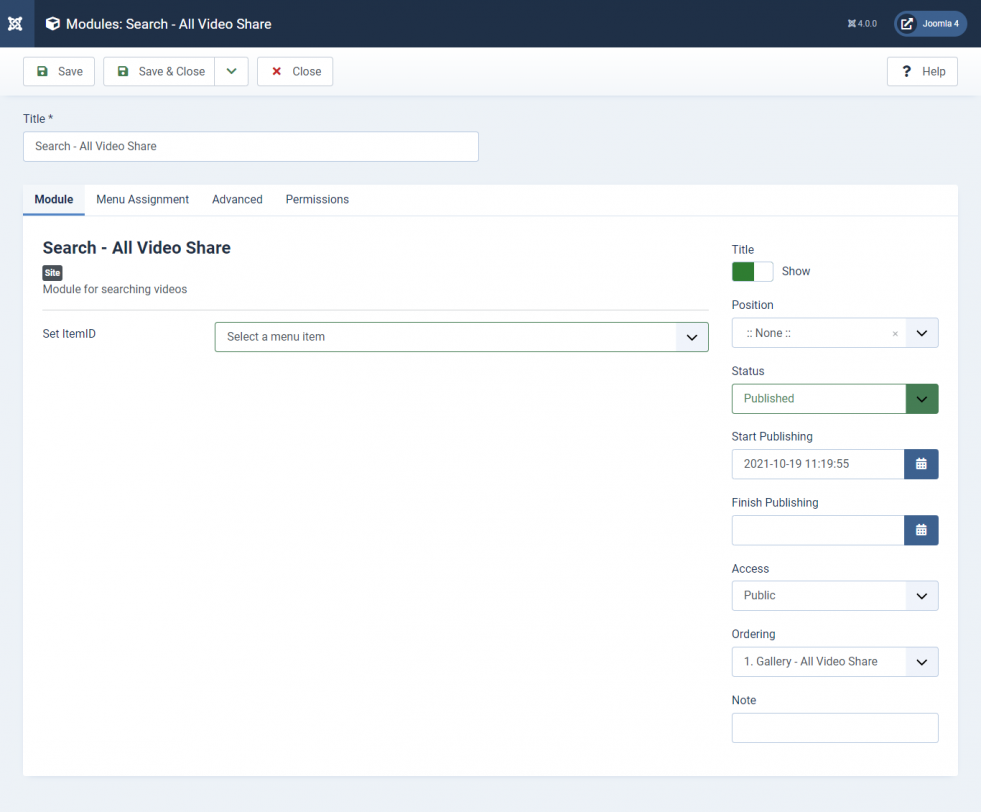
| Search Menu | Choose the All Video Share menu item the search results should be shown on. Leave it as None and All Video Share picks a suitable page itself. | Videos |
YouTube Module
Displays videos fetched live from YouTube — a playlist, channel, username, search term, live stream, or your own list of YouTube URLs — rather than from the videos in your database. It needs a YouTube API key, set under Options → API Keys.
See YouTube Gallery as Module for its full settings, and How to Get a YouTube API Key to set up the key.