
The automatic YouTube gallery is different from everything else in All Video Share. Rather than showing videos from your library, it fetches them straight from YouTube — a playlist, a whole channel, a search, or a live stream — and keeps itself up to date on its own.
Publish a video to YouTube and it appears on your website without you doing anything at all.
On This Page
Getting a YouTube API Key
A YouTube API Key is required to dynamically build your video galleries, and it is free of charge. It is how YouTube recognises requests coming from your website. Setting one up takes about five minutes.
If you would rather watch than read, this video walks through the whole process:
Step 1: Open the Google Cloud Console
Go to the Google Cloud Console and sign in with a Google account. Any Google account will do — it does not have to be the one that owns the YouTube channel.
Step 2: Create a Project
Click the project dropdown at the top of the page and choose New Project. Give it a name — something like My Website Videos — and click Create.
The name is only for your own reference and never appears on your website. If you already have a project you are happy to use, select that instead and move on.
Step 3: Enable the YouTube Data API
With your project selected, open the Library and search for YouTube Data API v3. Click it, then click Enable.
Do not skip this step. A key on its own is not enough — without the API switched on for that project, every request is refused and your gallery stays empty.
Step 4: Create the API Key
Open the Credentials section, click Create Credentials at the top, and choose API key from the menu.
Your key is generated straight away and shown on screen. Copy it.
Step 5: Restrict the Key (Optional)
This step is optional but worth the extra minute. In the key’s settings you can limit it to your own website address, and to the YouTube Data API alone.
Your key is visible in your website’s code, so anyone determined enough can read it. A restricted key is useless to them; an unrestricted one could be used elsewhere and quietly consume your daily allowance.
If you do restrict by website address, make sure it matches your live site exactly — including whether it begins with www. A mismatch here is a common reason for a gallery that works locally but not once published.
Step 6: Add the Key to All Video Share
Back in Joomla, go to Components → All Video Share → Options → API Keys, paste the key into the YouTube API Key field, and click Save.
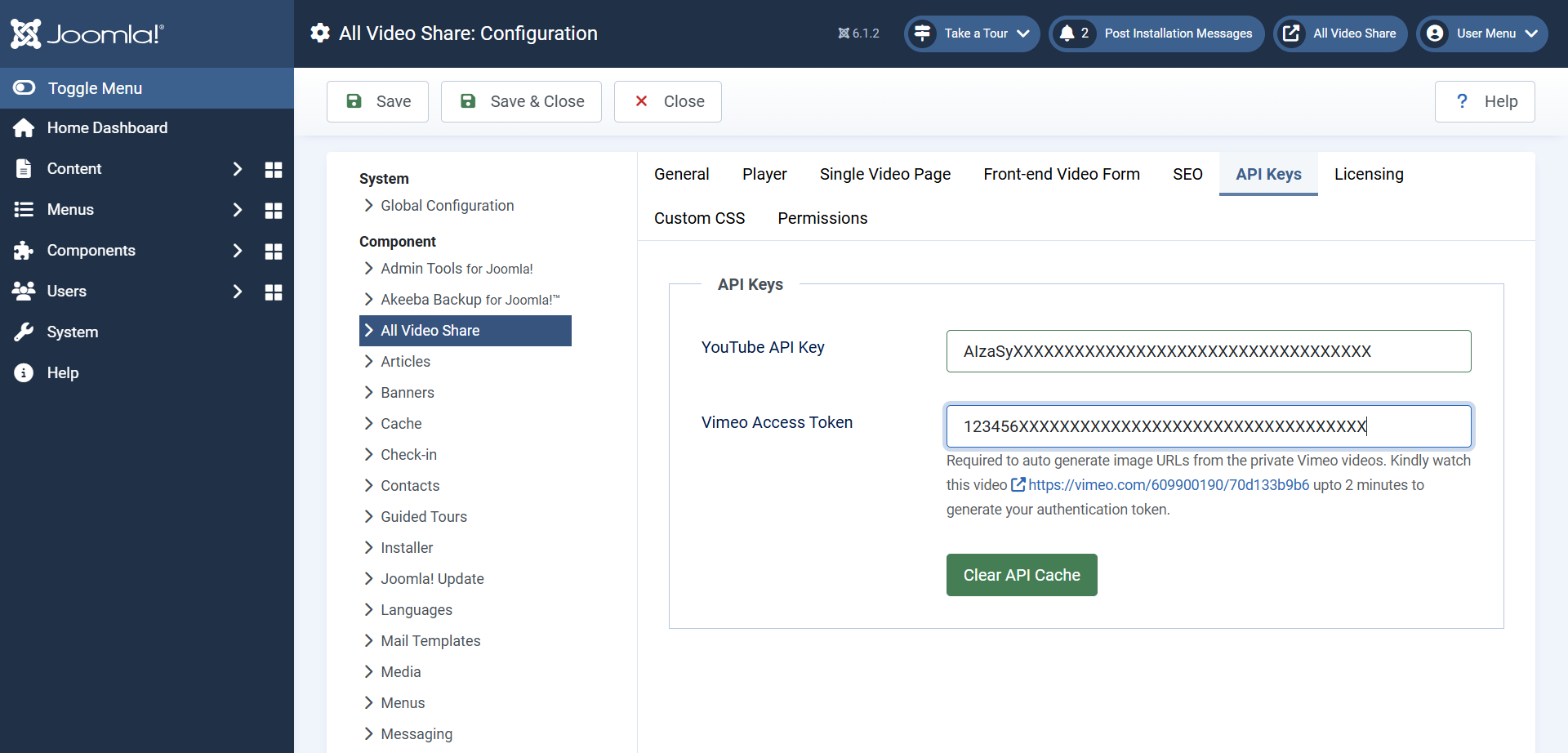
That is it. One key serves every YouTube gallery on your site — pages, modules and articles alike — so you never need to do this again.
Where to Put a Gallery
You can place a YouTube gallery in three places, and all three offer the same settings:
- As a page — add a menu item and choose the YouTube Gallery type.
- In a module position — add the YouTube module to a sidebar, footer or home page strip.
- Inside an article — use the
{avsyoutube}tag, or the editor button that writes it for you.
The rest of this page describes the settings themselves, which are the same wherever you are working.
Choosing Your Source
The Source Type setting decides where the videos come from. Pick one and the field beneath it changes to match.
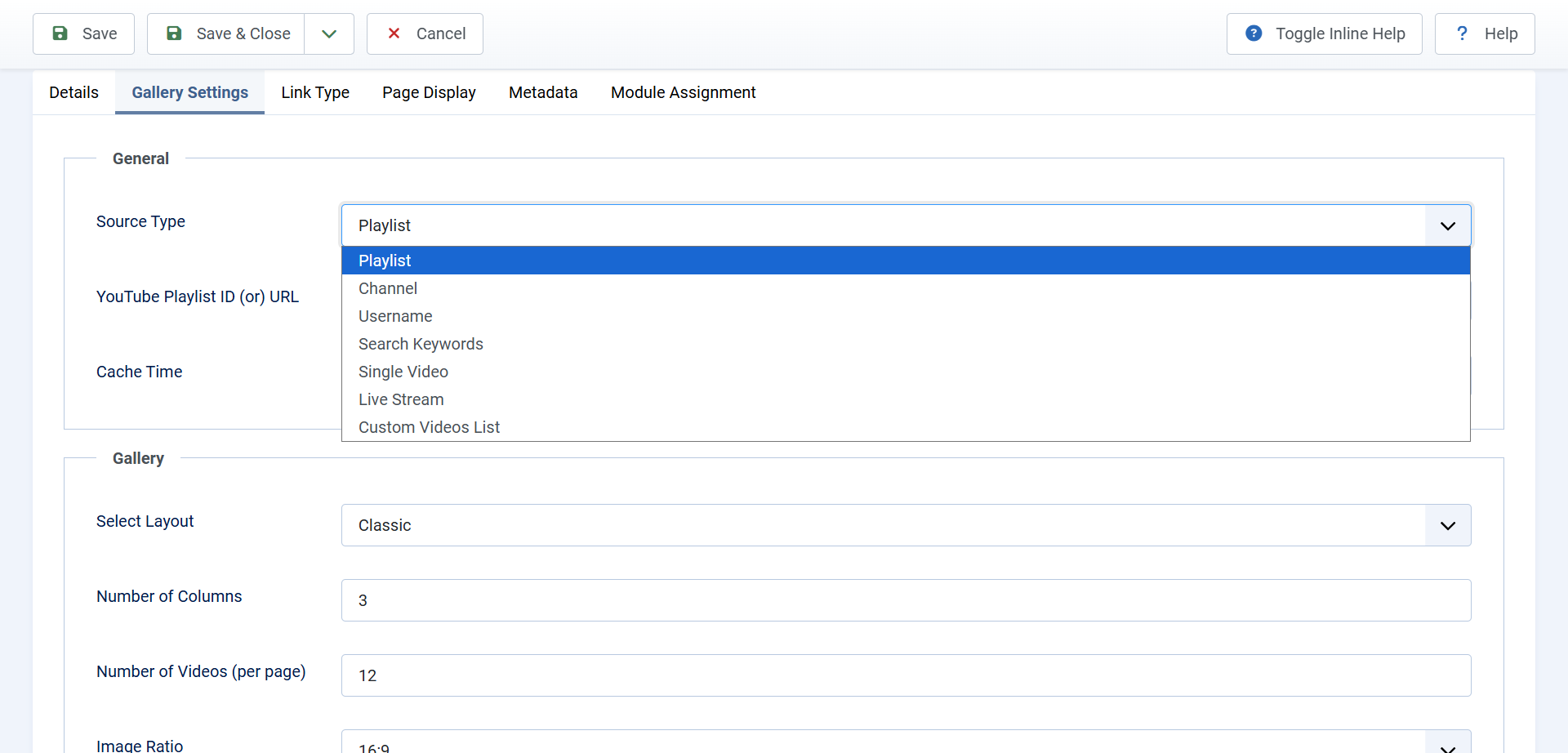
Playlist
Shows every video in a YouTube playlist, in the playlist’s own order. Paste either the playlist address or just its ID:
https://www.youtube.com/playlist?list=PLxxxxxxxxxxxxxxxxThis is the option to choose when you want control over what appears and in what order — rearrange the playlist on YouTube and your website follows.
Channel
Shows the videos from a channel, newest first. Paste the channel address, or the address of any video belonging to that channel and All Video Share works out the rest:
https://www.youtube.com/channel/UCxxxxxxxxxxxxxxxxUsername
Does the same as Channel, but takes an account name instead of an ID — useful for older channels that still have one.
Search
Shows the results of a YouTube search, so the gallery fills with videos from across YouTube rather than one channel. You supply the words to search for, and two extra settings appear:
- Order Videos by — relevance, date, rating, title or view count.
- Number of Videos — how many results to collect in total, up to 500.
Searches accept a little extra syntax. A space means both words, a minus sign excludes a word, and a vertical bar means either:
joomla tutorial
joomla -wordpress
joomla | drupal
A search gallery shows whatever YouTube returns, including videos you have no control over. Check the results before putting one on a page where anything unsuitable would be a problem.
Video and Videos
Video shows a single YouTube video — handy when you want one clip with a title and description around it.
Videos takes a list of addresses, one per line, and shows exactly those in exactly that order. Use it when you want a hand-picked gallery drawn from different channels.
Live Stream
Shows whatever a channel is broadcasting live right now. Give it the channel and the page takes care of itself — when a broadcast starts, it appears.
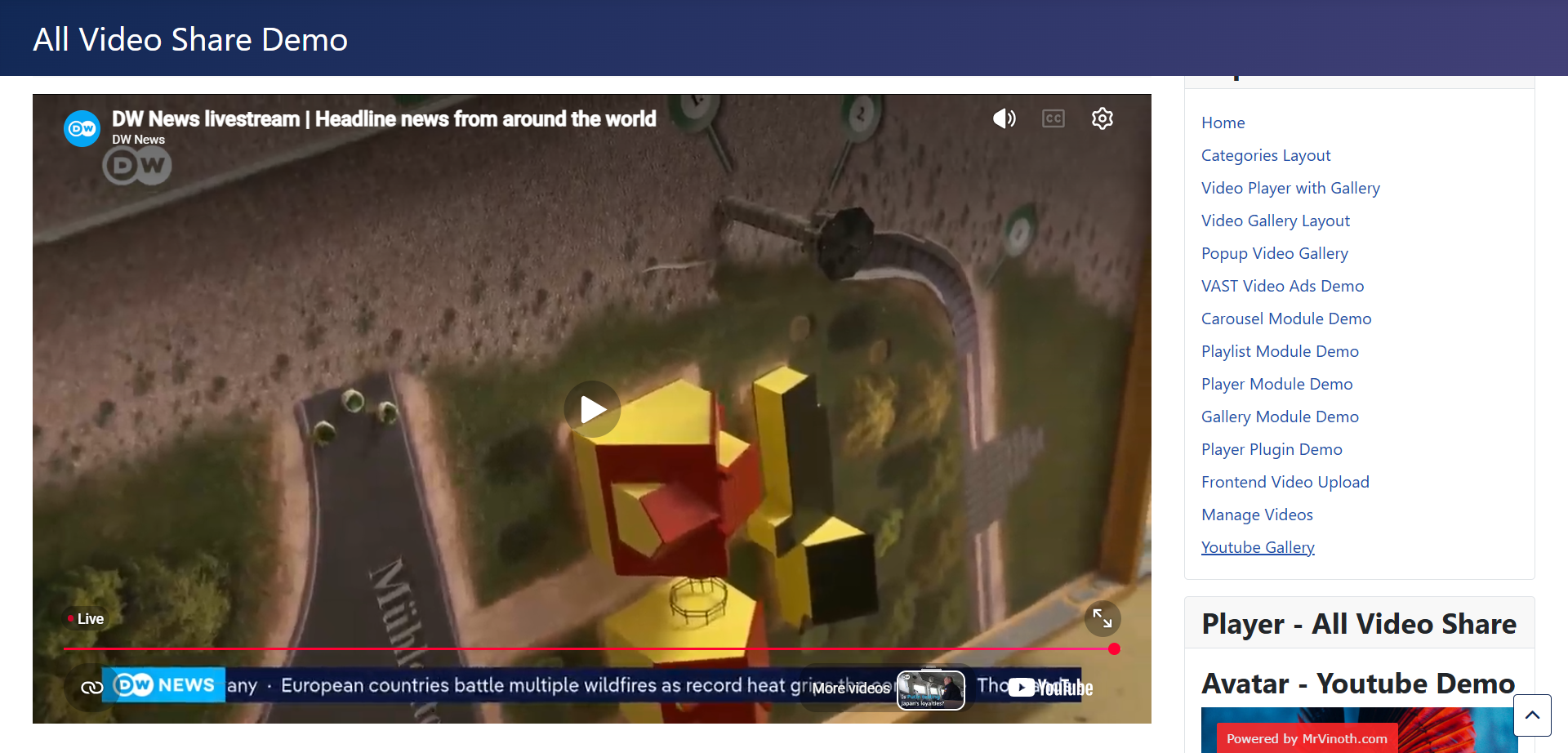
Live streams are never cached, for obvious reasons, so this source always asks YouTube directly.
The Five Layouts
The Select Layout setting changes how the gallery looks and how videos open.
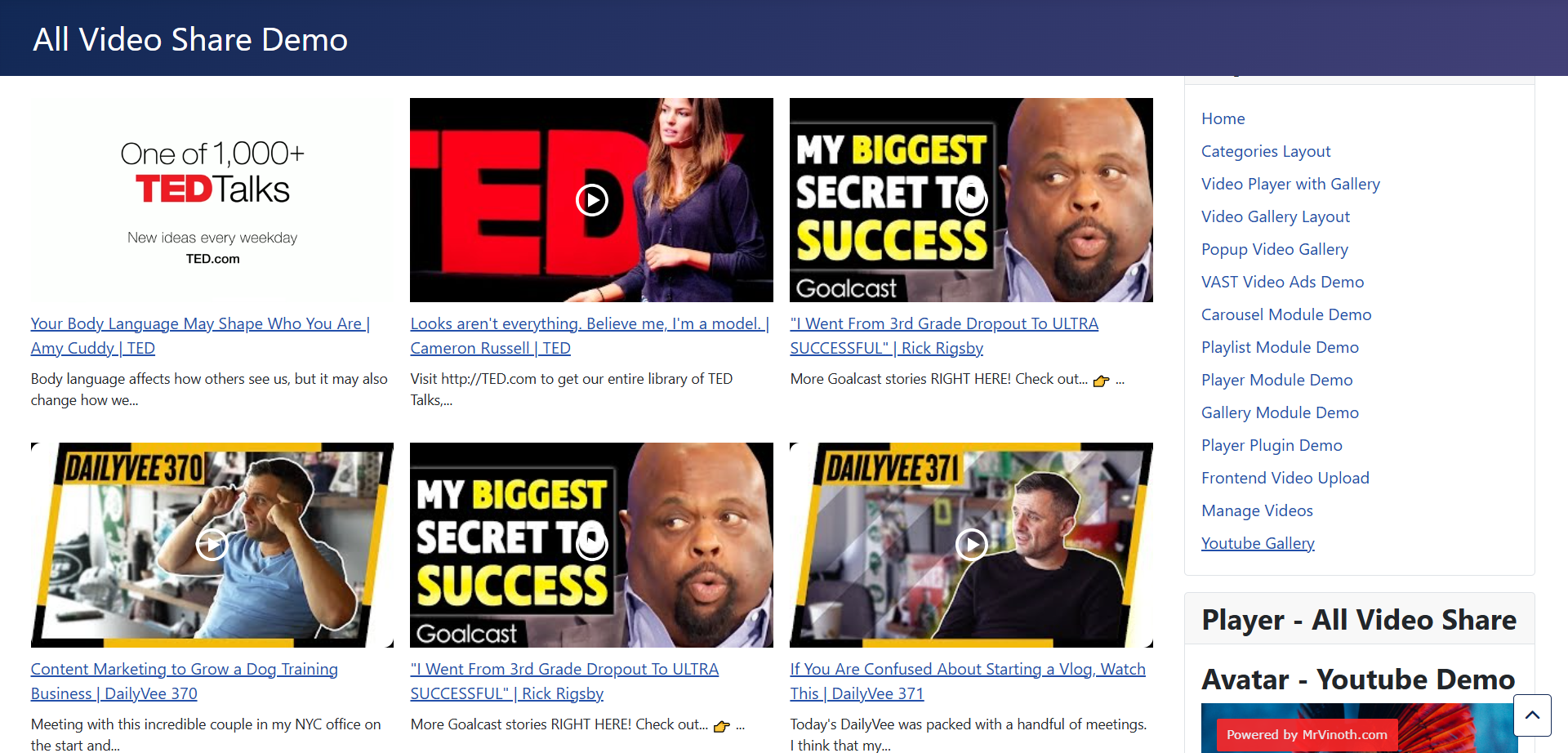
Classic
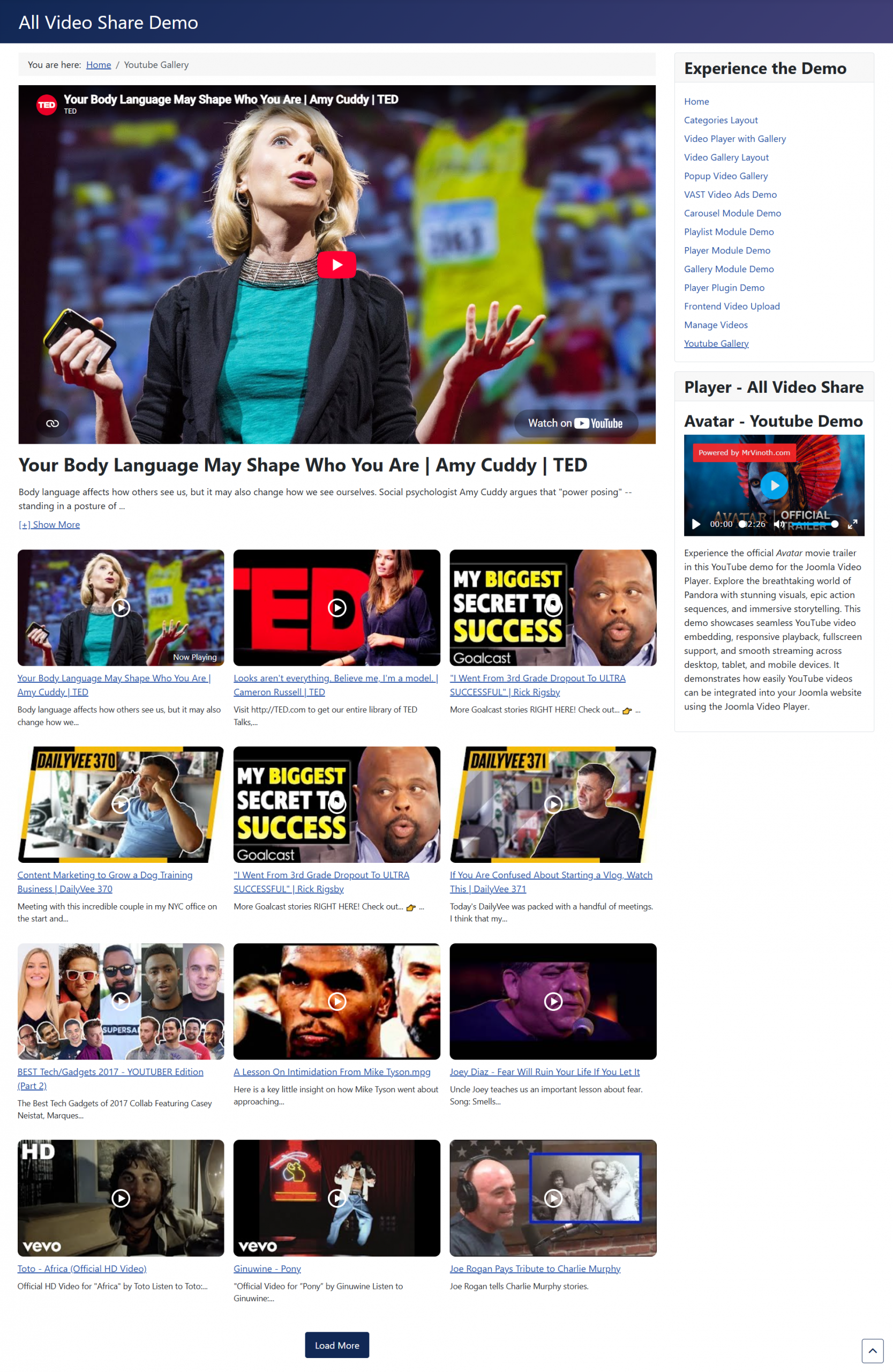
A grid of thumbnails with a player above them. Click a thumbnail and it plays in that player while the grid stays put. This is the default and it suits most sites.
Inline
A grid with no separate player. Click a thumbnail and the video starts playing in that thumbnail’s own space, leaving the rest of the grid untouched.
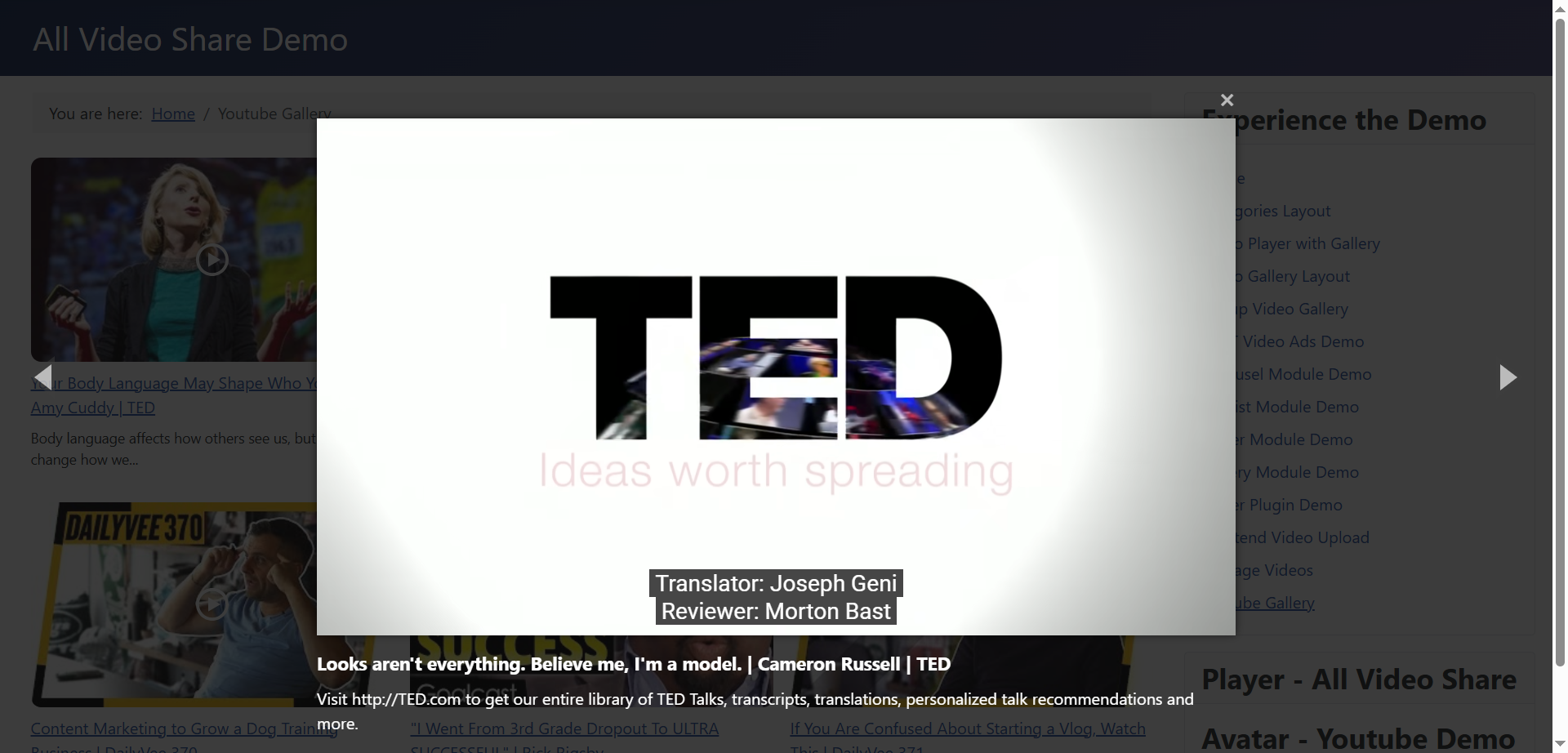
Popup
A grid where clicking a thumbnail opens the video large, over the page. Closing it puts the visitor straight back where they were. Good when the videos deserve a bigger screen than your page layout allows.
Slider
A single row of videos that slides sideways, with arrows and dots. It fits a wide strip across a home page, where a full grid would take up too much room.
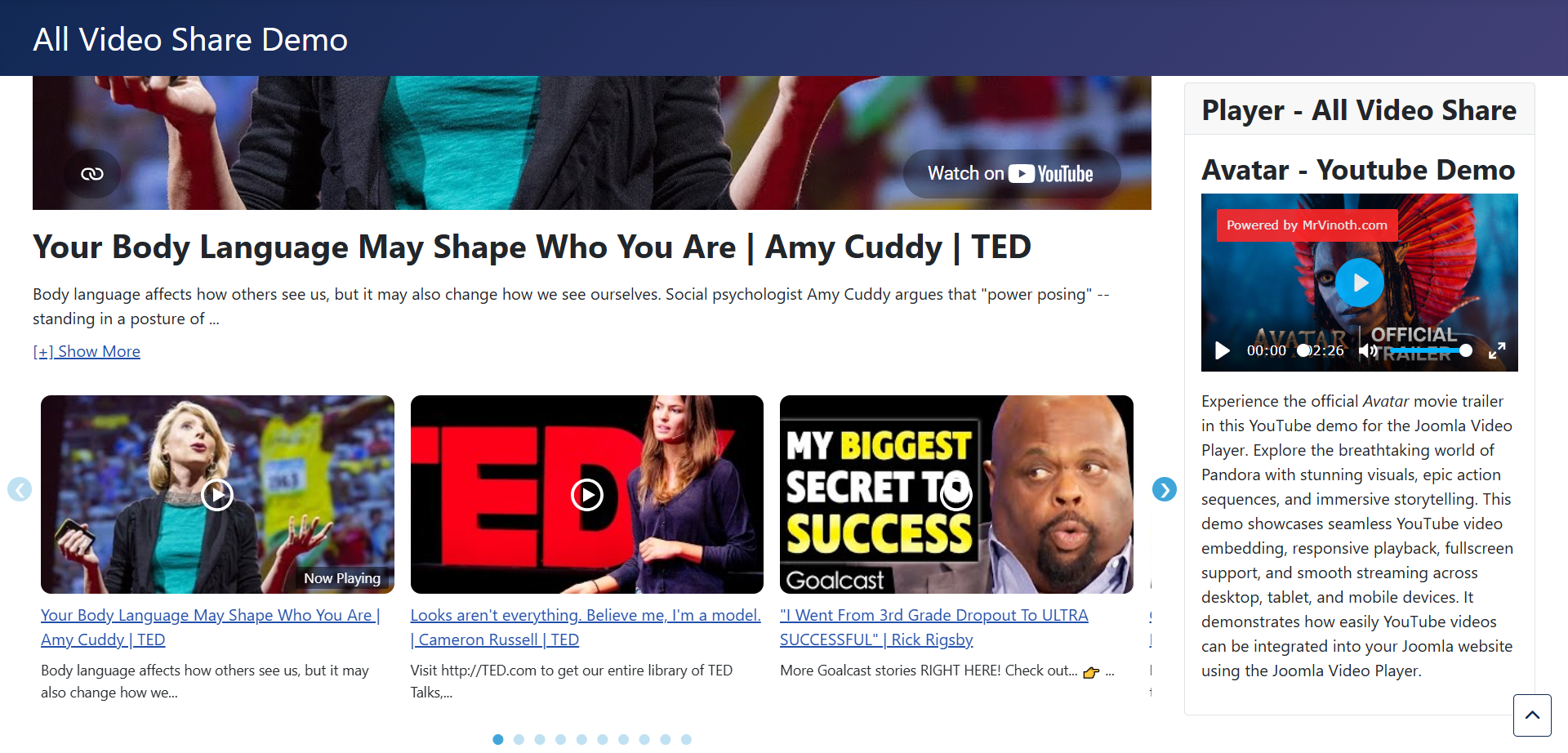
Choosing it reveals a set of settings for the arrows and dots — their size, colours, corner rounding and exact position. The position settings accept negative numbers, which is how you move the arrows outside the slider instead of on top of the videos.
Playlist
A player with a scrollable list of videos beside it, the way YouTube itself shows a playlist.
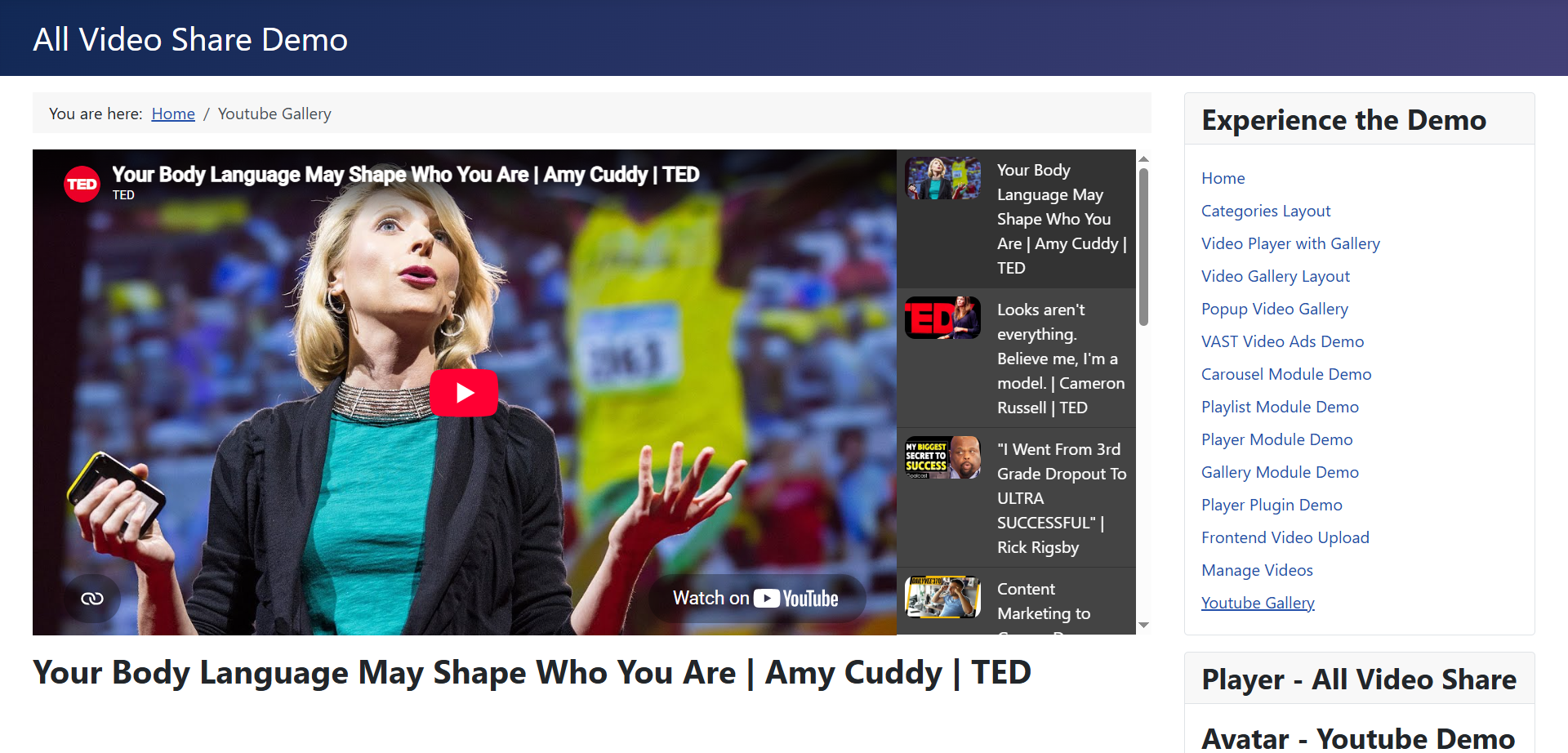
Its own settings control the list: whether it sits to the right of the player or underneath, how wide and how tall it is, and whether it uses a light or dark colour scheme. On narrow screens the list always moves underneath, so the player stays watchable.
Two source types bring their own layout. Choose Video and you get a single video page whatever layout is selected; choose Live Stream and you get the live stream layout.
Gallery Settings
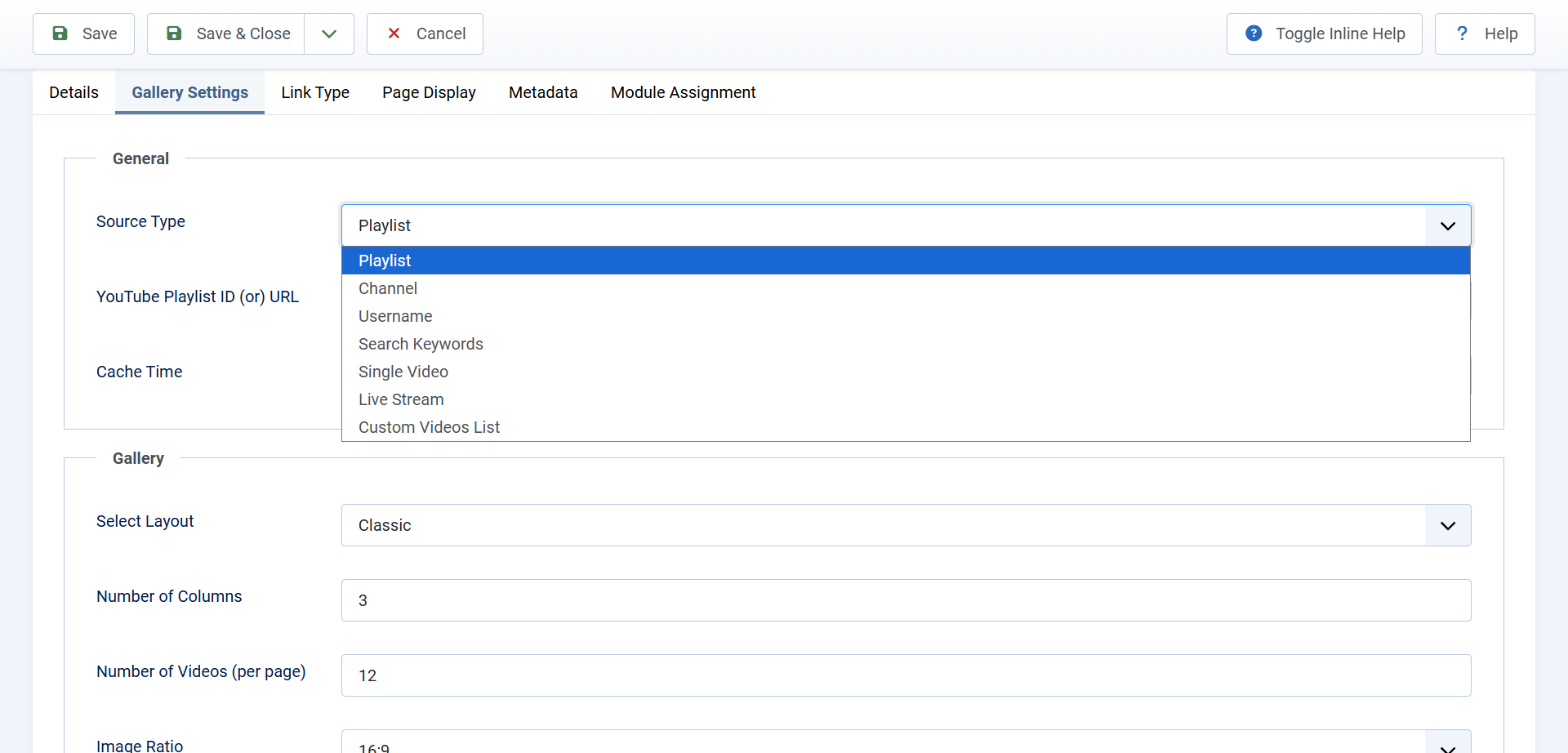
- Number of Columns — how many videos sit side by side, from 3 to 12.
- Number of Videos (per page) — how many are shown before paging begins. YouTube allows at most 50 at a time, so higher numbers are treated as 50.
- Image Height (Ratio) — 16:9 for widescreen thumbnails, or 4:3.
- Video Title and Title Length — show the title, and optionally cut it short so long titles do not disturb the grid.
- Short Description and Description Length — the same for the snippet of description beneath.
- Pagination — whether visitors can move beyond the first page at all.
- Pagination Type — either Load More, which adds videos below the ones already shown, or Pager, which gives previous and next buttons.
Fewer videos per page means fewer requests to YouTube, which matters if a gallery is on a busy page. Twelve is a sensible starting point.
YouTube Player Settings
These videos play in YouTube’s own player, so this section passes your preferences on to YouTube rather than controlling the player directly.

- Player Height (Ratio) — 16:9 or 4:3.
- Video Title and Video Description — show the title and description above the player.
- Autoplay — start playing as soon as the page opens. The Inline and Popup layouts always autoplay, since the visitor has just clicked a video.
- Autoplay Next Video — move on to the next video in the gallery automatically when one finishes.
- Loop — start again when the video ends.
- Controls — show YouTube’s own control bar.
- Hide YouTube Logo — plays down YouTube’s branding. A small label still shows when the video is paused; that part is not ours to remove.
- Force Closed Captions — turn subtitles on by default, even for viewers who normally have them off.
- Show Annotations — whether YouTube’s own overlays appear.
- Player Language and Default Captions Language — two-letter codes such as
en,deorfr, for the player’s own wording and its subtitles.
All Video Share uses YouTube’s privacy-friendly address for these embeds, which avoids setting tracking cookies until someone actually plays a video.
How Often It Refreshes
Asking YouTube for a fresh list on every single page view would be slow, and Google limits how many requests a key may make each day. So All Video Share remembers the answer for a while.
Cache Time decides how long. The choices run from no caching at all, through fifteen minutes, half an hour, an hour and a day, up to a week or four weeks.
Match it to how often you publish. A channel that gets a video a month is fine on a week; a busy news channel might want an hour. One day suits most sites, and it is the default.
Avoid setting this to no caching on a live site. Every visitor then triggers a fresh request to YouTube, your pages get slower, and a busy day can exhaust the daily allowance on your key — at which point galleries stop working until the following morning.
If you have just published something and want it to appear immediately, use the Clear Cache button under Options → API Keys. That empties the stored results and the next visitor gets a fresh list.
If Nothing Appears
When a gallery is empty or shows a message instead of videos, it is nearly always one of these:
- No API key, or a mistyped one. Check Options → API Keys for stray spaces at either end.
- The API is not enabled. Having a key is not enough — YouTube Data API v3 has to be switched on for that project in the Google Cloud Console.
- The daily allowance is used up. Google resets it every day. Raising your cache time is the long-term answer.
- Your key is restricted too tightly. If you limited it to a website address, make sure that address matches your live site, including whether it has www in front.
- The source is private or empty. Private and unlisted playlists cannot be read. Check the playlist or channel is public by opening it while signed out.
When something goes wrong, All Video Share shows the message it received from YouTube rather than hiding it. That message usually names the problem directly, so it is worth reading before changing anything.