
Modules put videos into the positions your Joomla template offers — a sidebar, a footer, or a strip across your home page. Unlike a menu item, a module sits alongside whatever else is on the page rather than being the page itself.
Six modules come with All Video Share. This page explains what each one is for and the settings that matter most.
On This Page
Adding a Module
- Go to Content → Site Modules and click New.
- Pick the All Video Share module you want from the list. Typing video in the search box narrows it down quickly.
- Give the module a Title, and decide whether that title should be shown or hidden on the front end.
- Choose a Position — this is where in your template the module appears.
- Open the Menu Assignment tab and decide which pages it should appear on. The default is every page.
- Adjust the module’s own settings, then click Save & Close.
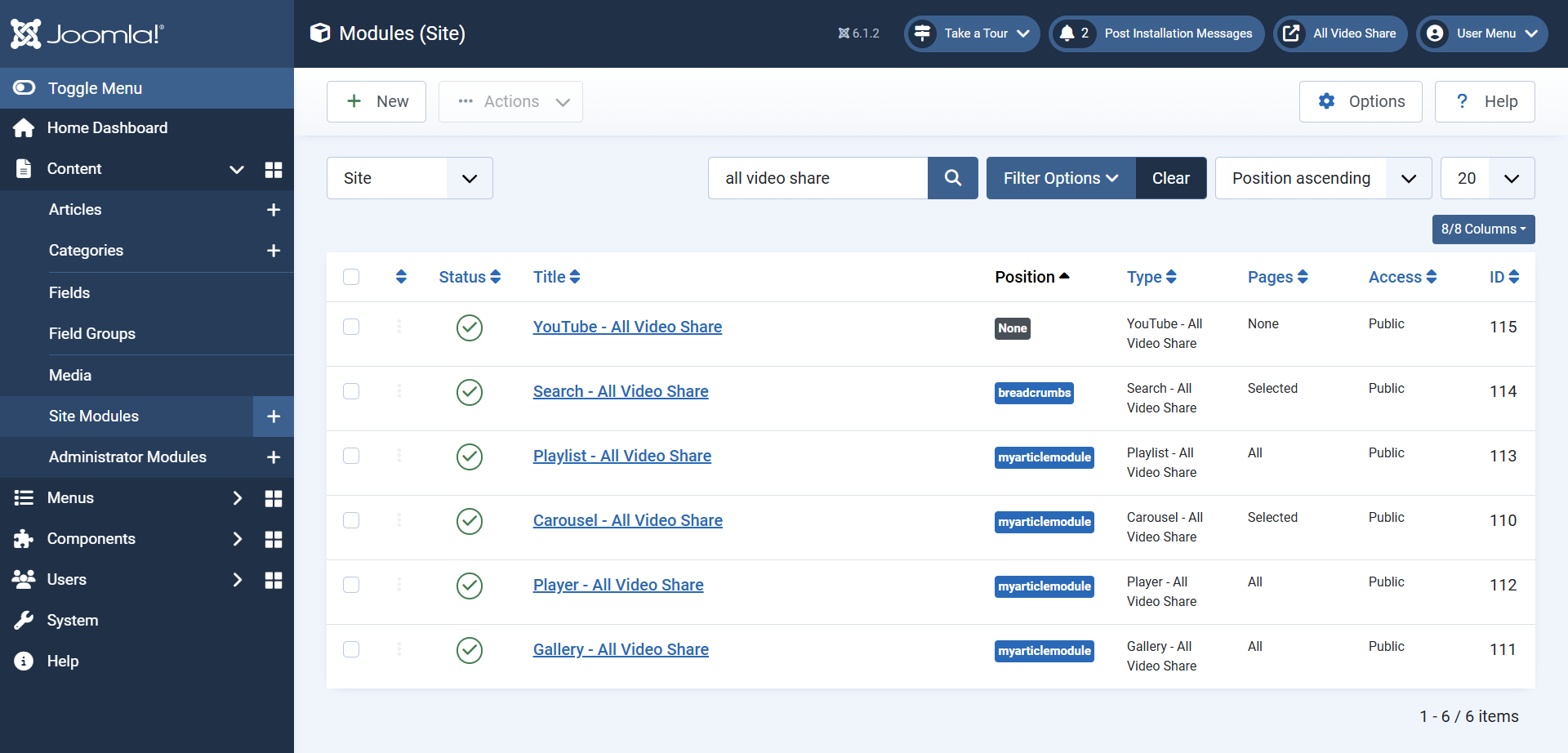
A module that does not appear on your site is nearly always either unpublished, assigned to a position your template does not use, or restricted to pages you are not looking at. Check those three before anything else.
Gallery
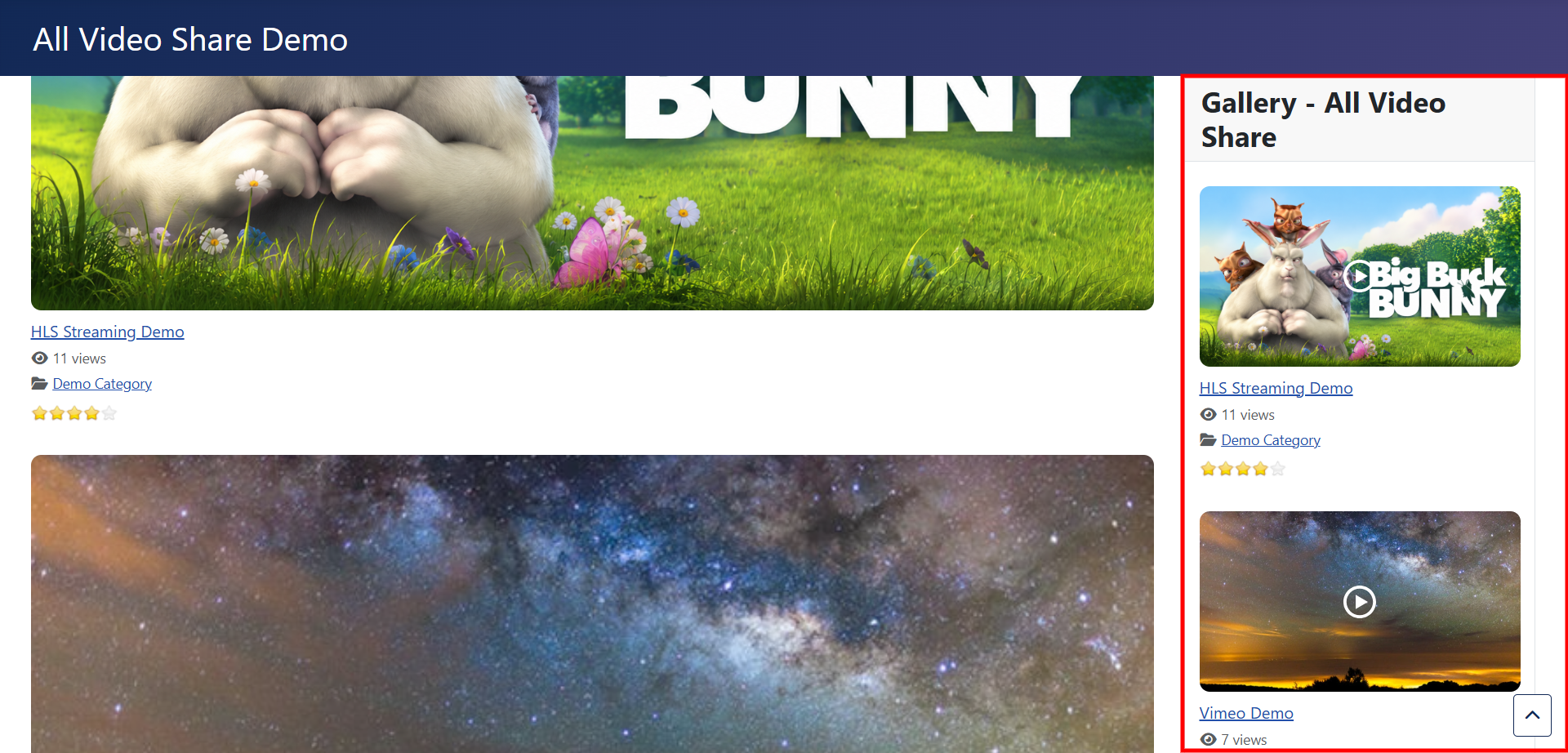
The Gallery module shows a grid of thumbnails. It is the most flexible of the six and the one most sites reach for first.
Its first setting decides what the grid contains: a set of videos, or a set of categories for visitors to browse into. Choose videos and you can narrow them to one category, or leave it open to draw from your whole library.
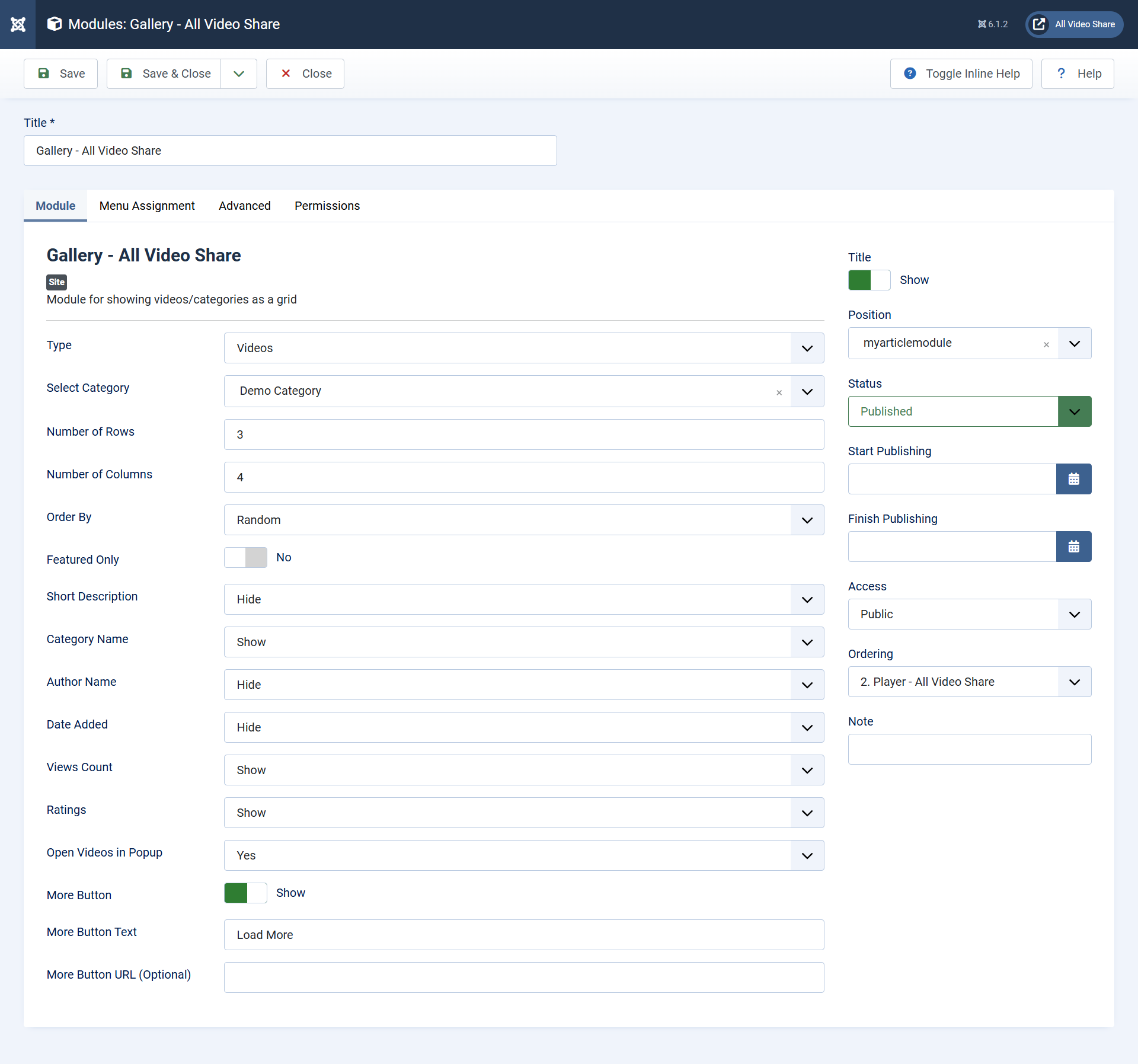
The settings that matter most:
- Number of Rows and Number of Columns — how many thumbnails appear. In a narrow sidebar, one column and four rows usually works better than a grid.
- Order By — newest first, alphabetical, most watched, random, or your own order.
- Featured — limit the module to videos you have flagged as featured.
- Short Description, Category Name, Author Name, Date Added, Videos Count and Views Count — each shows or hides one piece of information under the thumbnail. Turn most of them off in a narrow position.
- Read More button — adds a button underneath the grid. You supply its wording and the address it points to, which is usually your main videos page.
Ratings and Open Videos in Popup also appear in this module’s settings. Both belong to the premium version — see Premium Features.
Carousel
The Carousel shows videos in a row that slides sideways, with arrows and dots for moving through them. It fits a wide position — a full-width strip across a home page, for instance — where a grid would take up too much vertical space.
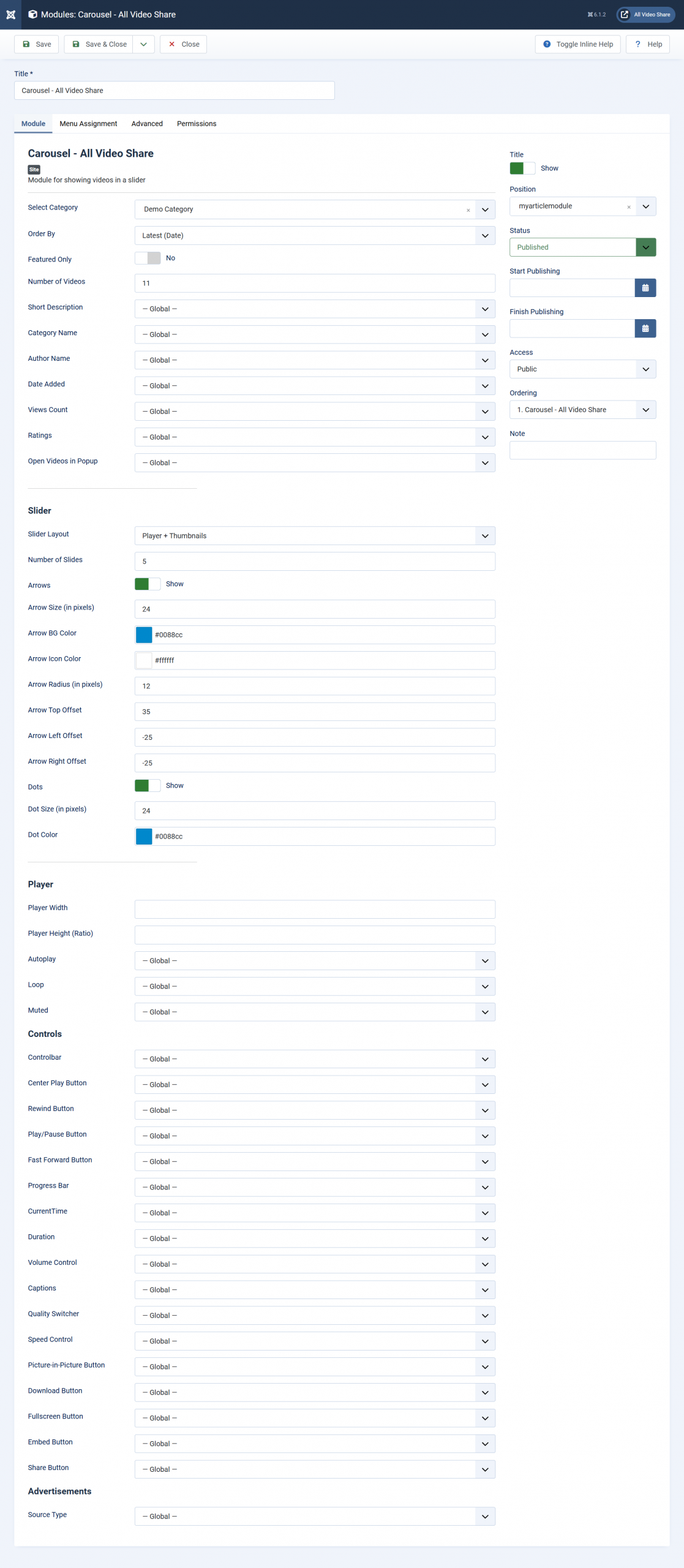
It shares the Gallery module’s choices about which videos to show — category, order, featured only, and which details to display beneath each thumbnail. On top of that it adds a Slider Options section:
- Number of Columns — how many videos are visible at once before the rest slide in.
- Arrows — show the previous and next arrows, and set their size, colours, corner rounding and exactly where they sit relative to the slider.
- Dots — show the row of dots beneath the carousel, with control over their size and colour.
- Number of Videos — how many videos the carousel holds in total.
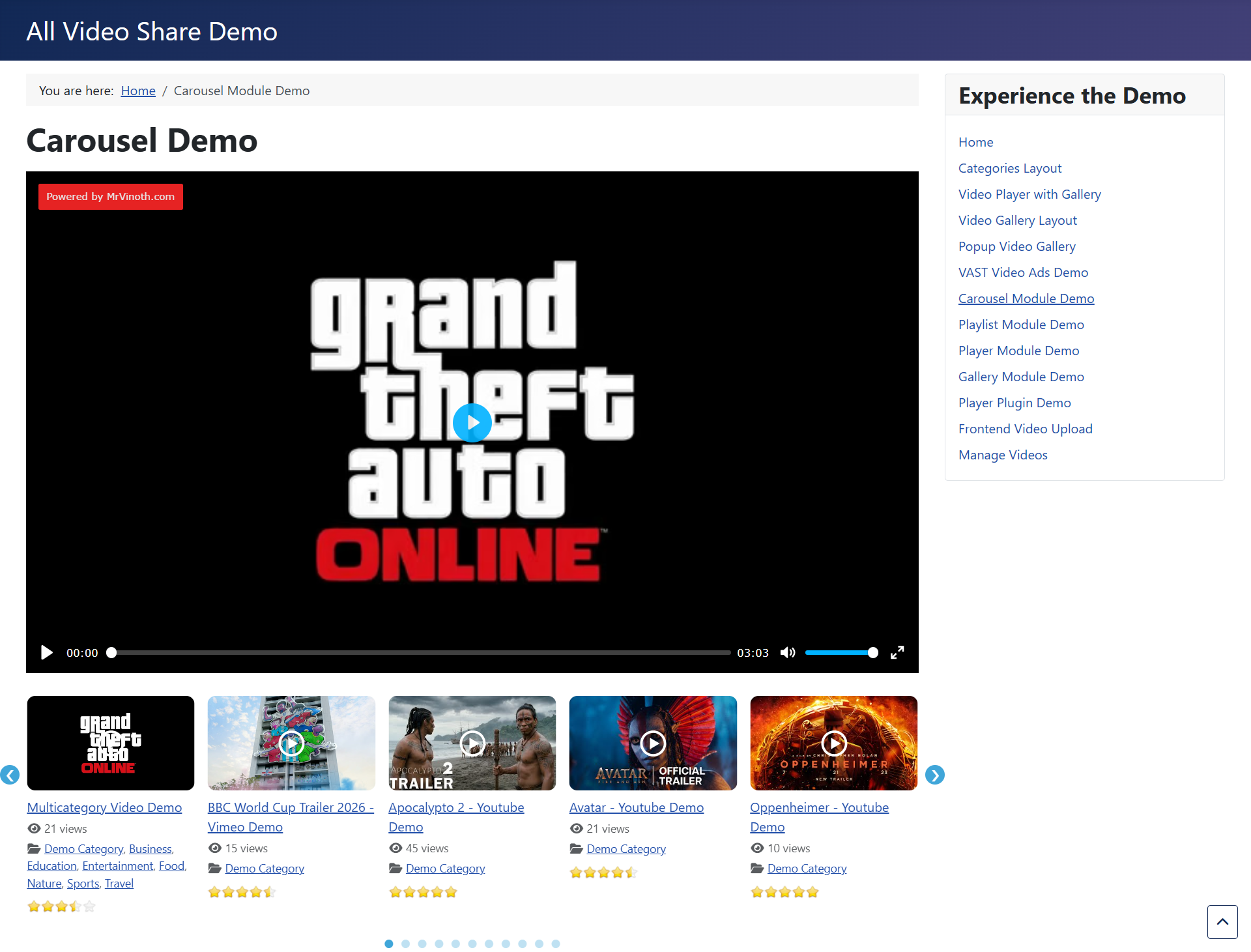
The arrow position settings accept negative numbers, which is how you place the arrows outside the carousel rather than on top of the thumbnails. If your arrows are overlapping the first and last videos, that is the setting to adjust.
Player
The Player module puts one video player into a module position. No grid, no thumbnails — just the video itself, optionally with its title and description above it.
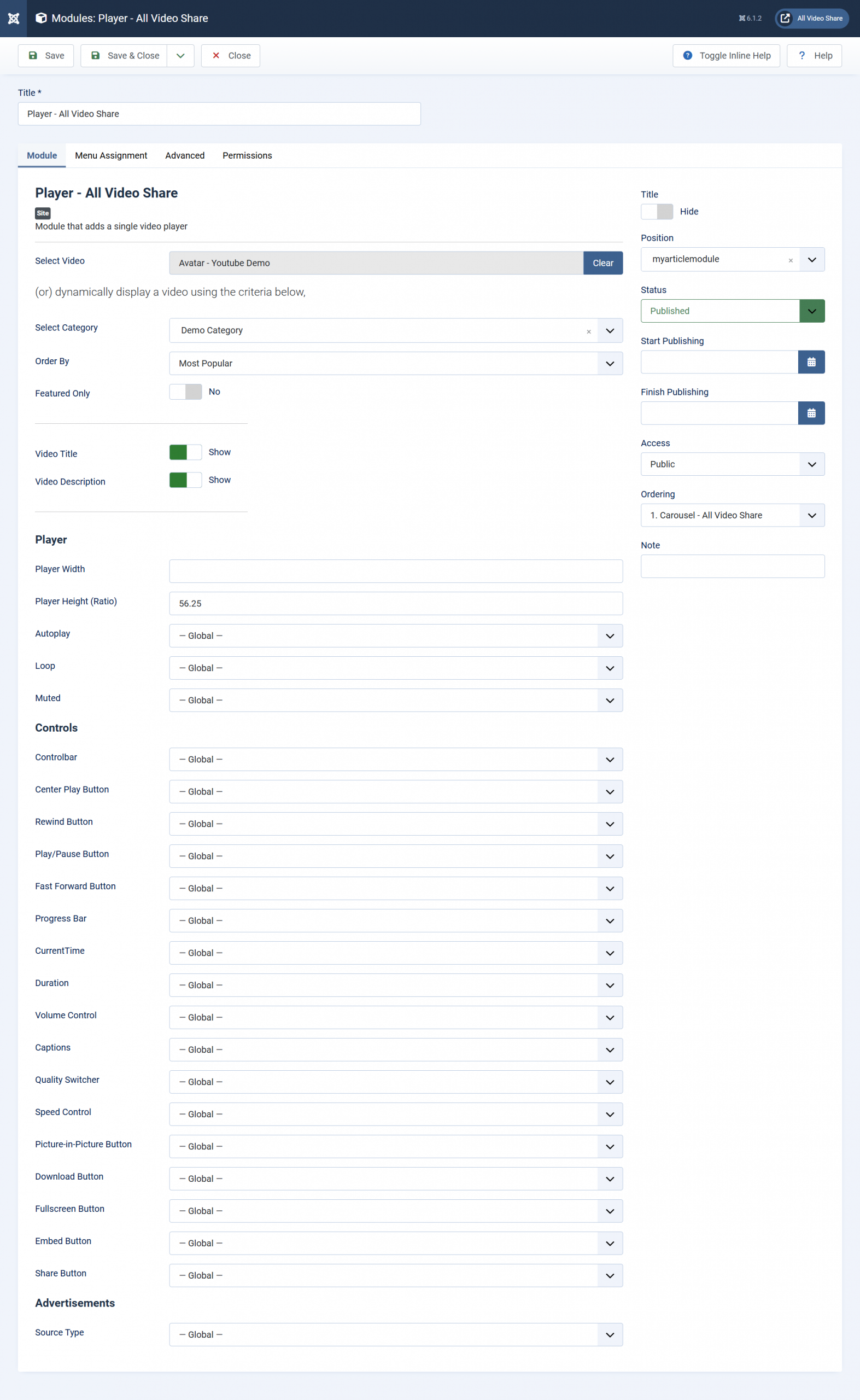
You can tell it what to play in three ways:
- Pick one video in the Video field. The module plays that video and nothing else — good for a welcome message or a product demo.
- Pick a category and an order instead. The module then plays whichever video comes first — set the order to Latest and it always shows your newest video, with no further work from you.
- Turn on Auto Detect, on the Advanced tab. The module then plays whichever video the visitor is currently looking at, which lets you move the player into a template position of your choosing rather than where the component puts it.
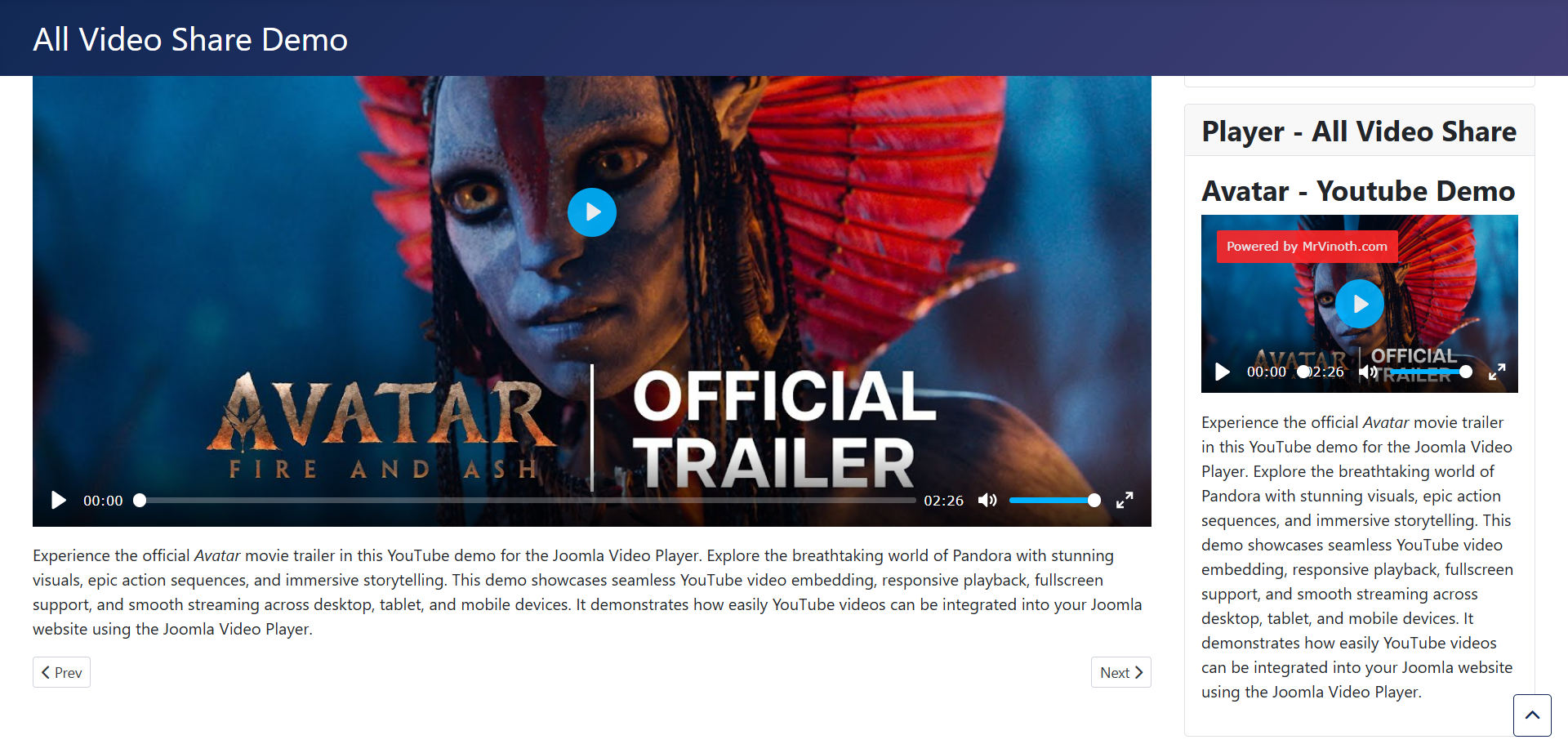
Two switches control what appears around the video — Video Title and Video Description — and below them sits the full set of player and advertisement settings described at the end of this page.
Playlist
The Playlist module is a player with a scrollable list of videos next to it. Click any entry in the list and it plays in the same player, without the page reloading.
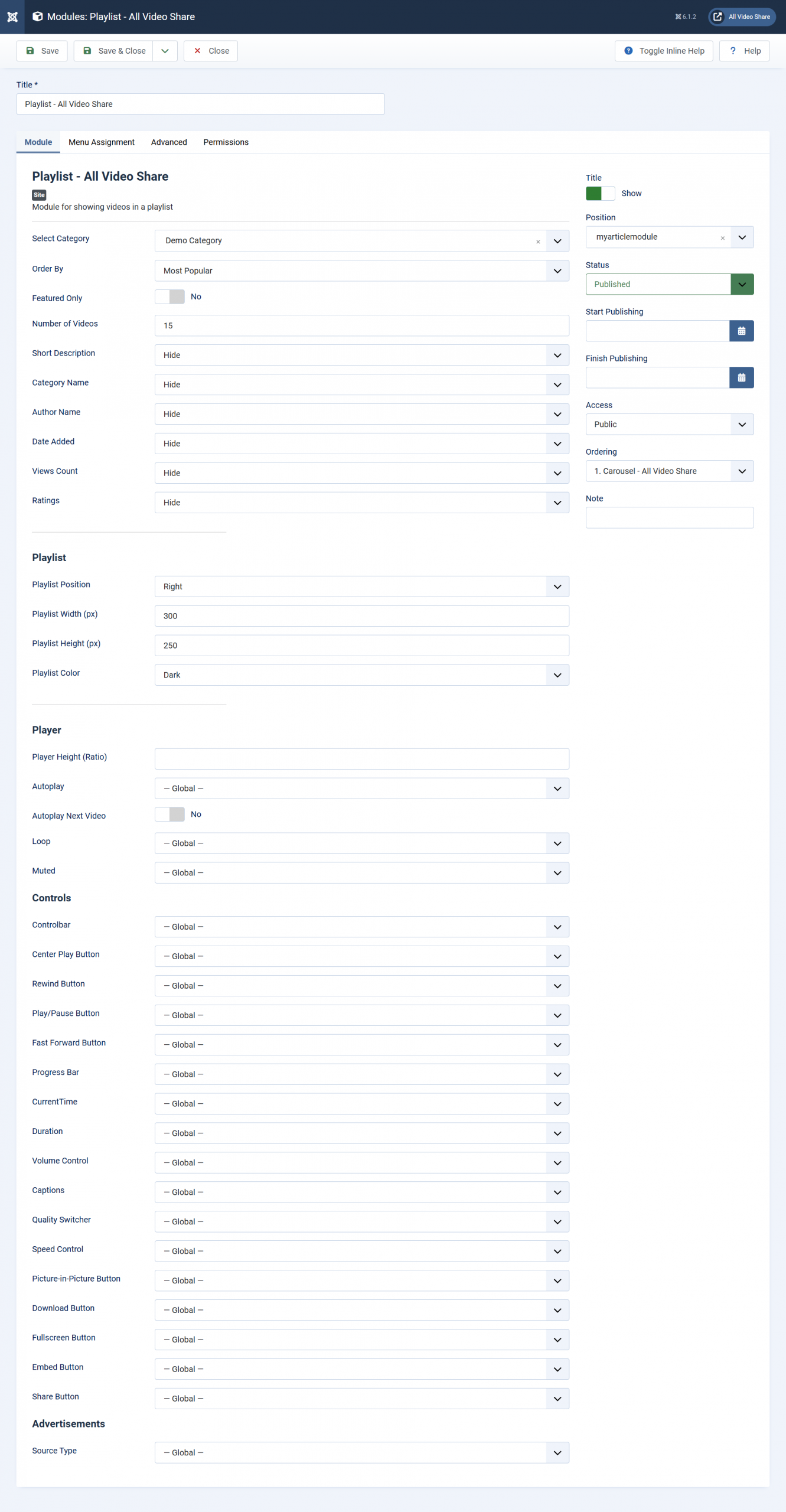
You choose the videos the same way as the Gallery module — by category, order, featured only, and how many to include. The Playlist Options section then controls the list itself:
- Playlist Position — beside the player on the right, or underneath it. On narrow screens the list always moves underneath regardless, so the player stays watchable.
- Playlist Width — how much room the list takes when it sits on the right.
- Playlist Height — how tall the list is before it starts scrolling.
- Colour Scheme — light or dark, to suit your template.
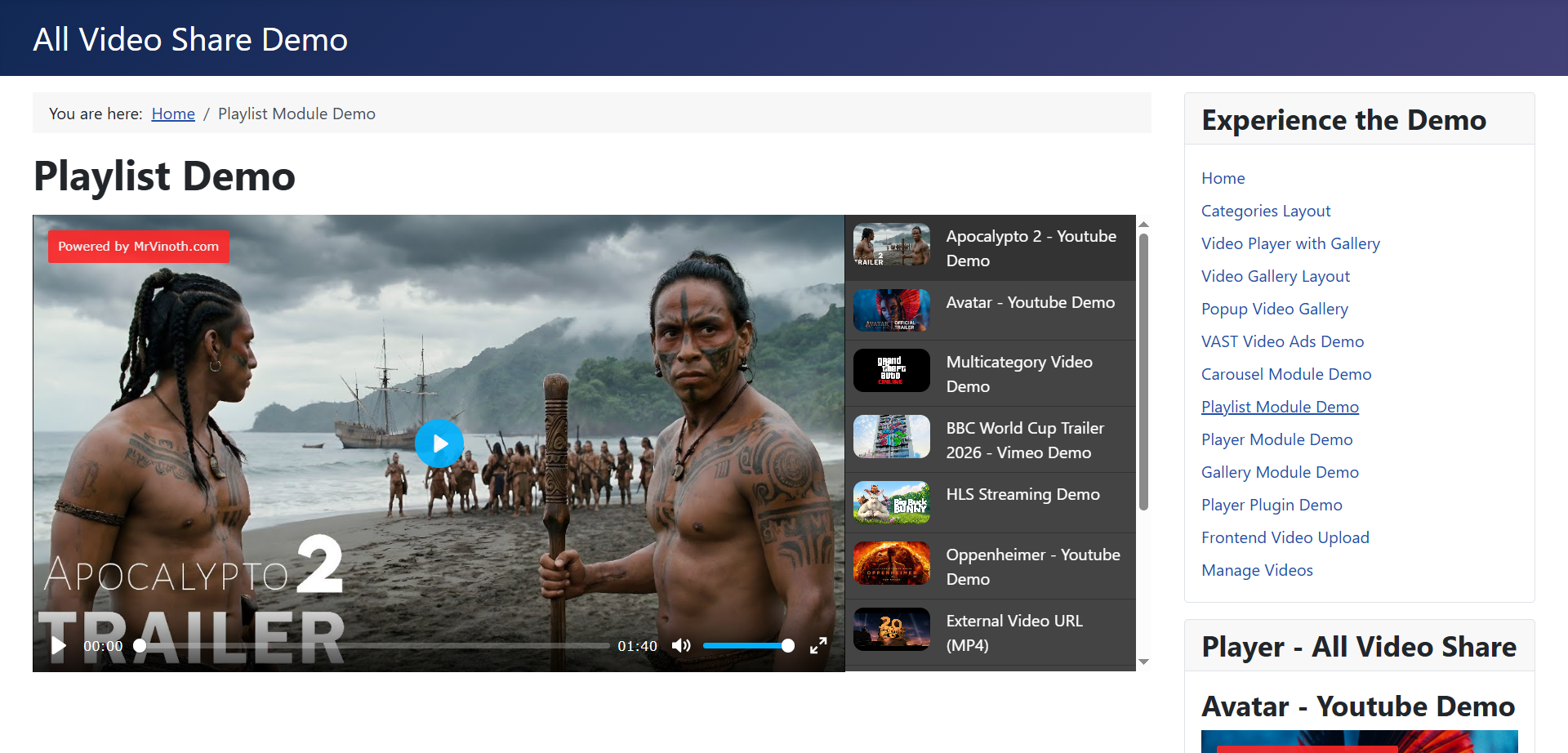
This module also offers Autoplay Next Video, which starts the next entry automatically when the current one finishes. Combined with a category of short clips, it turns the module into something closer to a channel.
Search
The Search module is a single box that searches your video library by title and keywords. It is the simplest module of the six and has only one setting worth thinking about.
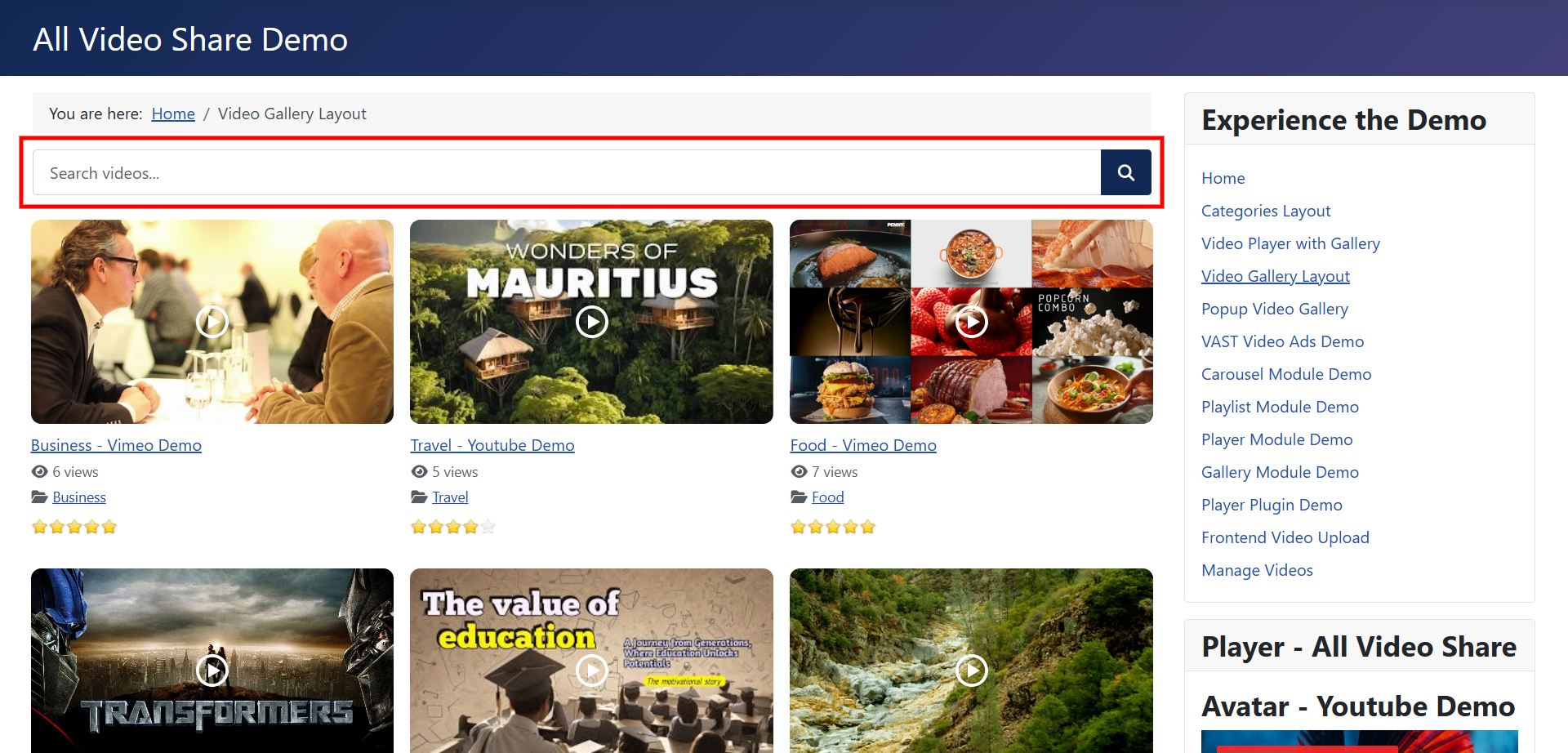
That setting is Select Menu Item, which decides where results are shown. Point it at your main videos page and search results inherit that page’s layout and settings, so they look like the rest of your site rather than a bare list.
This module searches All Video Share only. If you would rather your videos appeared in your site’s main search alongside articles and everything else, use the Smart Search plugin instead — see SEO, Search & RSS Feeds.
YouTube
The YouTube module fills itself from a YouTube playlist, channel, search term or live stream. Nothing needs adding to your video library — publish to YouTube and the module updates by itself.
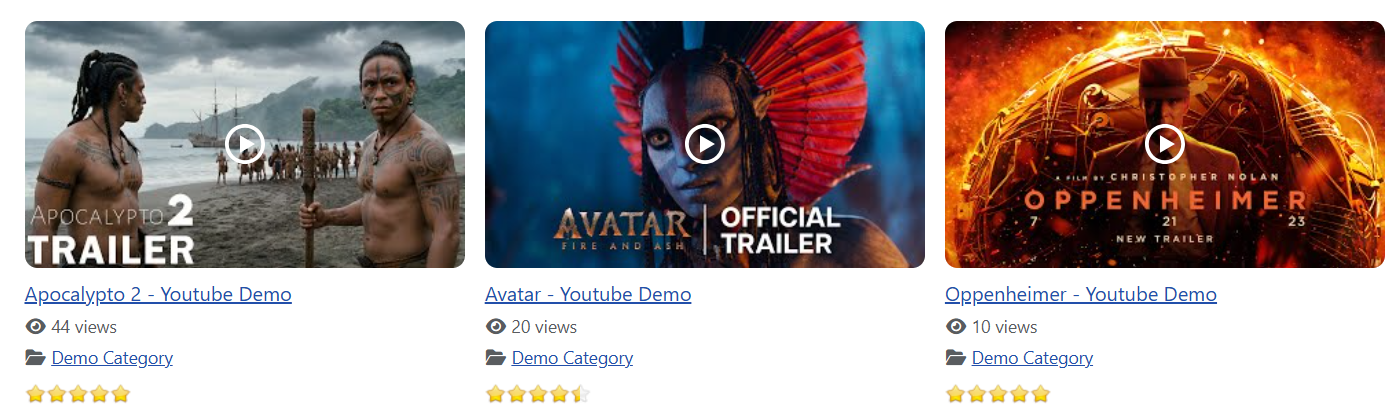
It offers the same five gallery styles and the same YouTube player settings as the YouTube menu item, so rather than repeat them here, see Automatic YouTube Gallery. That page also covers the YouTube API key, which this module needs before it will show anything.
Settings Every Module Shares
Whichever module plays a video — Gallery, Carousel, Player or Playlist — carries the same Player section you will have seen on menu items: width, shape, autoplay, loop, volume, muted, the full list of controls to show or hide, and an advertisements section.
They all behave the same way too. Anything left on Use Global follows your Options screen, so you only need to change the settings this particular module should do differently. Those options are listed in the Global Options Reference.
Every module also has a Module Class field on its Advanced tab. Anything you type there is added to the module’s wrapper, giving you a handle for your own styling — useful when the same module needs to look different in two positions. See Custom CSS & Template Overrides.
Next: Shortcodes in Articles →