
Most of All Video Share is available to everyone. A small number of features are part of the premium version, and this page explains what they do so you can decide whether they are worth having on your site.
You will see these settings on your Options screen and on your menu items even without the premium version. They simply have no effect until the premium version is installed.
On This Page
Ratings
Ratings let your visitors score a video out of five stars. The average appears beneath the video and, if you like, under every thumbnail in your galleries.
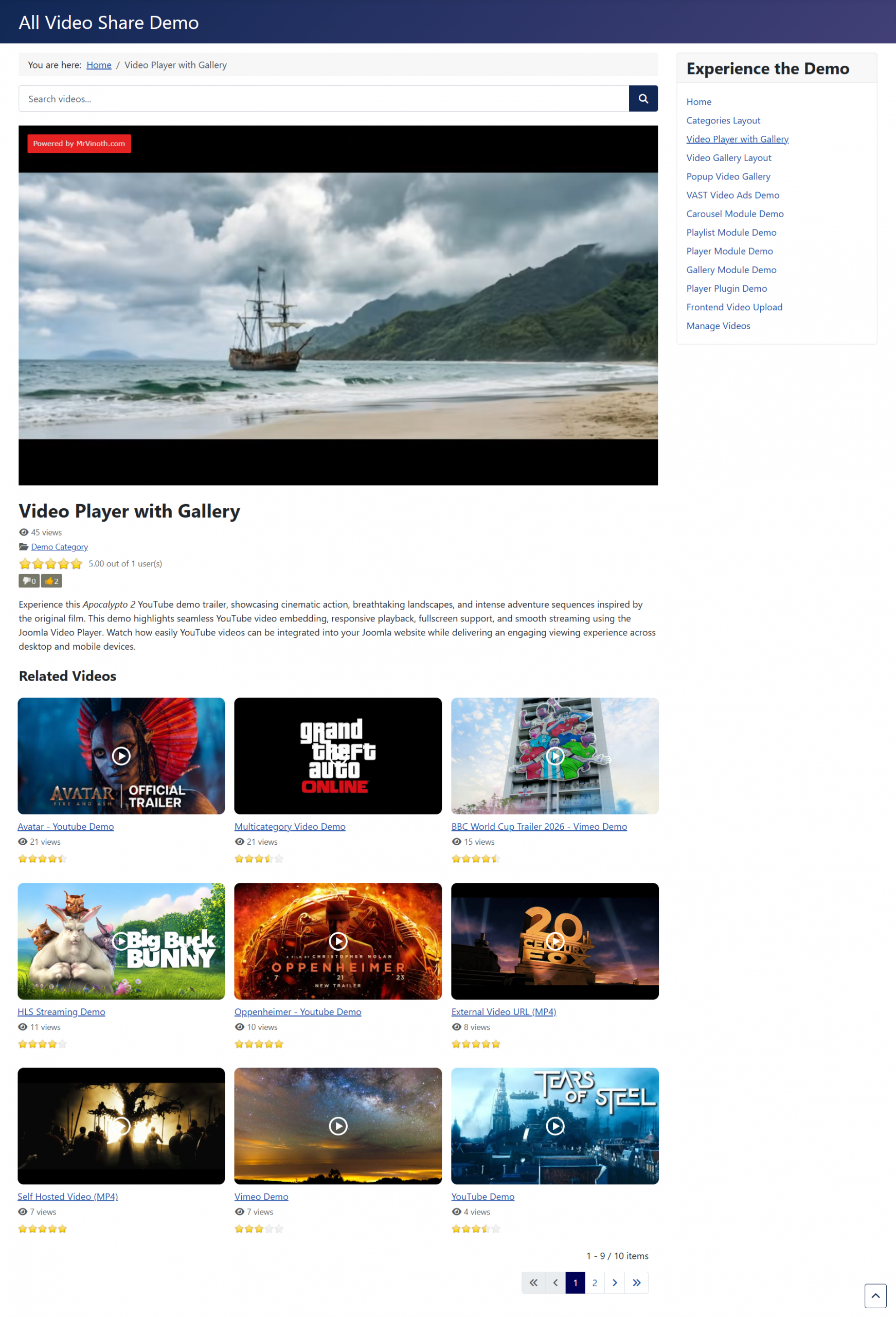
Two settings control this, under Options → General → Ratings:
- Ratings — turns the whole feature on or off.
- Guest User Ratings — decides whether visitors who are not logged in may rate. Leave it off and only members can take part.
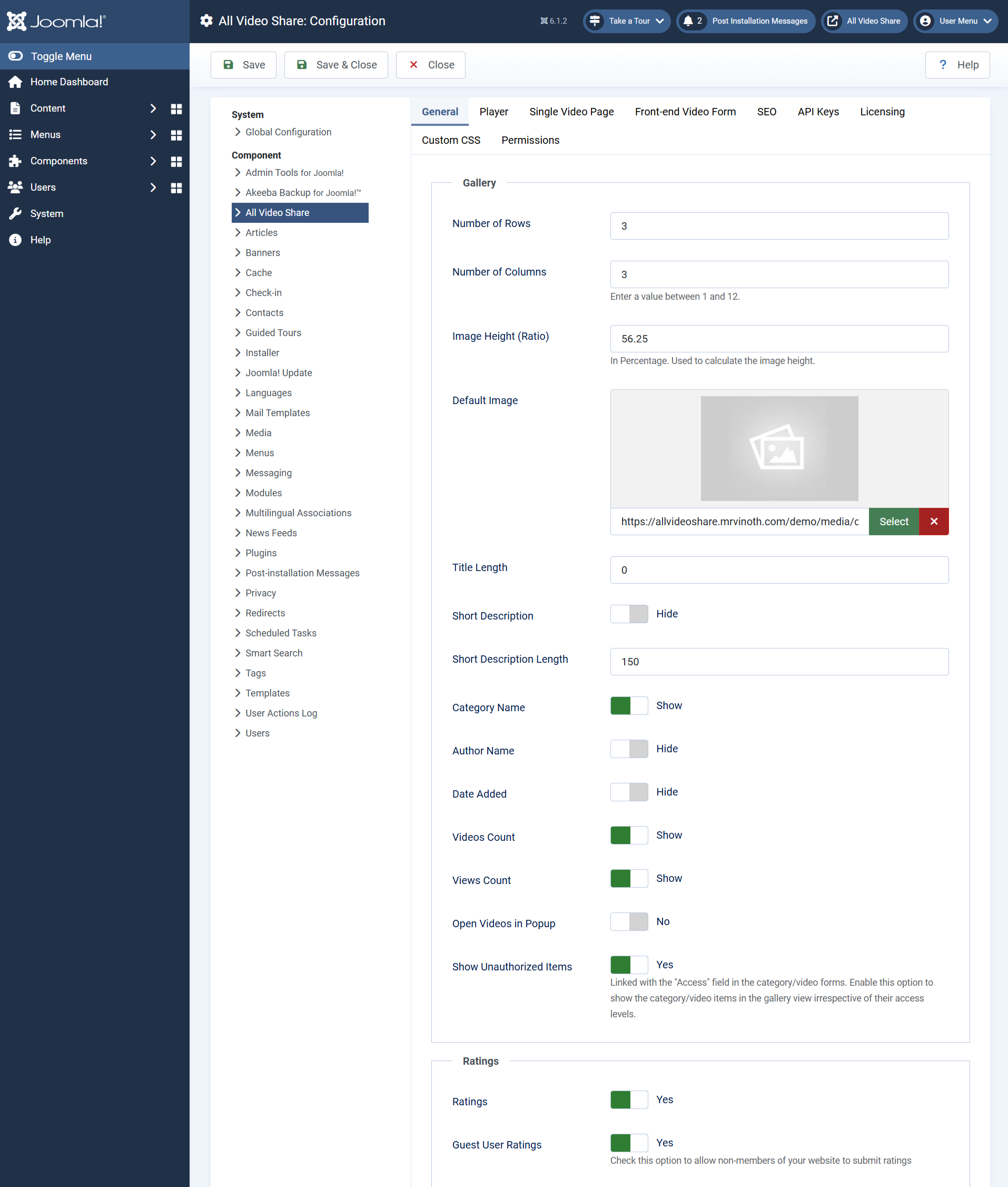
Each person may rate a video once. Logged-in members are recognised by their account, and guests by their browser session, so a guest who comes back later may be able to rate again.
Every rating submitted is listed under Components → All Video Share → Ratings, where you can review them and delete any you consider unfair. Deleting a rating recalculates the average straight away.
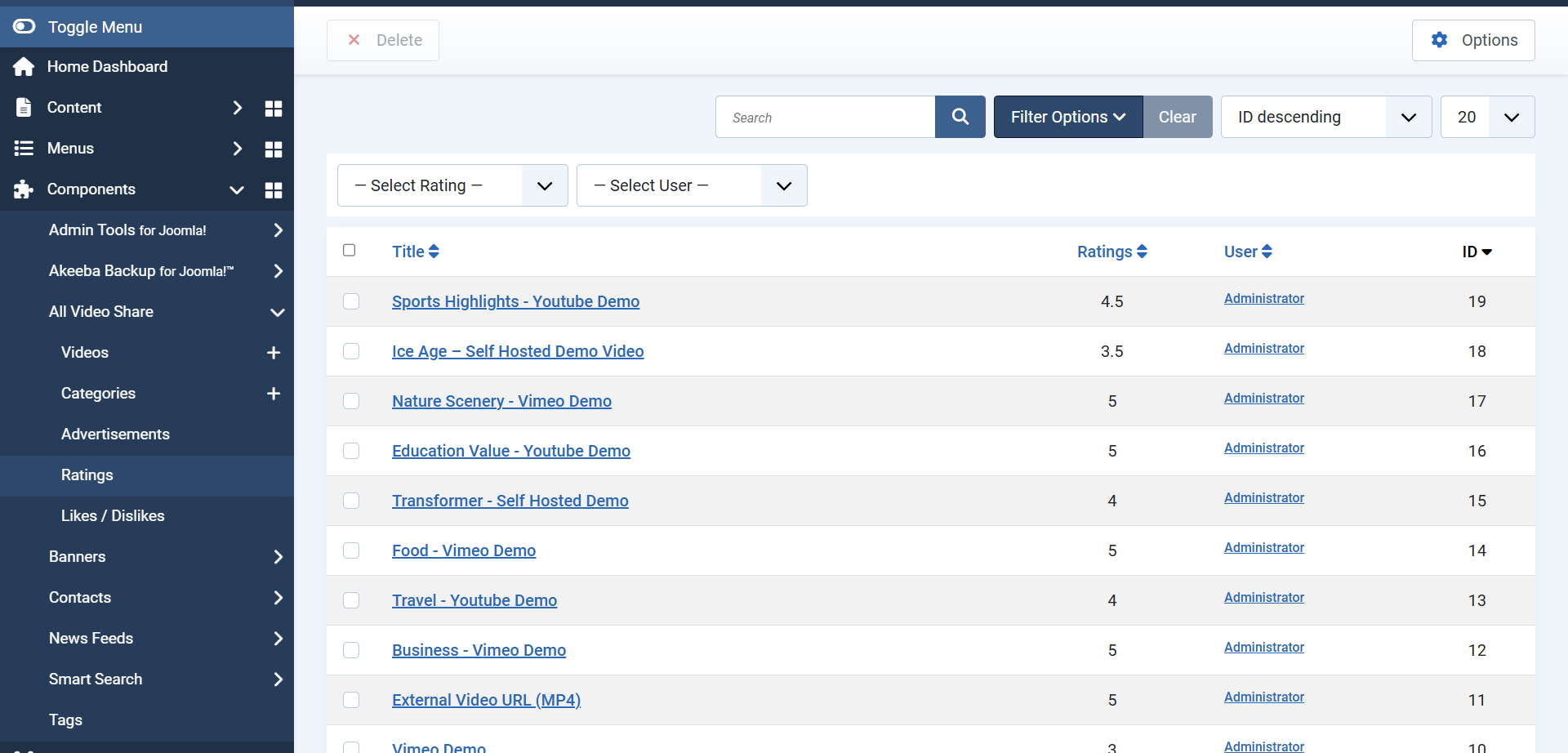
Ratings also unlock a sort order. Set any gallery’s Order By to Most Popular (by ratings) and your best-rated videos rise to the top by themselves.
Likes and Dislikes
Likes work the way people expect from YouTube — a thumbs up and a thumbs down beneath the video, each with a running count. They are quicker for visitors than star ratings, so they tend to collect far more responses.

The settings sit under Options → General → Likes / Dislikes and mirror the ratings ones:
- Likes / Dislikes — turns the feature on or off.
- Guest User Likes / Dislikes — allows visitors who are not logged in to take part.
As with ratings, each person counts once per video. Everything submitted is listed under Components → All Video Share → Likes / Dislikes for you to review or remove.
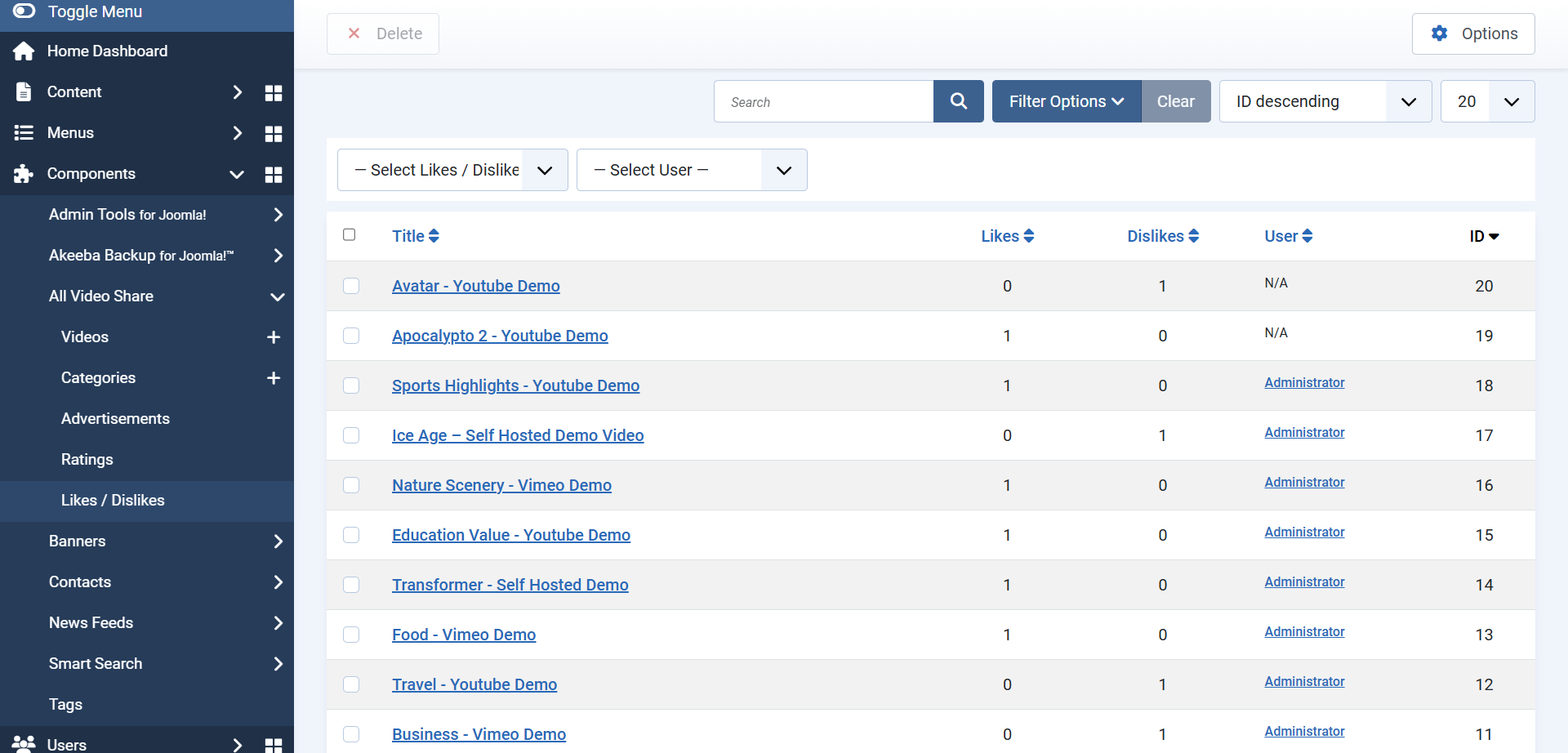
Galleries can be sorted by Most Popular (by likes), which is a good way to build a “what everyone is watching” page that maintains itself.
Open Videos in Popup
Normally, clicking a thumbnail takes the visitor to that video’s own page. With this feature switched on, the video opens in a popup over the gallery instead, and closing it puts them straight back where they were.

It suits galleries of short clips, where visitors want to watch several in a row without losing their place or waiting for a page to load each time.
Turn it on globally under Options → General → Gallery with the Open Videos in Popup setting, or switch it on for one page or module only.
There is a trade-off worth knowing about. A popup does not create a page of its own, so those videos have no address a visitor can bookmark or share, and search engines have less to index. On a site where video pages matter for search traffic, the standard behaviour is usually the better choice.
Multi-Categories
Every video belongs to one category. Multi-categories lets a video appear in several at once, without you having to duplicate it.
Say you run a training site with categories for Beginner, Joomla and SEO. An introductory video about Joomla SEO reasonably belongs in all three. Without this feature you would have to pick one and hope visitors find it; with it, the video simply appears wherever it makes sense.
Turn on Enable Multi-Categories under Options → General → Misc. An Additional Categories field then appears on every video form, where you can pick as many extra categories as you need.
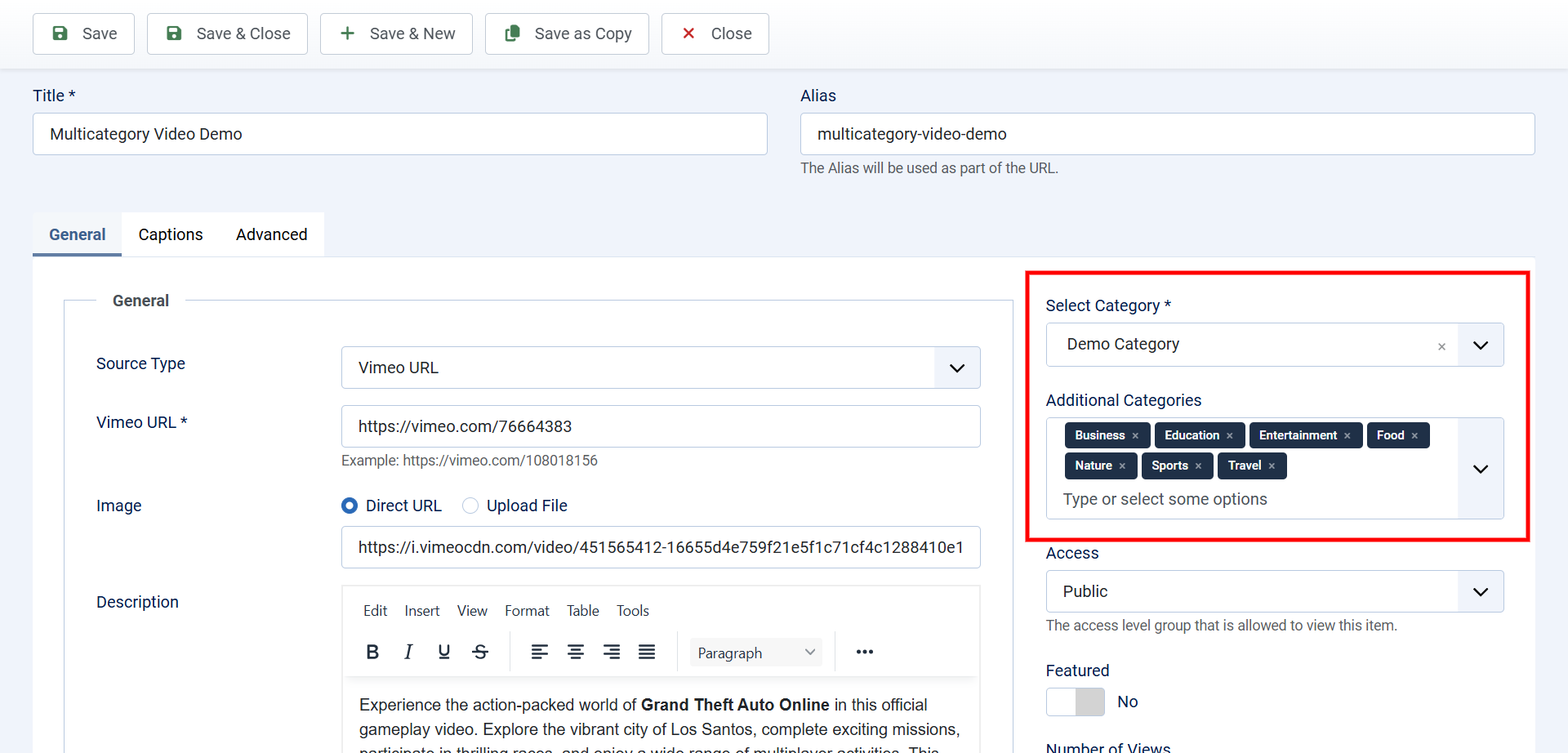
The main Category field keeps its special role. It still decides the breadcrumb trail, the video’s web address and which videos count as related. The additional categories only decide which listings the video turns up in, so your site structure stays predictable.
Advert Networks
All Video Share can play an advert before or after a video, and supplying those adverts yourself is available to everyone — upload your clips under Advertisements and switch preroll or postroll on.
The premium version adds the other way of doing it: letting an outside advert network fill the slot and pay you for it.
Advert networks give you an address known as an ad tag. Change Source Type to VAST under Options → Player → Advertisements, paste the tag into Ad Tag URL, and the network takes over from there — choosing which advert each viewer sees and reporting your earnings through its own dashboard.

All Video Share speaks the two standards these networks use, VAST and VMAP, so most services will work without any special arrangement.
Ad tags usually expect details about the page and the video to travel with each request, so the network can decide what to show. All Video Share fills those in for you — the supported placeholders are listed on our Ad Tag Variables page.
The practical difference is who does the work. Your own adverts mean finding sponsors and making clips, but you keep everything. A network handles all of that and takes a share. Sites with a large enough audience often run both — sponsors on their most popular videos, network adverts everywhere else.
Advertisements are covered in full in The Video Player.
Getting the Premium Version
Upgrading does not disturb anything you have already built. Your categories, videos, settings and menu items all stay exactly as they are — the premium features simply become available.