
When you connect All Video Share to an advert network, you paste in an address the network gives you, called an ad tag. Every time somebody watches one of your videos, All Video Share calls that address and the network replies with an advert to play.
An ad tag variable — also called a macro — is a short piece of text you put inside that address, which All Video Share swaps for a real value at the moment the advert is requested. Instead of a fixed address that says the same thing every time, you get one that describes the actual video being watched.
On This Page
Premium feature. Ad tags and macros apply when your advert Source Type is set to VAST, which is part of the premium version. Uploading your own advert clips is available to everyone and needs none of this. See Premium Features.
Why Ad Tags Need Macros
An advert network wants to know something about where its advert is going before it decides which one to send. Which website is asking? Which video is about to play? What is that video about?
The network cannot see any of that on its own. All it receives is a request for an advert. So it asks you to include the details in the address you call, and macros are how you do that without writing a different address for every video you own.
You write the address once, with macros standing in for the details:
https://adnetwork.example.com/vast?site=[domain]&vid=[video_id]And when somebody plays video number 42 on your site, All Video Share actually calls this:
https://adnetwork.example.com/vast?site=https://mysite.com/&vid=42One setting, correct for every video, for ever. That is the whole idea.
It matters commercially, too. A network that knows what your video is about can send a better-matched advert, and better-matched adverts pay more. Networks that ask for these details are not being nosy — they are trying to make you more money.
The Macros You Can Use
All Video Share supports five macros. Write them in square brackets, exactly as shown, in lower case.
[domain]
The web address of your site. Networks use this to confirm the request really came from a site registered with them, and often to work out which of your sites is asking.
Most networks require this one.
[video_id]
The ID number of the video about to play — the same number shown in the ID column of your Videos list.
Networks use it to tell one video from another in their reporting, so you can see which of your videos is earning. It is also how a network avoids showing the same advert twice against the same video.
[video_title]
The title of the video, exactly as you typed it.
This is the main thing a network reads to work out what your video is about, so an advert for something relevant can be chosen. A clear, descriptive title earns more here than a clever one.
[video_excerpt]
A short summary of the video. All Video Share uses the video’s Meta Description if you have written one, and otherwise falls back to a shortened version of the description.
It gives the network more to go on than the title alone. If you are using this macro, filling in Meta Description on your videos is worth the effort — it gives you control over exactly what the network sees.
[ip_address]
The internet address of the person watching.
Networks use it to work out roughly where a viewer is, so they can send an advert in the right language and for a business that operates in that country. Some also use it to avoid showing one person the same advert repeatedly.
This one is personal data. Passing a visitor’s IP address to an advert network is a disclosure to a third party, and in Europe and the UK it needs to be covered by your privacy policy and, in most cases, by consent. Only include this macro if your network requires it and you have dealt with that side properly.
Putting Them in Your Ad Tag
Your network gives you an ad tag and tells you which details it expects. Your job is to match their setting names to our macros.
Suppose the network’s documentation says it wants the site address as site, a content identifier as content_id, and a description as content_title. You would write:
https://adnetwork.example.com/vast?pid=12345&site=[domain]&content_id=[video_id]&content_title=[video_title]The names on the left of each equals sign belong to the network and must match their documentation exactly. The macros on the right belong to All Video Share. Anything the network gave you that is not a macro — an account number, a placement ID — you leave exactly as they supplied it.
You do not have to use every macro. Use the ones your network asks for and ignore the rest.
Where the Ad Tag Goes
- Go to Components → All Video Share → Options → Player → Advertisements.
- Set Source Type to VAST. An Ad Tag URL field appears.
- Paste your ad tag, macros and all, into that field.
- Click Save.
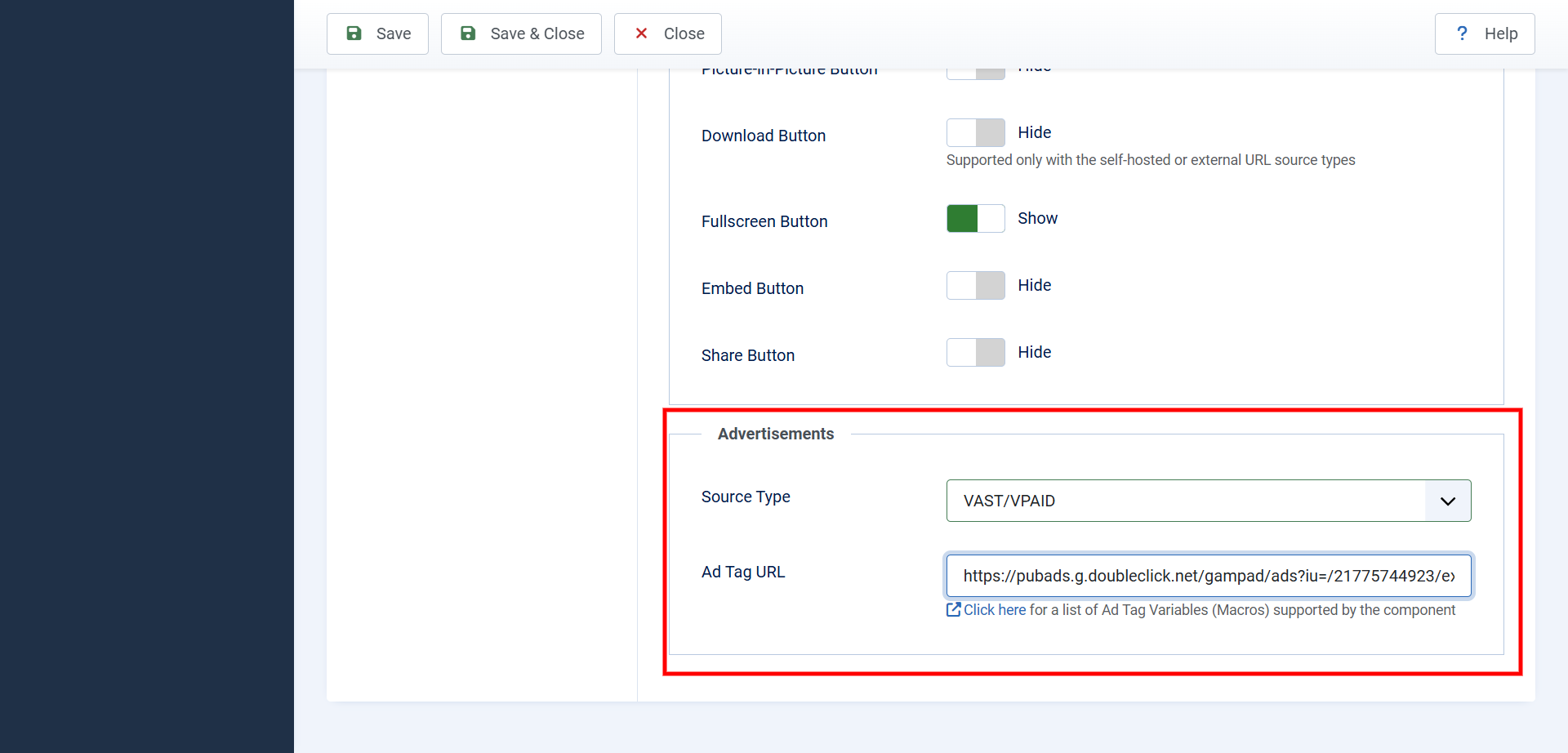
The same Ad Tag URL setting also appears on individual menu items and modules, so one section of your site can use a different tag from the rest — or none at all.
Things Worth Knowing
Write the macros exactly. Square brackets, lower case, no spaces inside. [video_id] works; [Video_ID], {video_id} and [ video_id ] do not. Anything All Video Share does not recognise is passed through to the network untouched, which usually means the network rejects the request or ignores that detail.
Keep titles simple if you use [video_title]. The title is inserted into a web address, so unusual punctuation — ampersands especially — can confuse the network’s parsing. Plain descriptive titles avoid the problem entirely.
Macros only work with VAST. If your Source Type is set to Custom, All Video Share is playing advert clips you uploaded yourself and there is no outside network to send anything to. The Ad Tag URL field is not even shown.
Test with one video first. Set your ad tag, open a video, and check that an advert plays. If nothing happens, most networks have a tag-testing tool on their own site — paste your address in with the macros replaced by real values and it will tell you what it thinks of it.
If no advert appears at all, work through these: Source Type really is set to VAST; the ad tag is complete and unbroken; your account with the network is active and approved; and the network actually has an advert to serve for your audience. An empty response from a network is normal in quiet moments and is not a fault.
Related Reading
- The Video Player & Advertisements — setting up adverts, including your own advert clips.
- Premium Features — what the premium version adds.
- All Video Share Documentation — everything else.