
Here we are going to explain how to allow your users to post videos from your site frontend.
There are three parts to setting this up: give your users permission to create videos, choose which kinds of video they may add, and add the menu items they will use.
Please check the below steps to configure it:
Step 1: Give your users permission
Users cannot submit videos until their user group is allowed to. This is the step most often missed.
1. Log in to the Joomla! backend.
2. Go to Components → All Video Share → Videos, then click the Options button at the top right corner.
3. Open the Permissions tab and select the user group you want to allow, for example Registered.
4. Set the actions you want to grant, then save:
| Action | What it allows |
|---|---|
| Create | Submit a new video from the front end. Required. |
| Edit Own | Edit the videos they submitted themselves. |
| Delete | Delete their videos. |
| Edit State | Publish and unpublish videos. See the note below. |
Auto Approve User Videos: if a group is allowed Edit State, videos they submit are published straight away. To review submissions before they appear on your site, set Edit State to Denied for that group. Their videos then stay unpublished until you publish them from the backend.
Step 2: Choose which videos users may add
In the same Options screen, open the Front-end Video Form tab. Users can always upload a video file; these switches decide what else they may add.
| Properties | Description | Default |
|---|---|---|
| YouTube | Allow users to add a video by YouTube URL. | No |
| Vimeo | Allow users to add a video by Vimeo URL. | No |
| HTTP Streaming | Allow users to add an HLS or MPEG-DASH stream URL. | No |
Save the changes when you are done.
Step 3: Add the menu items
1. Select Menus –> Main Menu –> New
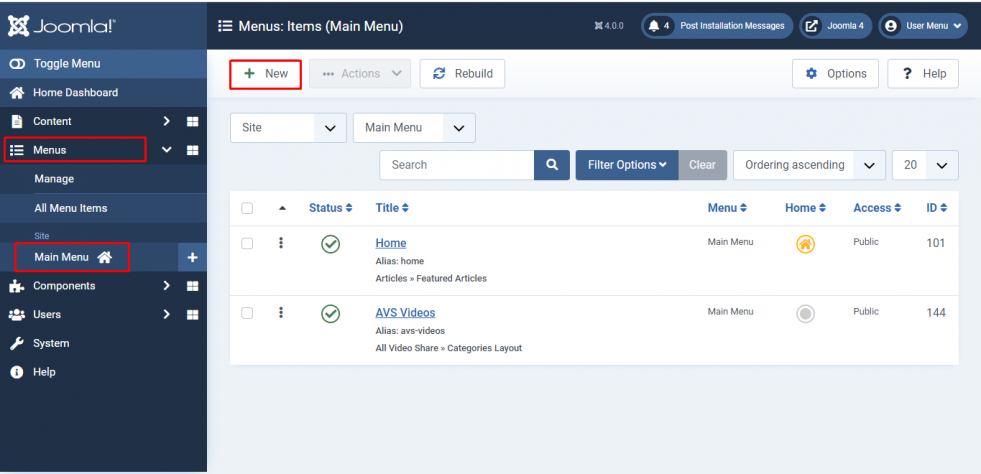
2. Click Select next to Menu Item Type and choose All Video Share. Five layouts are available: Categories Layout, Videos Layout, YouTube Gallery, Manage Videos and Add New Video. The last two are the ones used for front-end submission.
3. Select the Add New Video layout.
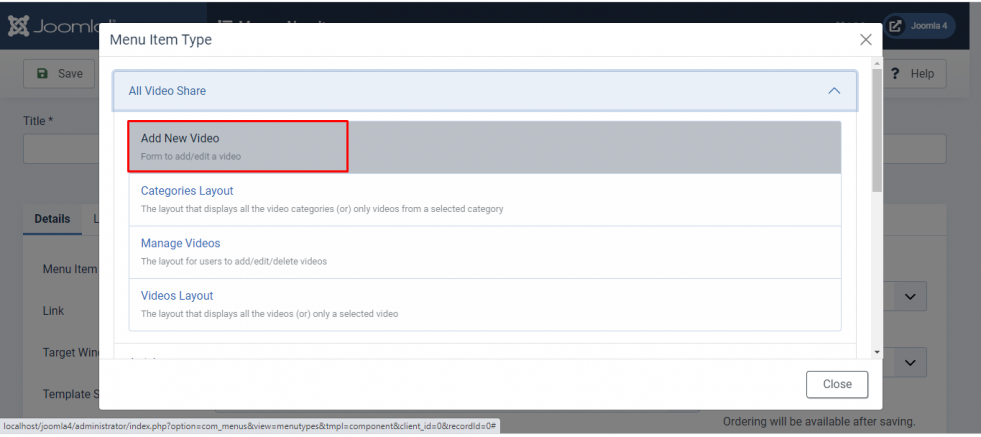
4. Fill in the rest of the Menu Item Details. Set Access to Registered so the link is only shown to users who are logged in, then save the form.
5. Now repeat steps 1 to 4, this time choosing the Manage Videos layout. This gives your users a page listing the videos they have submitted, where they can edit and delete them. Without it they can add videos but never see them again.
6. Congrats! You have successfully set up front-end video submission.
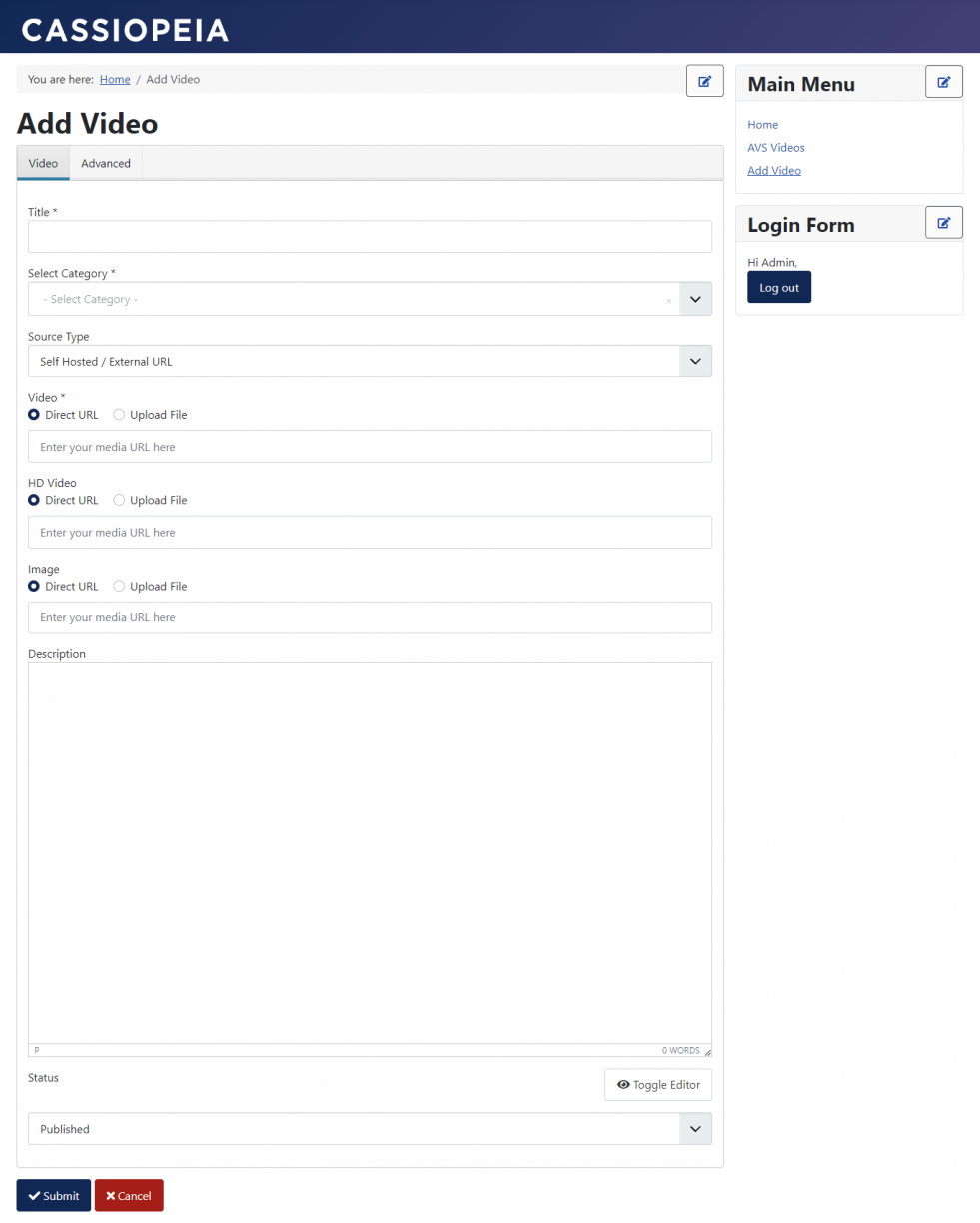
Both of these pages are for logged-in users only. A visitor who is not logged in is sent to the login page first, and returned to the form afterwards.