
Configuring the player settings according to your need is the next step to go beyond the successful installation.
These settings apply to every video on your site. Menu items and modules can override them individually where the same option is offered there.
Check the steps below to configure the player settings.
1. Login to your Joomla backend.
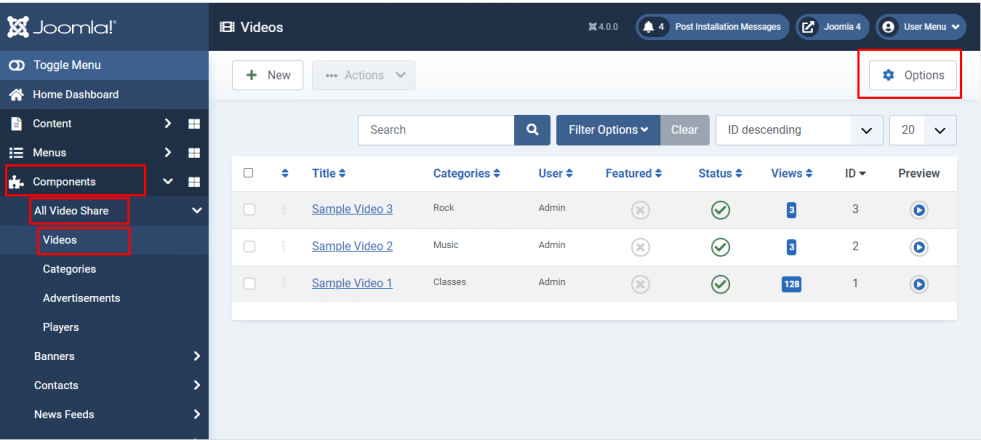
2. Select Components –> All Video Share –> Videos
3. Here at the right top, you will have the Options button. Please click it, then open the Player tab.
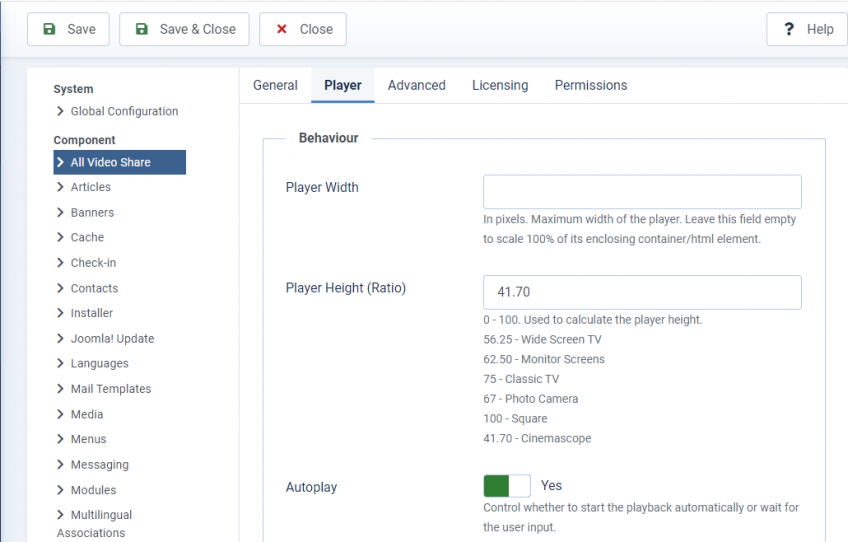
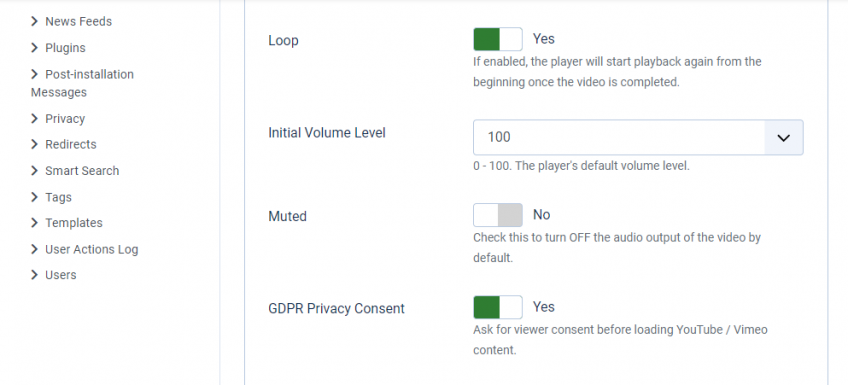
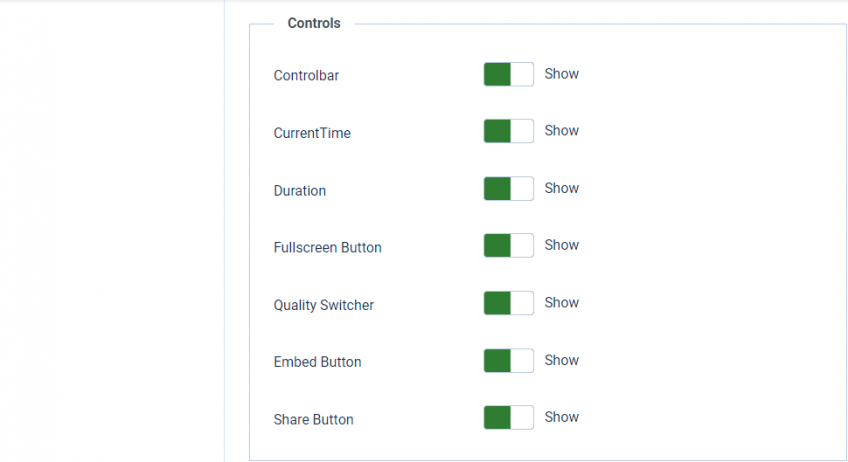
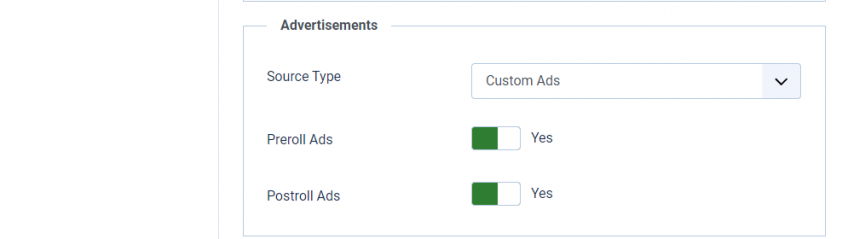
Here you can change the player settings. The Player tab is divided into three sections — Options, Controls and Advertisements.
Please note: the Controls and Advertisements settings apply to self-hosted, HLS and MPEG-DASH videos, which use our own player. YouTube and Vimeo videos play inside the provider’s own player and use its controls instead.
Options
These settings control the size of the player and how it behaves when the page loads.
| Properties | Description | Default |
|---|---|---|
| Player Width | Maximum width of the player, in pixels. Leave this field empty to scale to 100% of its enclosing container. | — |
| Player Height (Ratio) | A value between 0 and 100, used to calculate the player height from its width. 56.25 = wide screen TV, 62.50 = monitor screens, 75 = classic TV, 67 = photo camera, 100 = square, 41.70 = cinemascope. | 56.25 |
| Autoplay | Start playing the video once the video page is loaded. Most browsers only allow this when the player is also muted. | No |
| Loop | Start playing the video again from the beginning when it reaches the end. | No |
| Initial Volume Level | A value between 0 and 100. The player’s default volume level. | 50 |
| Muted | Turn the audio off when the video starts. | No |
| Keyboard Controls | Let viewers control the player from the keyboard: 0–9 seek to 0–90%, Space toggles playback, ← and → seek, ↑ and ↓ change the volume, M toggles mute, F toggles fullscreen. | No |
| GDPR Privacy Consent | Ask for viewer consent before loading YouTube / Vimeo content. | No |
Controls
These settings choose which buttons appear in the player’s control bar.
| Properties | Description | Default |
|---|---|---|
| Controlbar | Show or hide the whole player control bar. | Show |
| Center Play Button | Show or hide the large play button in the middle of the video. | Show |
| Rewind Button | Show or hide the skip backward button. | Hide |
| Play/Pause Button | Show or hide the play and pause button in the control bar. | Show |
| Fast Forward Button | Show or hide the skip forward button. | Hide |
| Progress Bar | Show or hide the seek bar showing the playback position. | Show |
| CurrentTime | Show or hide the elapsed time in the player control bar. | Show |
| Duration | Show or hide the video duration in the player control bar. | Show |
| Volume Control | Show or hide the mute button and volume slider. | Show |
| Captions | Show or hide the subtitle button. It only appears on videos that have caption files. | Show |
| Quality Switcher | Show or hide the HD button. It needs an HD source, or an HLS / MPEG-DASH stream that offers more than one quality level. | Show |
| Speed Control | Show or hide the playback speed menu. | Hide |
| Picture-in-Picture Button | Show or hide the button that pops the video out into a floating window. | Hide |
| Download Button | Show or hide a button that lets viewers download the video file. | Hide |
| Fullscreen Button | Show or hide the fullscreen button in the player control bar. | Show |
| Embed Button | Show or hide the embed button on the player screen. | Hide |
| Share Button | Show or hide the share button on the player screen. | Hide |
Advertisements
Video advertisements play on self-hosted, HLS and MPEG-DASH videos only. They are not available on YouTube, Vimeo or third-party embedded videos.
| Properties | Description | Default |
|---|---|---|
| Source Type | Where your advertisements come from. Choose Custom Ads to use the advertisements you created inside All Video Share, or VAST/VPAID to serve them from an external ad server. | Custom Ads |
| Preroll Ads | Enable or disable advertisements playing before the video starts. Shown when Source Type is Custom Ads. | Yes |
| Postroll Ads | Enable or disable advertisements playing after the video ends. Shown when Source Type is Custom Ads. | No |
| Ad Tag URL | Your VAST or VMAP ad tag URL. Shown when Source Type is VAST/VPAID. Check this page for sample tags. | — |
4. Click the Save button at the top left corner.
5. Congrats! You have successfully configured your player settings.