
All Video Share can play a video advertisement before and after your videos. You can either serve your own advertisement videos, or pull them from an external ad server using a VAST/VPAID ad tag.
Please note: advertisements play on self-hosted, HTTP streaming and external URL videos, which use our own player. They are not available on YouTube, Vimeo or iframe embedded videos, because those play inside the provider’s own player.
Contents
- Step 1: Add Advertisement Videos
- Step 2: Enable Advertisements in your Player Settings
- Enable VAST/VPAID
Step 1: Add Advertisement Videos
1. Login to your Joomla backend.
2. Select Components → All Video Share → Advertisements → New.
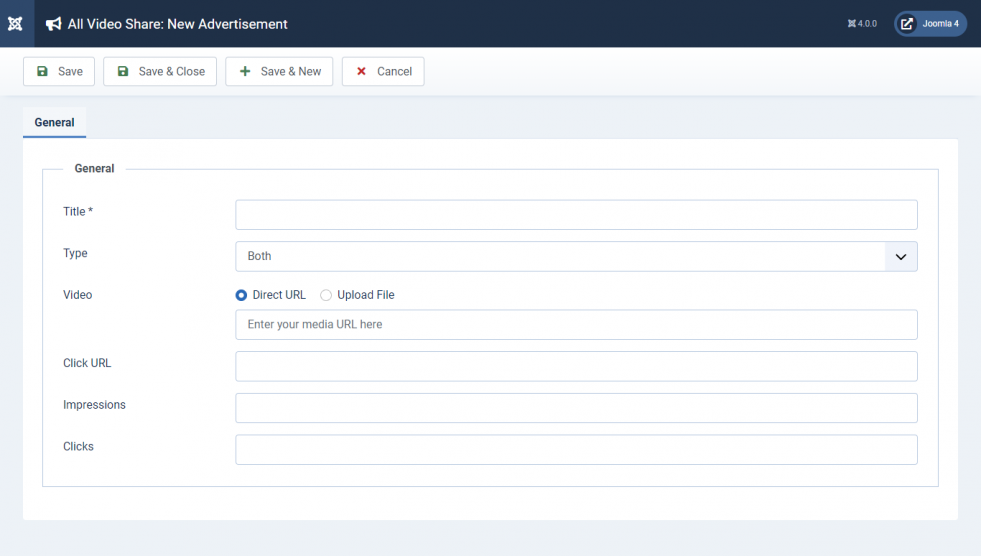
3. Fill in the form according to the following table. Title is the only required field.
| Properties | Description | Example |
|---|---|---|
| Title | Title of the advertisement video. Required. | Advertisement Video |
| Type | When this advertisement may be played. Choose Preroll to play it before your videos, Postroll to play it after, or Both to allow either. | Both |
| Video | Your advertisement video. Upload an MP4, WebM or OGG file, or enter the URL of one already on a server. | ad_video.mp4 |
| Click URL | The web page to open when a viewer clicks the advertisement. | https://www.mysite.com/ |
| Number of Impressions | How many times the advertisement has been shown. It counts up on its own, but you can set a starting figure here. | 50 |
| Number of Clicks | How many times the advertisement has been clicked. It counts up on its own, but you can set a starting figure here. | 5 |
| Status | Published, Unpublished, Archived or Trashed. Only published advertisements are ever played. | Published |
4. Click the Save button at the top left corner.
5. Congrats! You have successfully added a new advertisement video. Follow the same steps to add more.
Step 2: Enable Advertisements in your Player Settings
1. Go to Components → All Video Share → Videos.
2. Click the Options button at the top right corner.
3. Open the Player tab, then the Advertisements section.
4. Set Source Type to Custom Ads, then enable Preroll Ads and Postroll Ads as you need them.
5. Save the changes.
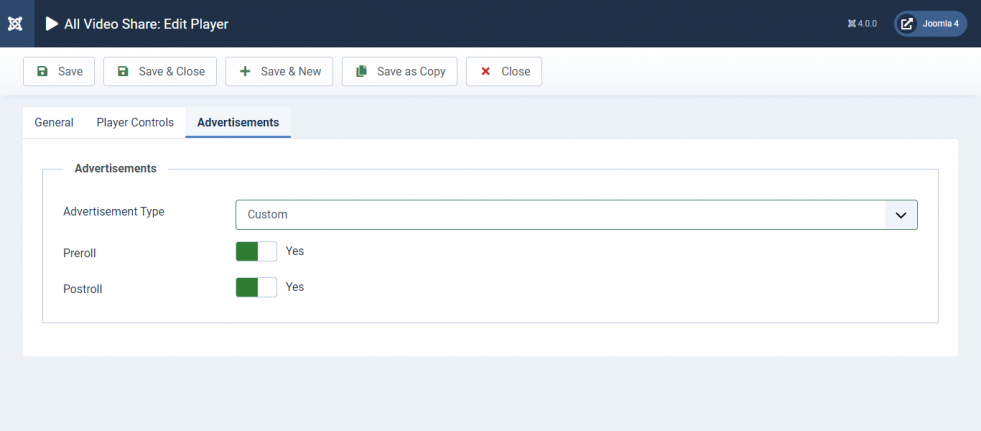
That’s it. Your videos will now start showing advertisements before and after playback.
The advertisement is picked at random each time a video is played, from the published advertisements whose Type matches the slot. A preroll is chosen from the advertisements set to Preroll or Both, and a postroll from those set to Postroll or Both. Unpublished advertisements are never played.
Enable VAST/VPAID
Use this instead of Custom Ads if your advertisements are served by an external ad server.
1. Go to Components → All Video Share → Videos.
2. Click the Options button at the top right corner.
3. Open the Player tab, then the Advertisements section.
4. Set Source Type to VAST/VPAID.
5. Enter your Ad Tag URL — the ad tag you received from your ad server. Please check the available Ad Tag Variables.
6. Save the changes.
When Source Type is set to VAST/VPAID, the Preroll Ads and Postroll Ads switches are hidden — your ad server decides which advertisements play and when, through the ad tag.