
It’s time to add a video. This assumes you have already created a category, since it is not possible to add a video without one.
Check the steps below to add a new Video.
1. Login to your Joomla backend.
2. Select Components → All Video Share → Videos → New
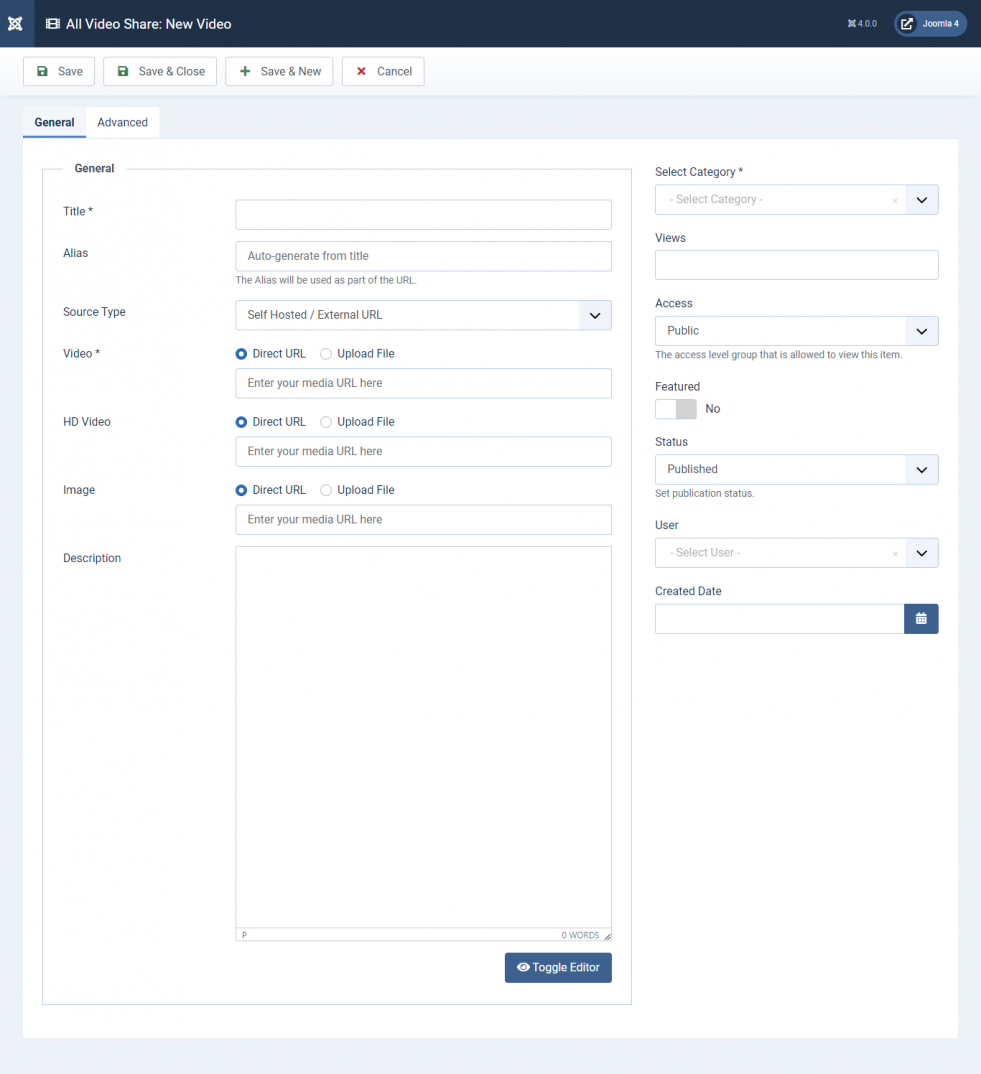
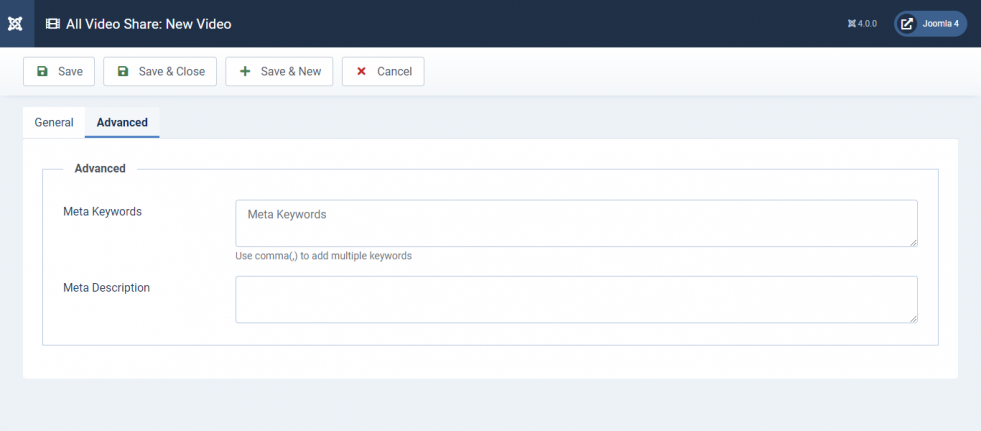
3. Fill up the form according to the following tables. Title, Select Category and the source field for your chosen Source Type are required — everything else is optional.
General
The Source Type you choose decides which source field appears below it. Only the field for the selected type is shown.
| Properties | Description | Example |
|---|---|---|
| Title | A title for the video. Required. | My First Video |
| Alias | Used to build a human readable URL for your video page. Leave it empty and it is generated from the title automatically. | my-first-video |
| Source Type | Where the video comes from: Self Hosted / External URL, YouTube URL, Vimeo URL, HTTP Streaming or Iframe Embed Code. | Self Hosted / External URL |
| Video | Your video file. Upload an MP4, WebM, OGG or MOV file, or enter the URL of one already on a server. Shown for Self Hosted / External URL. | video.mp4 |
| HD Video | An optional higher quality version of the same video. Adding it turns on the quality switcher in the player. Same formats as above. | video-hd.mp4 |
| YouTube URL | The address of the YouTube video. Shown for YouTube URL. | https://www.youtube.com/watch?v=twYp6W6vt2U |
| Vimeo URL | The address of the Vimeo video. Shown for Vimeo URL. | https://vimeo.com/108018156 |
| HLS / MPEG-DASH | The address of your stream manifest. Shown for HTTP Streaming. | https://www.mysite.com/stream.m3u8 |
| Iframe Embed Code | Embed code copied from another video service. Shown for Iframe Embed Code. | <iframe src=”…”></iframe> |
| Image | Thumbnail image used as the identifier for the video, and as the poster shown before playback. Upload a JPEG, PNG, GIF or WebP file, or enter an image URL. | thumb.jpg |
| Description | A description of the video, shown on the video page. Accepts formatted text. | Description |
| Select Category | The category this video belongs to. Required. | My First Category |
| Additional Categories | Assign the video to further categories. Only appears when Enable Multi-Categories is switched on in the component Options. | Tutorials, News |
| Access | The Joomla view access level required to watch this video. Any access level defined on your site can be chosen. | Public |
| Featured | Mark the video as featured, so it can be picked up by menu items and modules set to show featured videos only. | No |
| Number of Views | How many times the video has been watched. It counts up on its own, but you can set a starting figure here. | 15 |
| Status | Published, Unpublished, Archived or Trashed. Only published videos appear on your site. | Published |
| User | The site user the video is credited to. Used to show an author name, and to let that user manage the video from the front end. | — Select User — |
| Created Date | The date the video was added. Used when sorting your galleries by date. | 2026-07-28 10:00:00 |
Captions
On the Captions tab you can add subtitle tracks to your video. Click Add New Caption to add a row, then fill it in. Add as many tracks as you need and drag the rows to change the order they appear in the player’s subtitle menu.
Captions must be in WebVTT format, and can be uploaded or linked from an external URL.
| Properties | Description | Example |
|---|---|---|
| Captions File | Your WebVTT subtitle file. | subtitles.vtt |
| Label | The name shown in the player’s subtitle menu. | English |
| Srclang | The two letter language code for the track. | en |
Captions are played by our own player, so they work on self-hosted, HTTP streaming and external URL videos. YouTube and Vimeo videos use the subtitles held by those services instead.
Advanced Settings
| Properties | Description | Example |
|---|---|---|
| Meta Keywords | Custom meta keywords for your video page. Use a comma (,) to separate multiple keywords. | all video share, joomla player |
| Meta Description | Custom meta description for your video page. | My Video Page |
4. Click the Save button at the top left corner.
5. Congrats! You have successfully added a new Video.
If you have chosen Iframe Embed Code to add your video, it is strongly recommended to edit the width and height properties in the code to 100%. The settings under Options → Player will not apply to this type of video, since playback is handled entirely by the embedded code.