
Contents
- Step 1: Add Advertisement Videos
- Step 2: Enable Advertisements in your Player Profile
- Enable VAST/VPAID
Step 1: Add Advertisement Videos
1. Login to your Joomla backend.
2. Select Components → All Video Share → Advertisements → New.
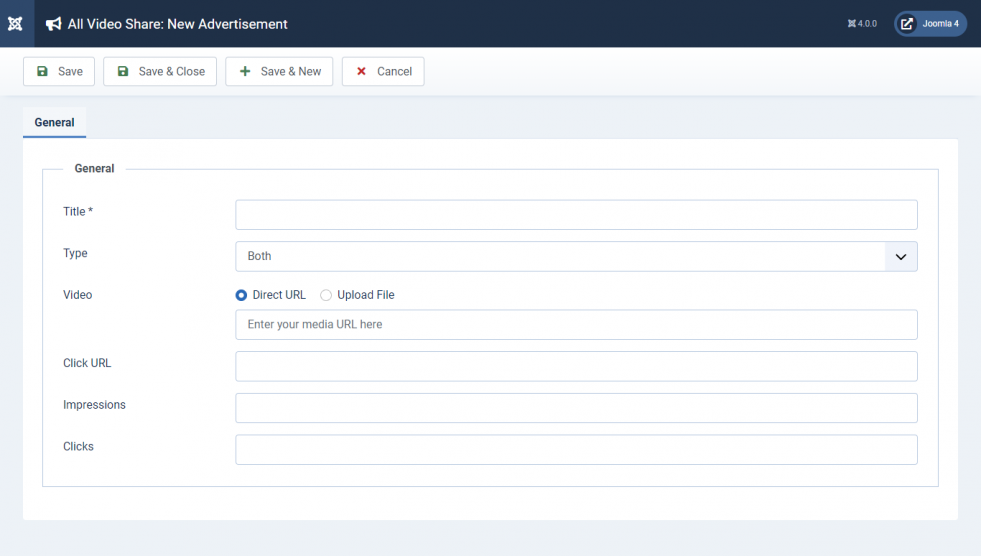
3. Fill in the form according to the following table.
| Properties | Description | Example |
|---|---|---|
| Title | Title of the Advertisement Video. | Advertisement Video |
| Type | “All Video Share” is capable of playing video advertisements before the playback and after the playback. Select one of the following methods as per your need, • Preroll • Postroll • Both | Both |
| Video | Upload or add the video file path. | ad_video.flv |
| Click URL | A web page link that should be loaded on clicking the advertisement video | mysite.com |
| Impression | No of time the advertisement viewed | 50 |
| Clicks | No of time the advertisement Clicked | 5 |
4. Click “Save” Button at the top right corner.
5. Congrats! You have successfully added a new Advertisement Video. Follow the same steps and add more advertisement videos.
Step 2: Enable Advertisements in your Player Profile
1. Go to Components → All Video Share → Players.
2. Create a new Player profile or edit open an existing Player profile.
3. Go to the Advertisements tab
4. Enable Preroll and Postroll options.
5. Save the changes.
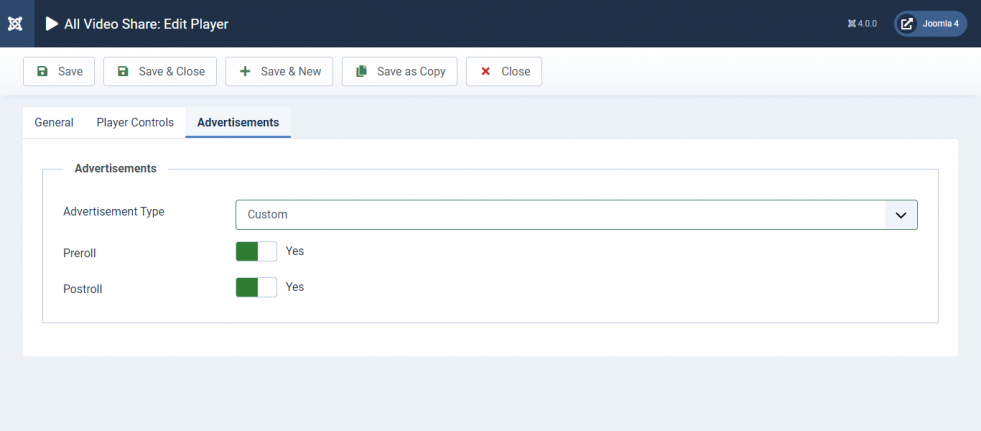
That’s it. Now the videos using this Player Profile will start showing advertisements before and after the playback.
The current version plays the advertisement videos at random from the list of videos added under “Advertisements” menu.
Enable VAST/VPAID
1. Go to Components → All Video Share → Players.
2. Create a new Player profile or edit open an existing Player profile.
3. Go to the Advertisements tab
4. Select VAST/VPAID.
5. Enter the VAST URL. Please add the ad code that you received from your ad server. Please check the available Ad Tag Variables.
6. Save the changes.