
All Video Share is built to inherit your template’s fonts and colours, so it usually looks like part of your site straight away. When you want to change something, there are three ways to go about it — and it is worth starting with the gentlest.
On This Page
If the Layout Looks Wrong
Before writing any CSS, rule this out. If your gallery is stacked in one column when you asked for three, or the thumbnails are overlapping, the cause is almost always a missing grid framework rather than anything you need to fix by hand.
All Video Share lays its galleries out using Bootstrap 5, which nearly every Joomla 4, 5 and 6 template already provides. If yours does not, go to Options → Custom CSS and set Load Bootstrap CSS to Yes. All Video Share then brings its own copy.
Leave this off if your template already uses Bootstrap 5. Loading it twice makes pages heavier and can cause the two copies to disagree with each other. Only turn it on if the layout is genuinely broken without it.
Adding Your Own CSS
For most appearance changes, the Custom CSS box under Options → Custom CSS is all you need. Anything you type there is added to the pages where All Video Share appears.
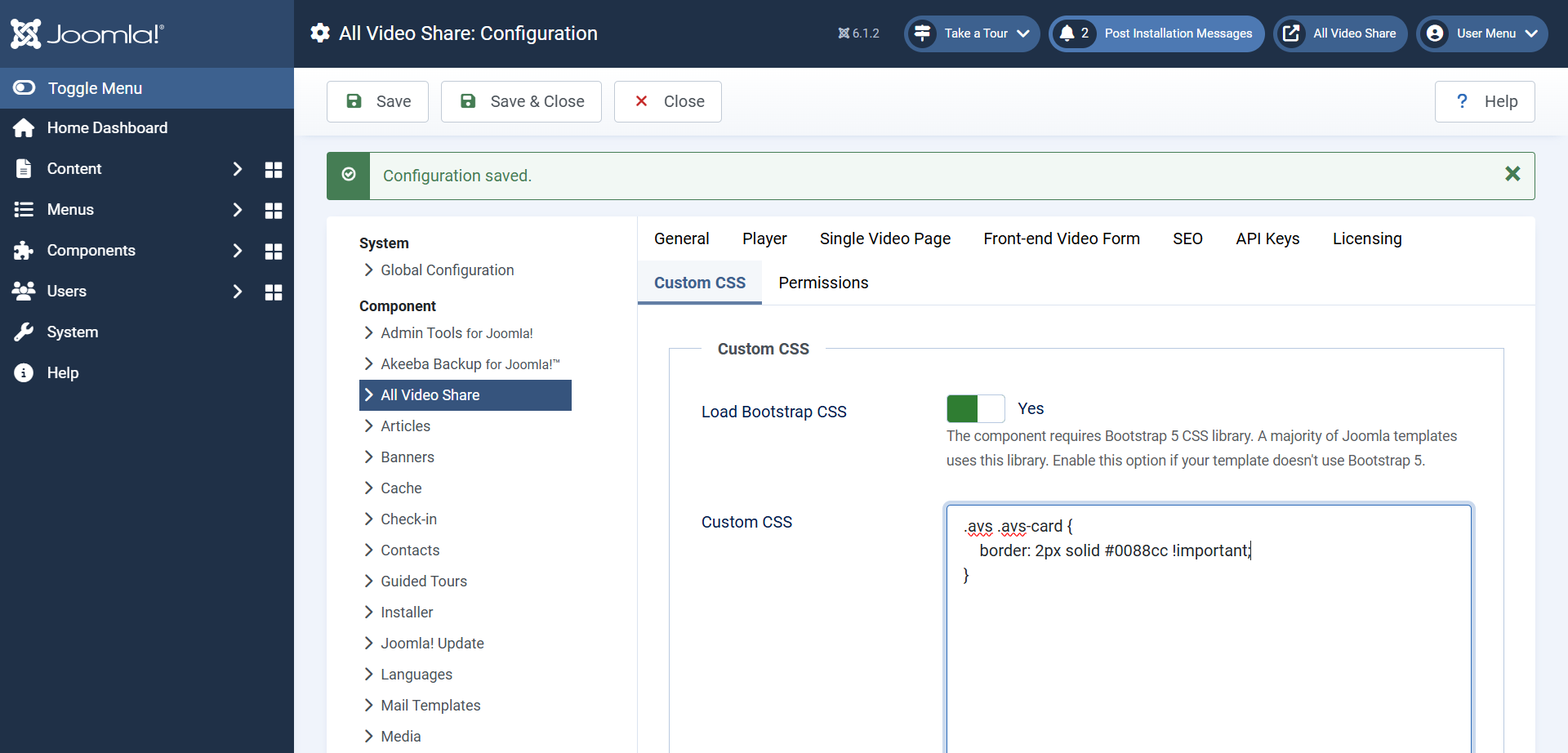
This is far better than editing the extension’s own stylesheet, because your changes survive every update. Editing the supplied CSS files means losing your work the next time you upgrade.
Write ordinary CSS, with no style tags around it:
.avs-player-container {
    margin: 0 auto 2rem;
}

.avs-col {
    margin-bottom: 1.5rem;
}
Every class All Video Share creates begins with avs-, so your rules are easy to spot later and will never collide with your template’s own styles.
If a rule seems to be ignored, your template’s stylesheet is probably more specific than yours. Being more specific in return usually settles it:
.avs .avs-col {
    margin-bottom: 1.5rem;
}
Finding the Right Class Name
Rather than guessing, ask your browser. Every modern browser can tell you exactly which classes an element carries.
- Open a page with your gallery on it.
- Right-click the thing you want to change and choose Inspect.
- The panel that opens highlights that element and lists its classes. The ones beginning
avs-belong to All Video Share. - Try your change directly in that panel first. Nothing is saved, so you can experiment freely.
- When it looks right, copy the rule into the Custom CSS box.
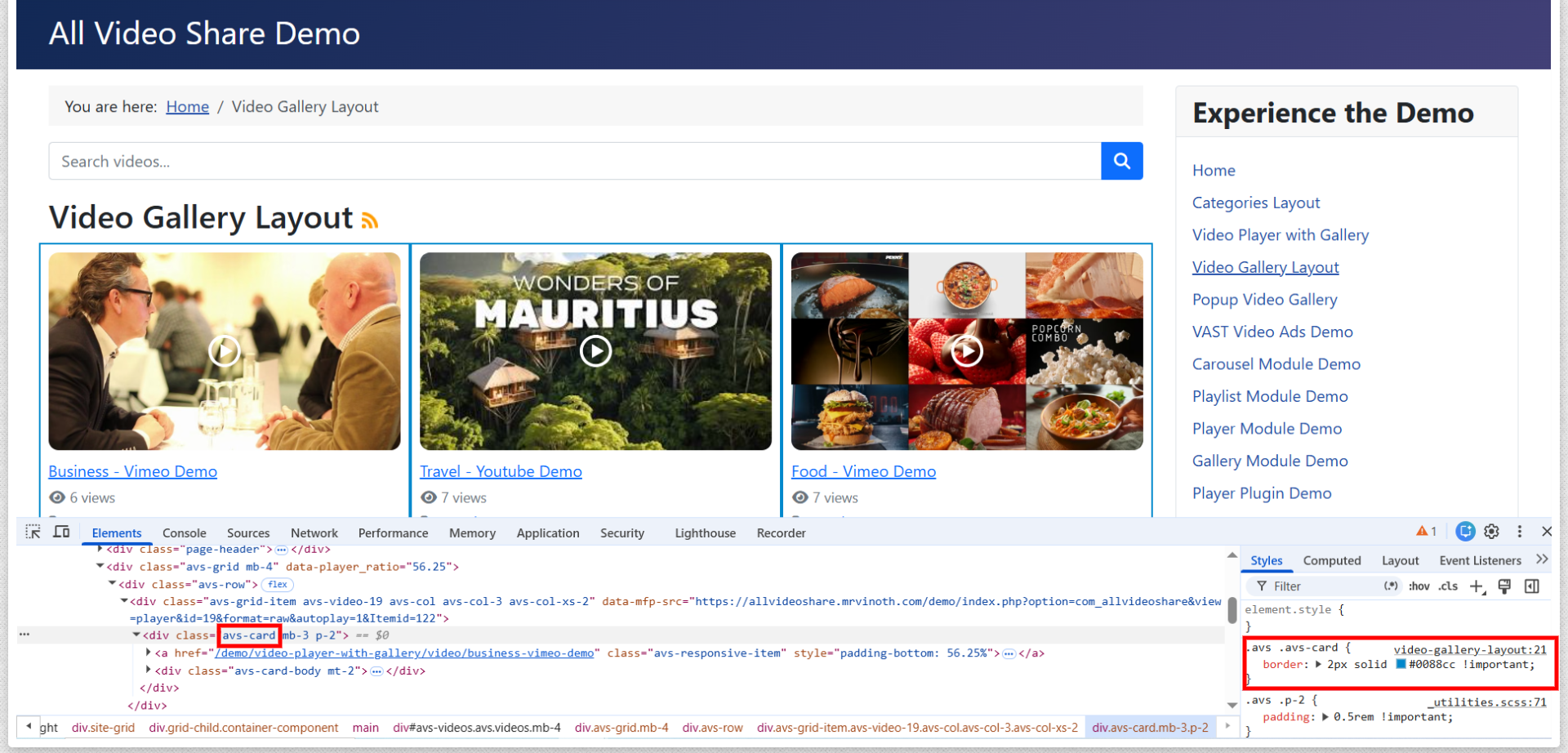
Five minutes with the inspector will teach you more about the markup than any list of class names could.
The player sits in a frame of its own, so CSS written for your page does not reach inside it. Player appearance is controlled through the settings described in The Video Player, not with CSS.
Styling One Module Only
Custom CSS applies everywhere. When you want one particular module to look different — a dark carousel in your footer, say, while the sidebar gallery stays light — give that module a class of its own.
Open the module, go to its Advanced tab, and type a name into Module Class:
footer-videos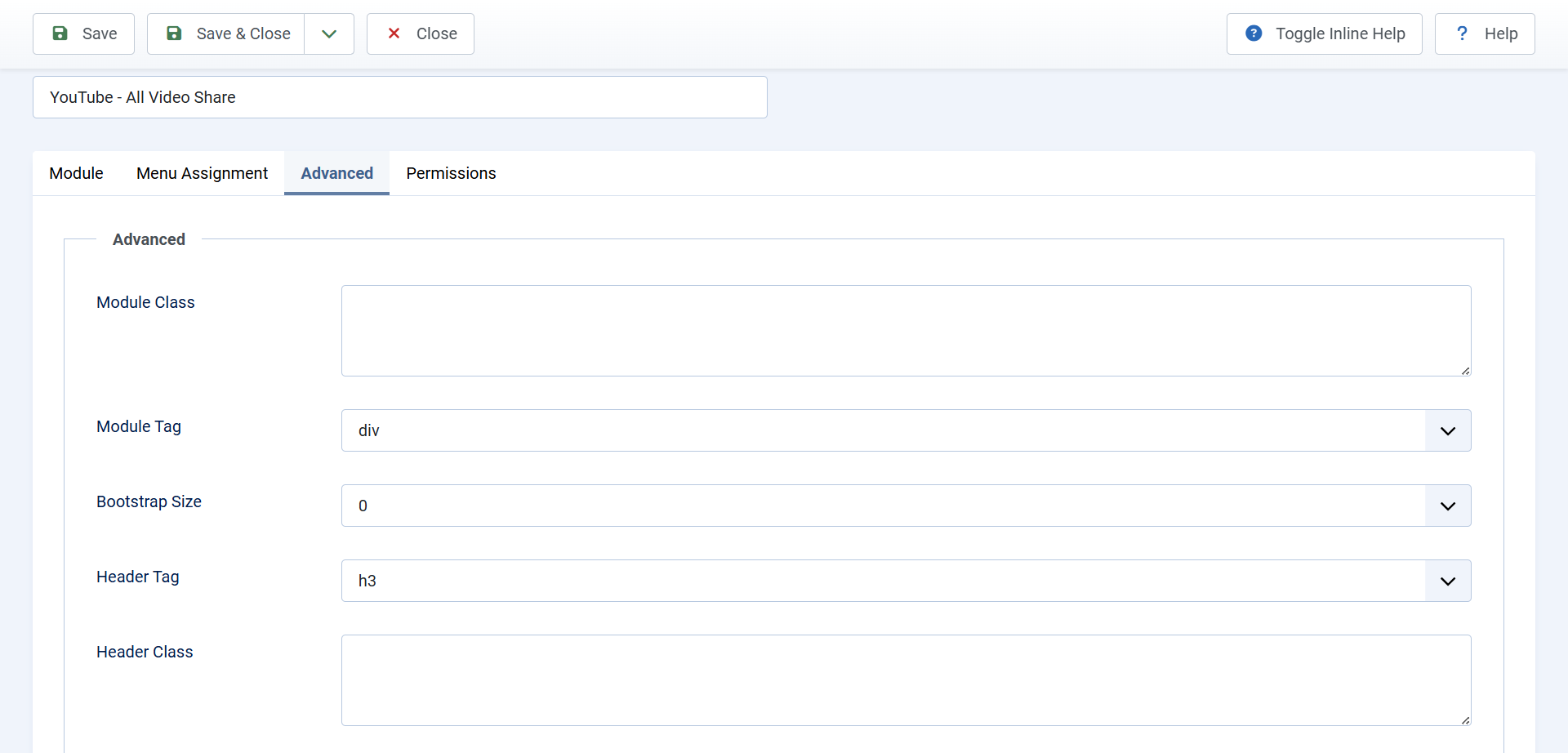
Now you can write rules aimed at that module and nothing else:
.footer-videos {
    background: #1a1a1a;
    padding: 2rem;
}
Use the same class on several modules when you want them to match, and different ones where they should not.
Template Overrides
CSS changes how things look. When you need to change the markup itself — reordering what appears under a thumbnail, adding something of your own, removing an element entirely — you need a template override.
An override is your own copy of one of All Video Share’s layout files, kept inside your template. Joomla uses your copy instead of the original, and because it lives in your template folder it is not touched by updates.
Joomla will create one for you, which is much safer than copying files by hand:
- Go to System → Site Templates and click your template’s name.
- Open the Create Overrides tab.
- Under Components, click com_allvideoshare, or find the module you want under Modules.
- Joomla copies the files into your template and tells you where they went.
- Switch to the Editor tab, find your new copy, and make your changes there.
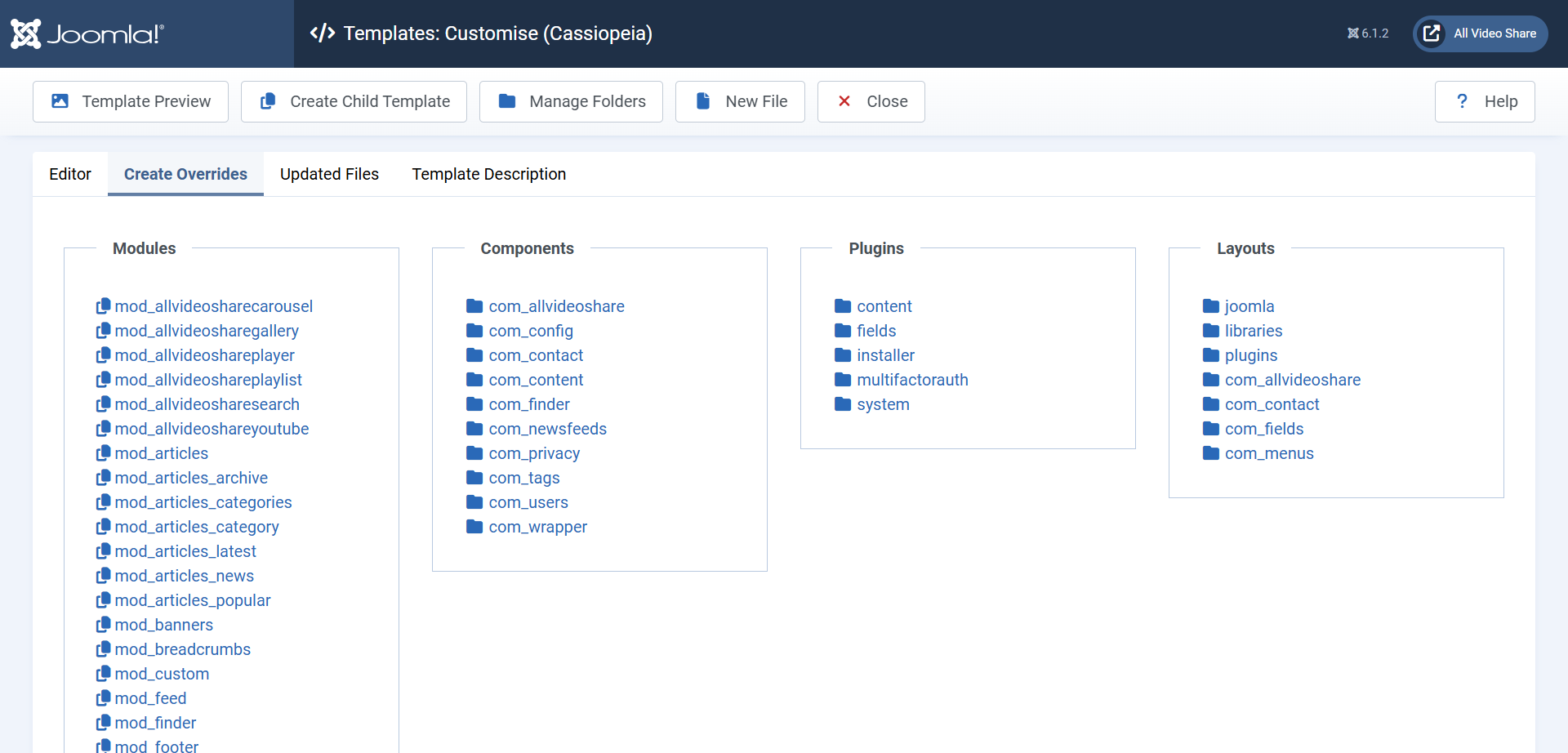
The originals sit under components/com_allvideoshare/tmpl/, arranged by view — videos, video, category, categories, search and so on. Your copies land in your template’s html/com_allvideoshare/ folder, matching that structure.
Do not edit the originals. Changes made directly to files under
components/ormodules/are wiped out by the next update, without warning. An override is the only change that survives.
Looking After Overrides
Overrides survive updates, and that is both the point and the catch. Your copy is frozen at the moment you made it, so improvements and fixes we make to that file afterwards never reach your site.
That is usually harmless. Occasionally it is not — if a new feature needs a change in a file you have overridden, that feature will not work for you until you bring your copy up to date.
A few habits make this painless:
- Override as little as possible. If CSS or a setting can achieve it, use that instead. Every override is something to maintain.
- Keep a note of what you changed and why. A comment at the top of the file is enough, and your future self will thank you.
- Check after a major update. If something behaves oddly, temporarily rename your override folder. If the problem disappears, your override needs updating.
- Overrides belong to one template. Change template and they stop applying, because they live in the old template’s folder.
Finally, never edit anything in the player folder or the other supplied libraries. Those are third-party components used under their own licences, they are replaced wholesale on every update, and changes there break more than they fix.