
A video nobody can find is a video nobody watches. This page covers the three ways people arrive at your videos: through a search engine, through your site’s own search, and through a feed reader.
On This Page
Friendly Web Addresses
Out of the box, Joomla produces addresses full of numbers and question marks. All Video Share can give you readable ones instead, but the switch is in Joomla itself rather than in the component.
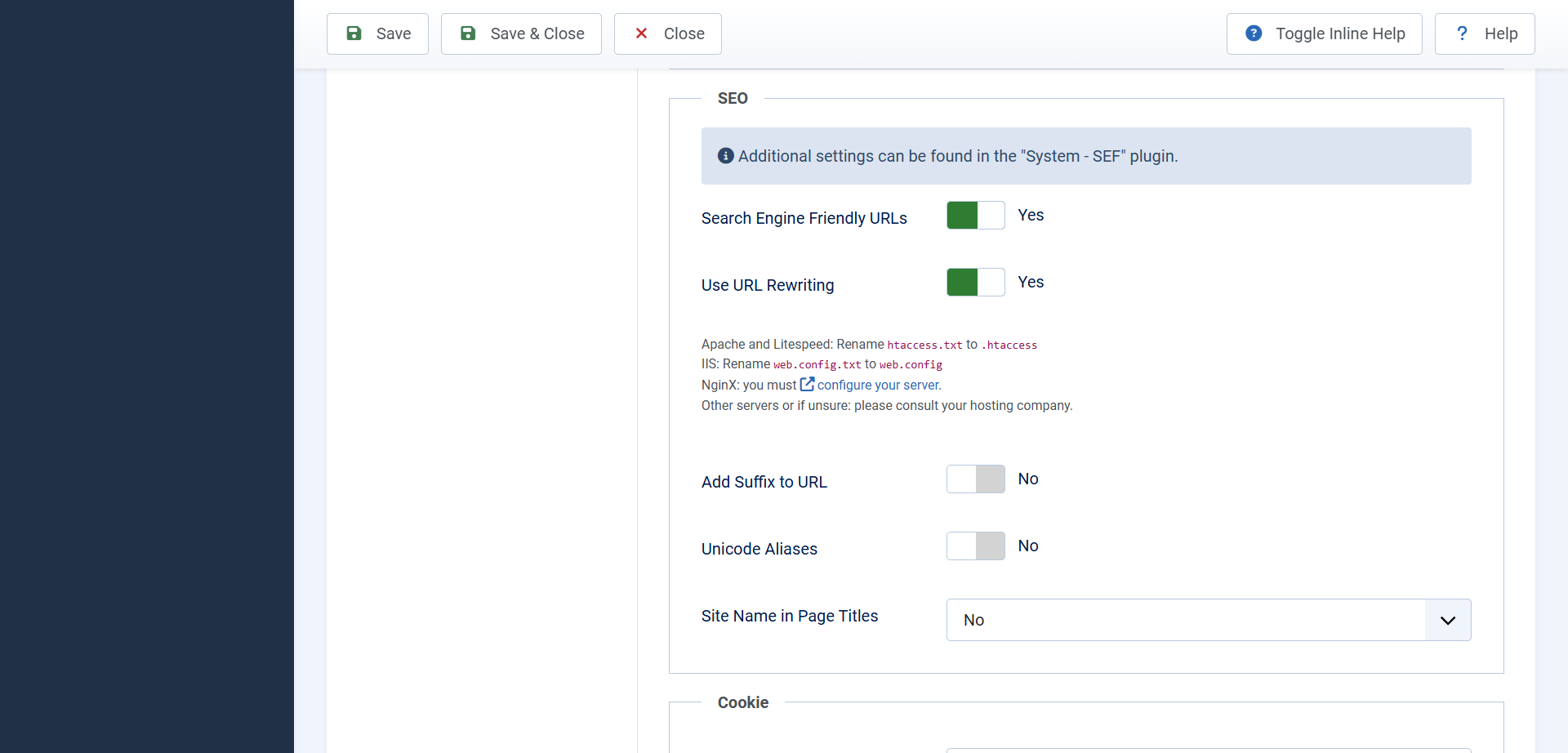
Go to System → Global Configuration → Site and look for the SEO settings:
- Search Engine Friendly URLs — set to Yes. This is the one that matters.
- Use URL Rewriting — set to Yes to remove
index.phpfrom your addresses. On Apache servers you must rename the filehtaccess.txtto.htaccessfirst, or your site will stop working. - Adds Suffix to URL — adds
.htmlto the end. Purely a matter of taste.
The difference is immediate. Instead of an address built from numbers, a video page reads as something a person could type out or read aloud, made up of your menu item and the video’s own alias.
Do this before you launch, not after. Turning friendly addresses on changes every address on your site at once. Doing it on a site that search engines have already indexed loses whatever ranking those pages had built up.
Aliases
The Alias field on every video and category is the part of the address that describes the page. Leave it empty and All Video Share builds one from the title, which is almost always what you want.
Where it is worth stepping in is when a title makes for a poor address. A video called “Episode 14 — Part 2 (Final!)” produces something cluttered, and shortening the alias to episode-14-part-2 reads better and works better.
Set the alias once and leave it. Changing it on a page that is already live breaks every existing link to that video — from your own site, from other people’s, and from search results.
Telling Links Which Page to Use
This one is not obvious, but it is worth understanding because it decides what your video addresses actually look like.
When somebody clicks a thumbnail, All Video Share has to send them to a page. If your site has several menu items showing videos, which one should it use? The answer changes the address — and search engines dislike finding the same video at more than one address.
Go to Options → SEO and you will find two settings:
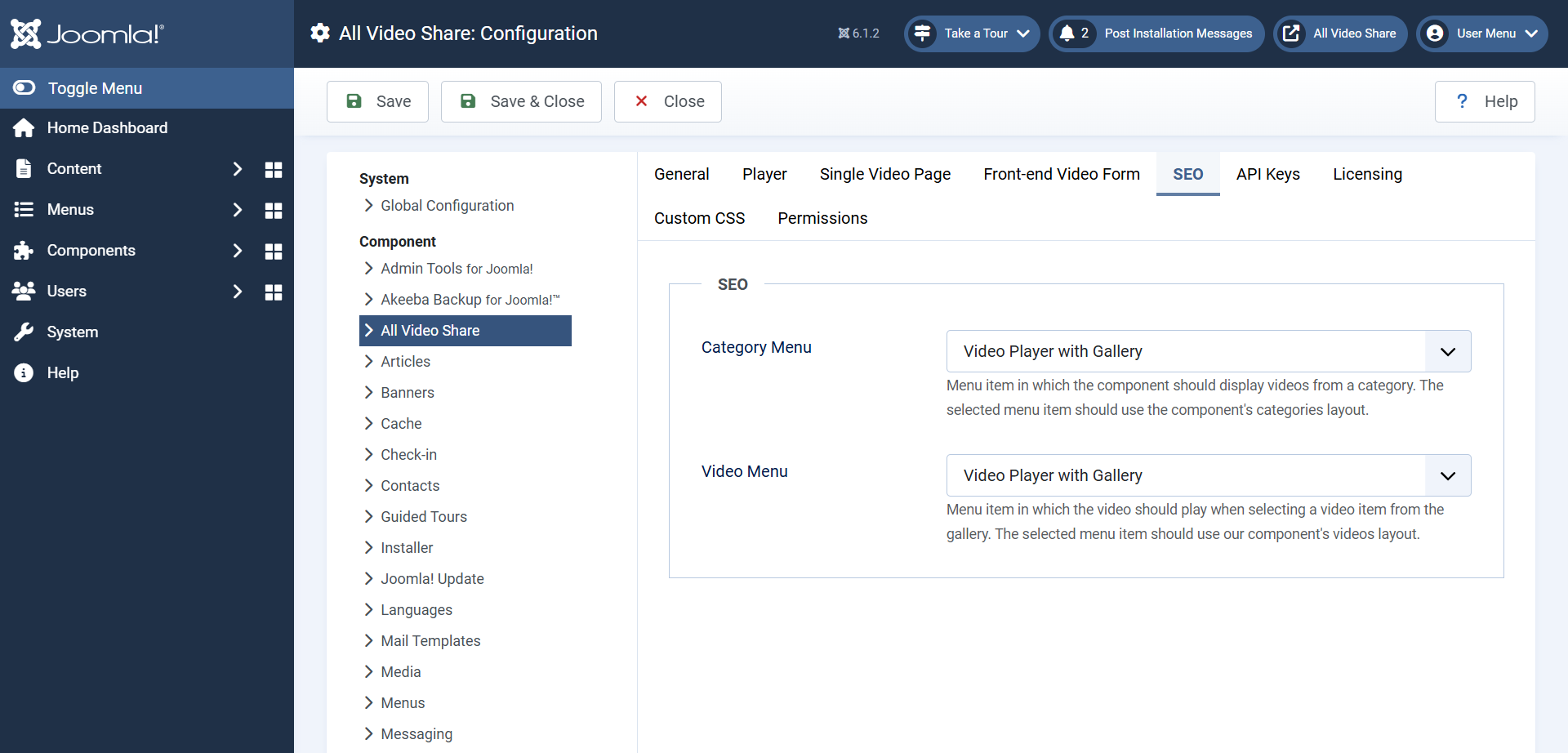
- Video Menu — which page a video opens on. Point it at a menu item using the Videos Layout.
- Category Menu — which page a category opens on. Point it at a menu item using the Categories Layout.
Both are set to Auto by default, which lets All Video Share work it out. That is fine on a simple site with one videos page.
Choose the menu items yourself when your site has several — a general videos page, a members-only page, a featured page. Naming the one you want makes every video address consistent, so each video has exactly one home no matter where a visitor clicked from.
Titles and Descriptions
Every video and category has a Meta Description field, and this is the single most worthwhile thing you can fill in for search engines. It is the sentence or two shown underneath your link in search results — in other words, your advertisement.
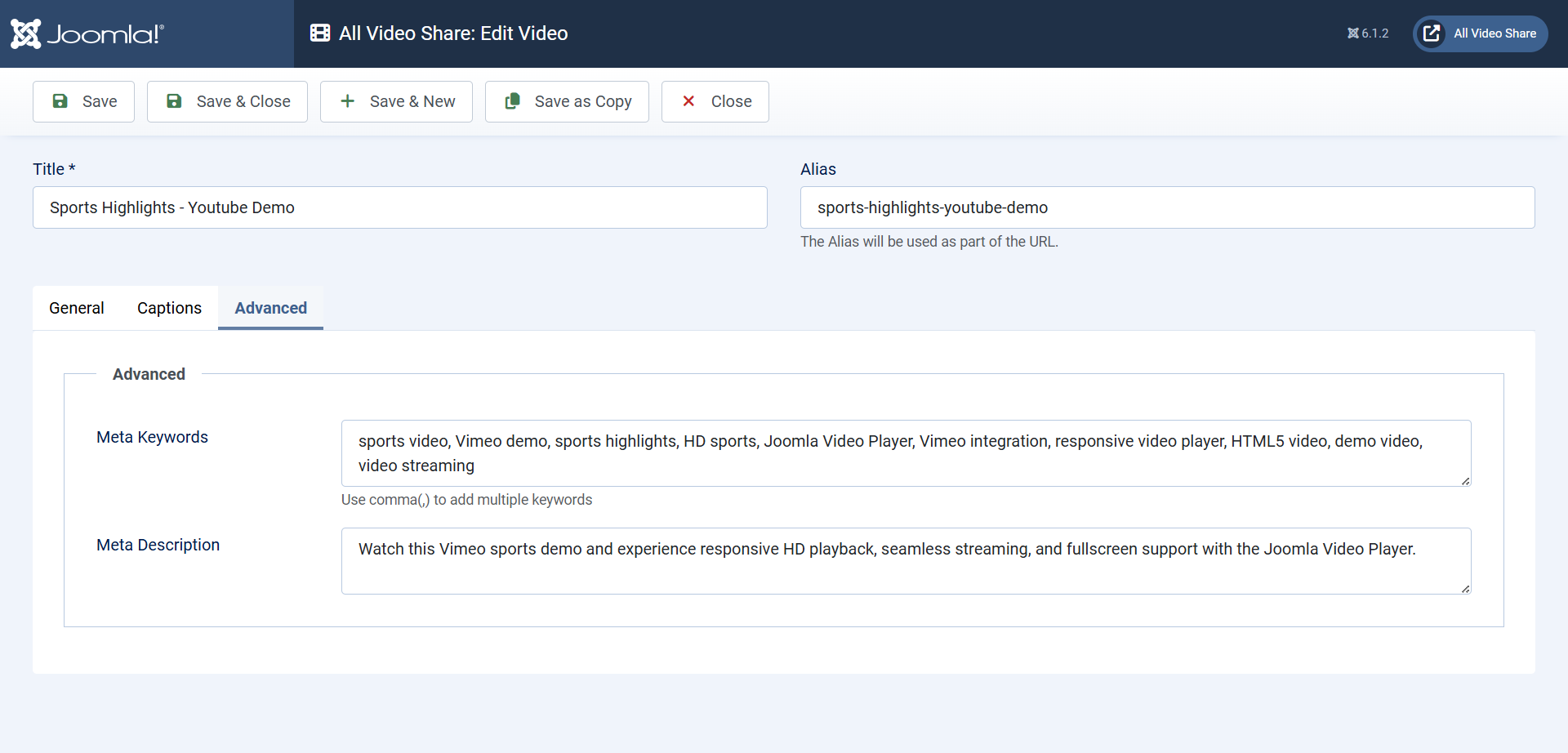
Write around 150 characters, describing what the viewer will actually get. Leave it empty and search engines will pick a fragment of your page themselves, usually badly.
The Meta Keywords field matters much less to search engines these days, but All Video Share uses it for your own site’s search, so filling it in with words people might search for is still worth the effort.
Two more habits that help: give videos titles that describe them plainly rather than cleverly, and write a real description on the video itself. A page with a player and nothing else gives search engines almost nothing to work with, because they cannot watch your video.
Smart Search
Smart Search is Joomla’s own site-wide search. All Video Share comes with a plugin that feeds your videos into it, so a visitor searching your site finds videos alongside articles and everything else.
- Go to System → Manage → Plugins and enable Smart Search — All Video Share.
- Make sure Joomla’s own Content — Smart Search plugin is enabled too.
- Go to Components → Smart Search and click Index.
- Wait for it to finish. Your videos are now searchable.
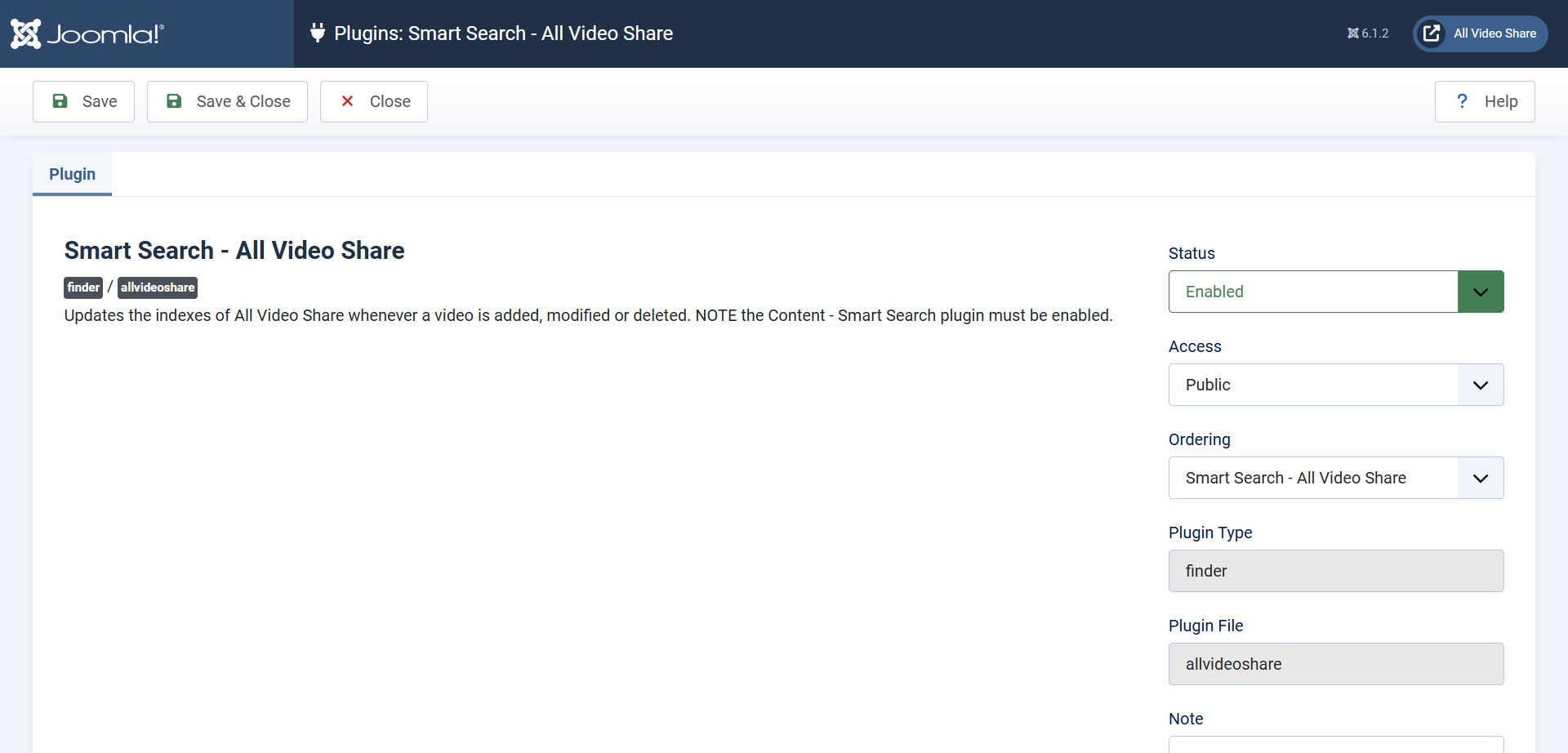
That first index covers everything already in your library. From then on, videos you add or edit are indexed as you save them, so you only need to run it manually again if something looks out of date.
Only published videos are indexed, and Joomla respects your access levels — a members-only video will not turn up in search results for a visitor who could not watch it anyway.
If videos are missing from your results, run the index again. Anything added while the plugin was switched off will not be in there.
The Search Module
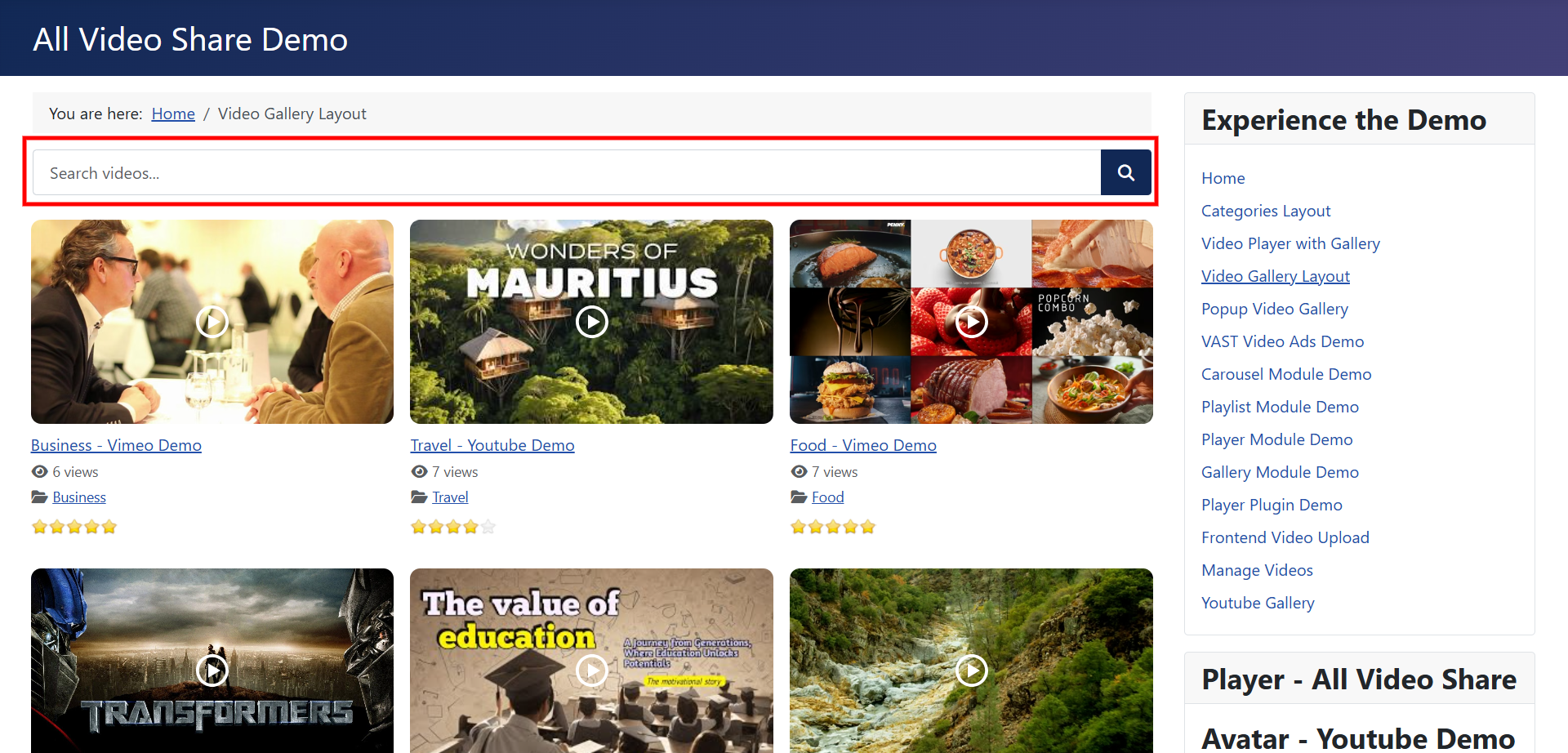
All Video Share also has a search box of its own. The difference is what it looks through: this one searches your videos only, and shows the results as a video gallery rather than a list of links.
A video-only site is usually better served by this. A site where videos are one section among many is usually better served by Smart Search. There is nothing stopping you using both — the video search box on your videos pages, and site-wide search everywhere else.
Setting it up is covered in All Video Share Modules.
RSS Feeds
All Video Share can publish an RSS feed of your videos, so people can follow your library in a feed reader or connect it to another service.
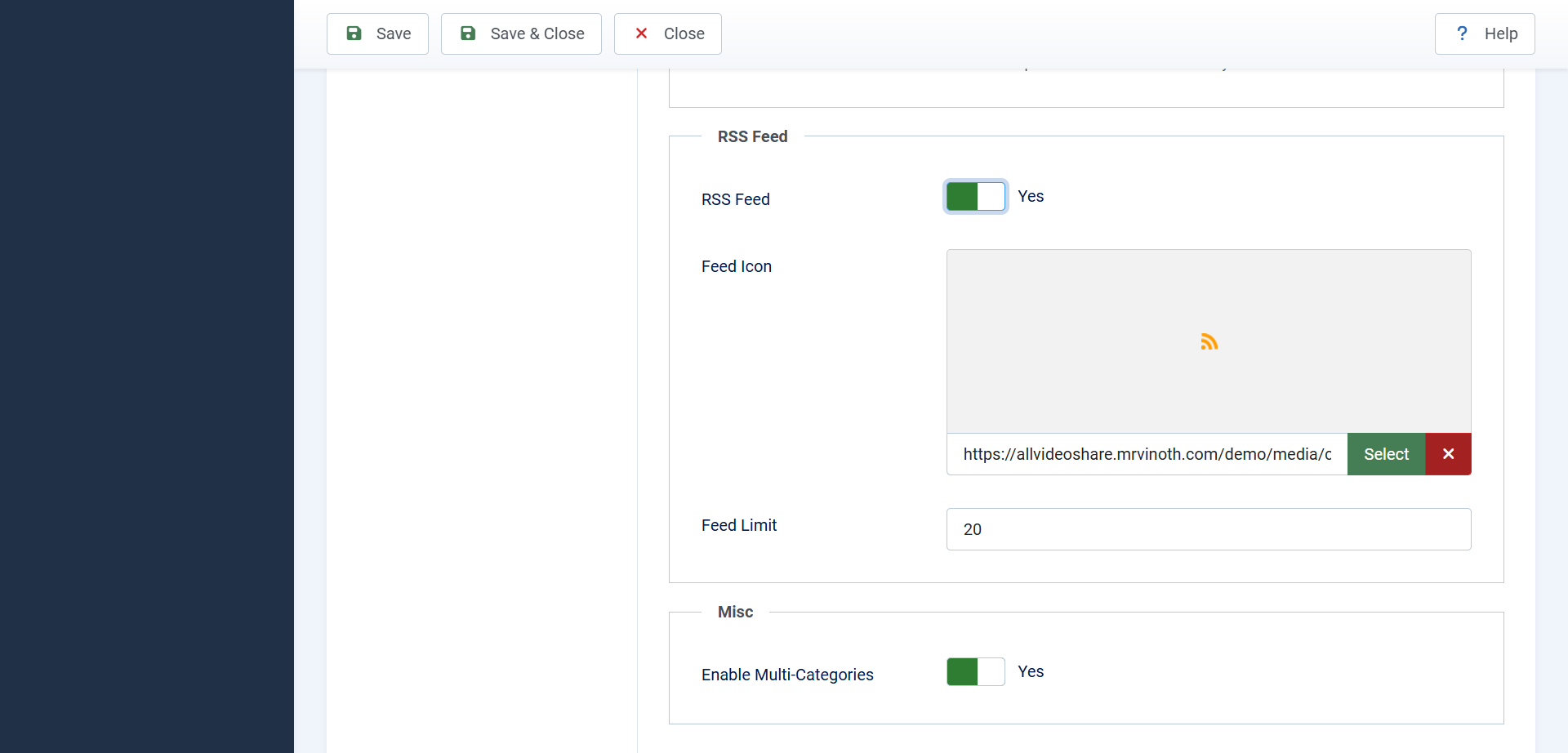
Go to Options → General → RSS Feed:
- RSS Feed — switches feeds on.
- Feed Icon — the small image visitors click to subscribe. Leave it empty to use the standard one.
- Feed Limit — how many videos the feed carries. Twenty is the default and is plenty.
Feeds are produced for your videos pages and for individual categories, so somebody can follow your whole library or just the part they care about.
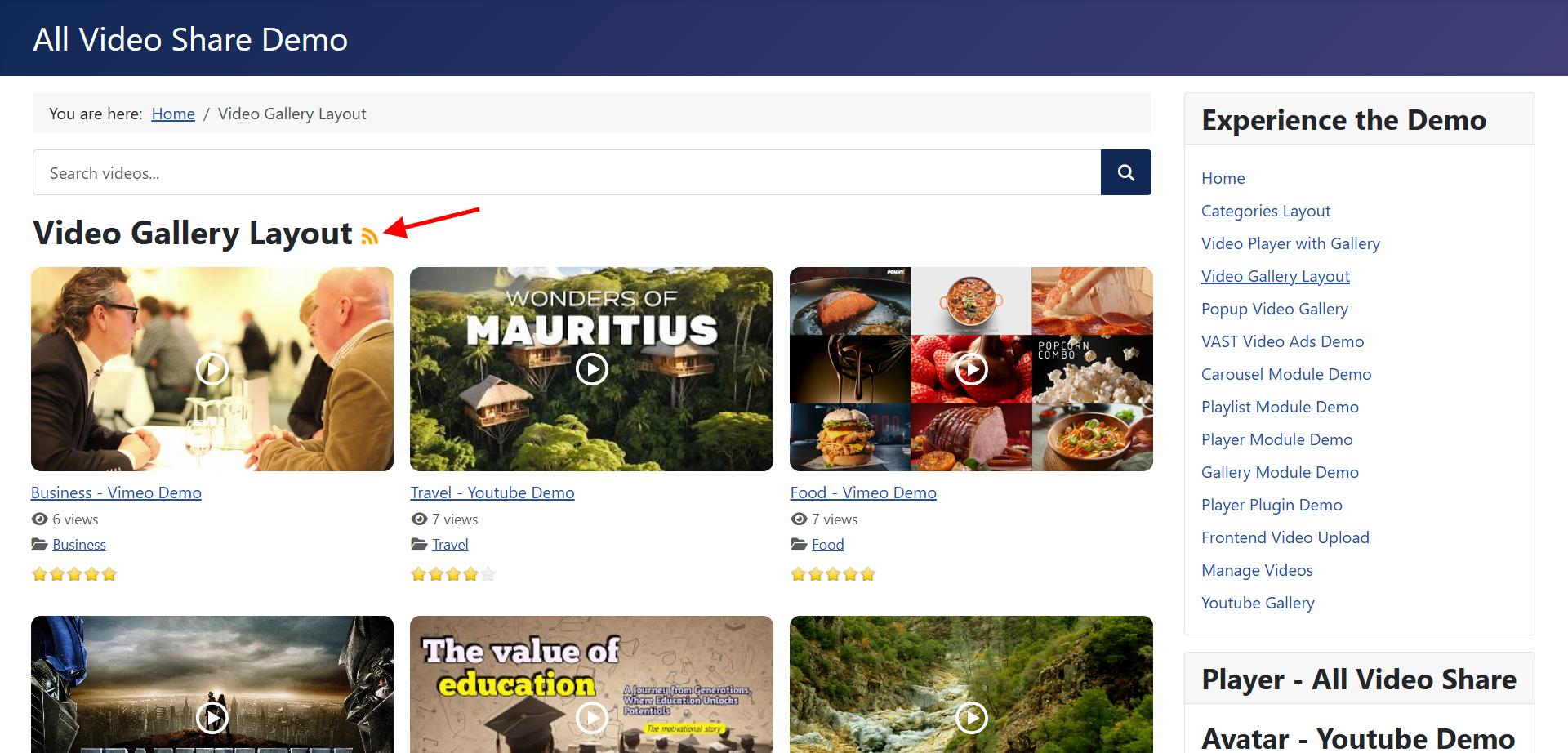
Like most settings, this can be switched on or off per page, so a public gallery can offer a feed while a members-only one does not.